

Data arrives from the location’s main register, automatically. If the store
loses its internet connection, service continues normally on site — the
numbers show up in the backoffice as soon as the connection returns. A short
delay is therefore possible.
Orders
Open Orders & payments → Orders. The list shows orders sent by the main register as they happen: when a check is opened, on every change, and at payment.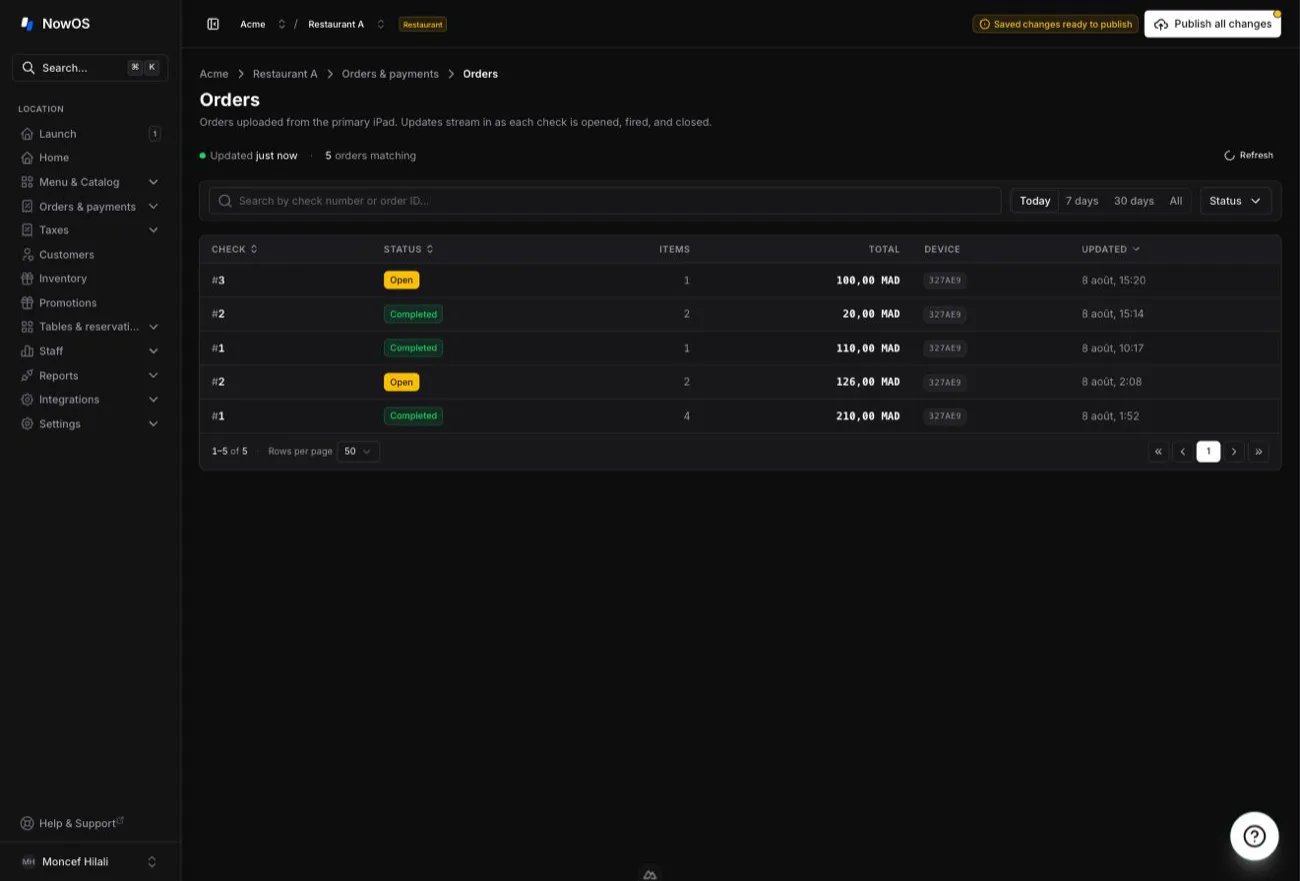
- Check — the check number;
- Status — Open (in progress), Completed (paid), or Cancelled (voided);
- Items — the number of order lines;
- Total — the order amount;
- Device — a short code identifying the main register it came from;
- Updated — the last change.
- type a check number in the Search by check number or order ID… field;
- pick the range: Today (default), 7 days, 30 days, or All;
- filter by status with the Status menu;
- sort by clicking a column header (Check, Status, Updated).
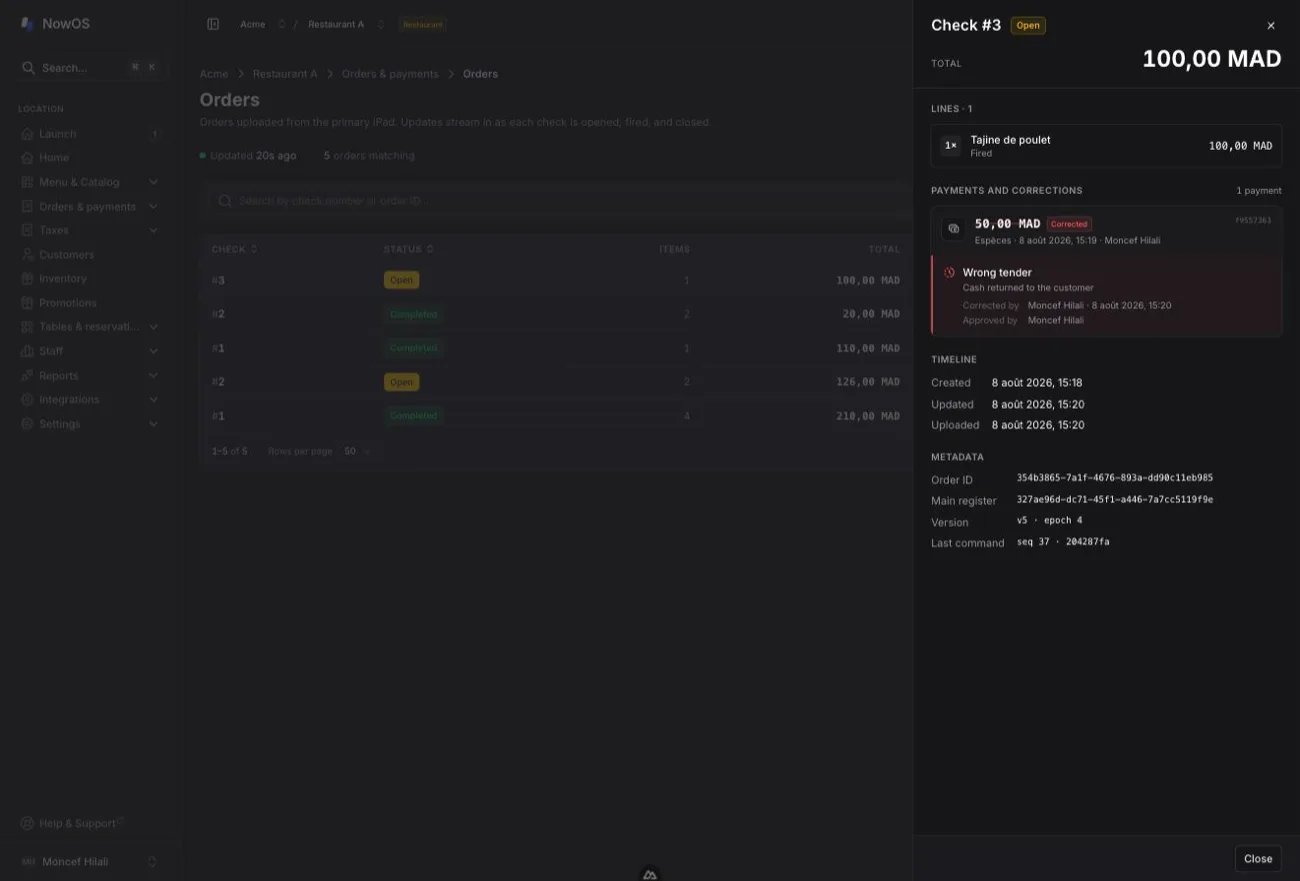
The payment correction history
Open Orders & payments → Payment corrections to review every correction made before a sale closed. This log is read-only. These are not refunds: the original payment remains stored and the correction only removes its effect from the collected amount. Filter by date range, tender, reason, and operator, or search for a check, staff member, or device. Each row shows the check, original amount and tender, decision, operator, approving manager, and source device. Click a row to open its Correction evidence panel. It shows:- the original payment and who recorded it;
- the reason, details, and resolution — for example Cash returned to the customer or Void confirmed on the external terminal;
- the operator and approving manager;
- the timeline from payment capture to acceptance by the main register and receipt in the cloud;
- technical identifiers useful to support.
A correction made during an internet outage still works on site. It appears in
this log after the main register reconnects to the cloud.
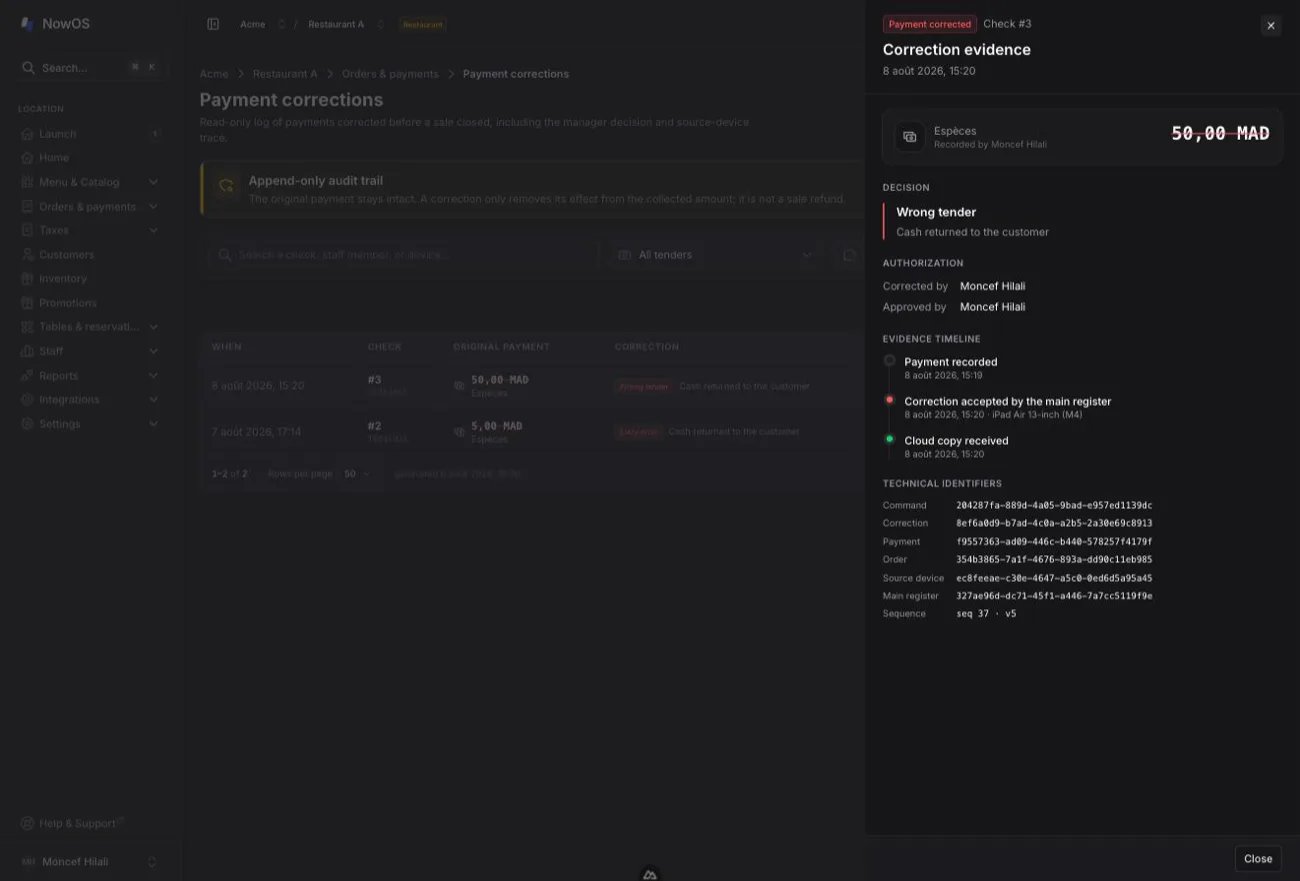
Sales
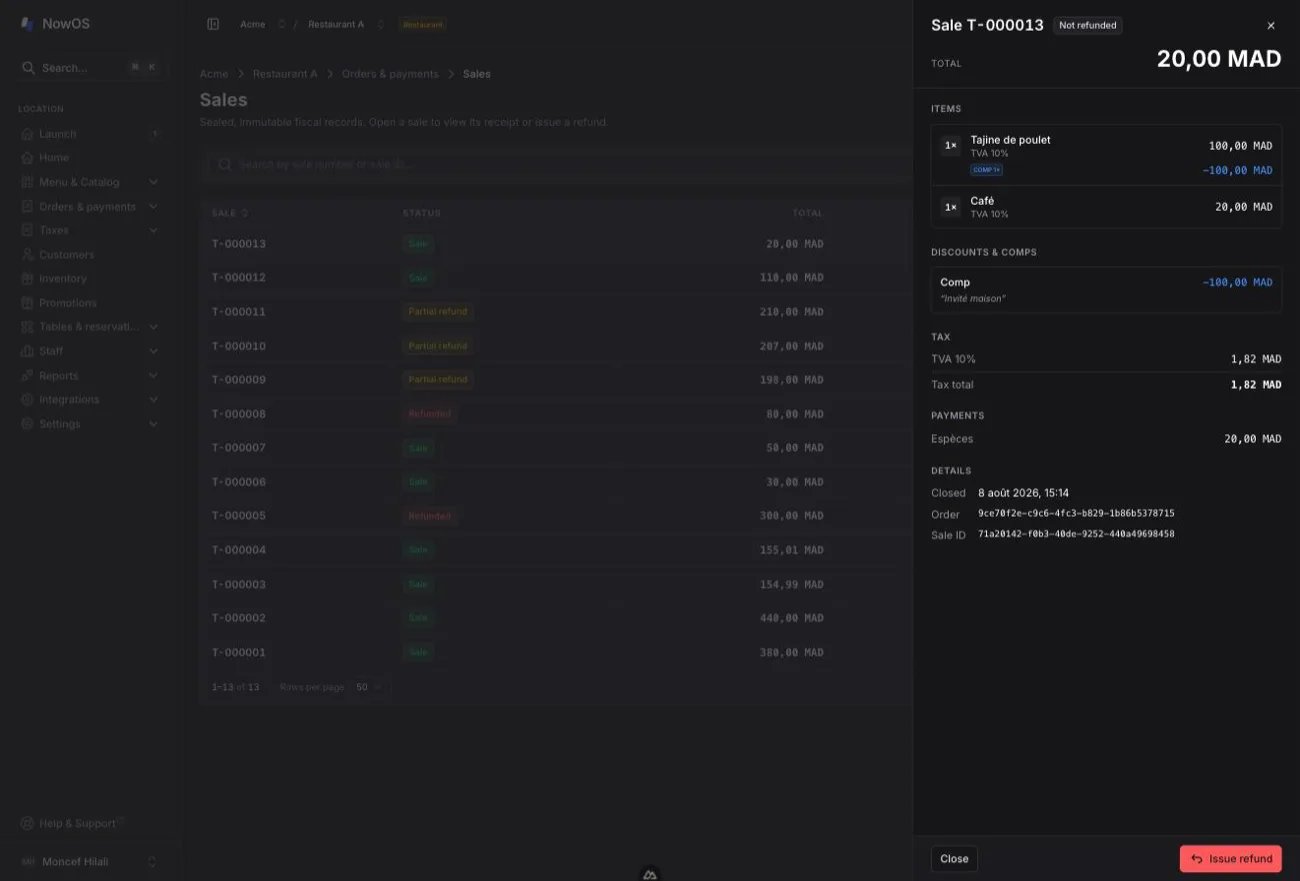
Open Orders & payments → Sales. A sale is the final record produced when a check is fully paid: it is sealed and never changes again. This is where you review a receipt’s details and where you start a refund. Each row shows:- Sale — the sale number;
- Status — Sale, Partial refund, or Refunded;
- Total — the amount collected;
- Refunded — the amount already refunded, if any;
- Closed — the time of payment.
- Items — the items sold at their full price, with their tax; a comped item keeps its line with a negative COMP row underneath, and a discount shows as a negative row with its reason — the total stays the amount actually collected;
- Discounts & comps — every discount or comp applied on this sale, with its reason (see Discount or comp);
- Tax — the tax breakdown by rate;
- Payments — the payments, under the names of your payment methods (“Cash”, “Card”, “Meal voucher”…), see Payments;
- Refund history — every refund already issued, with its reason;
- the Total, Refunded, and Net amounts at the top of the panel.
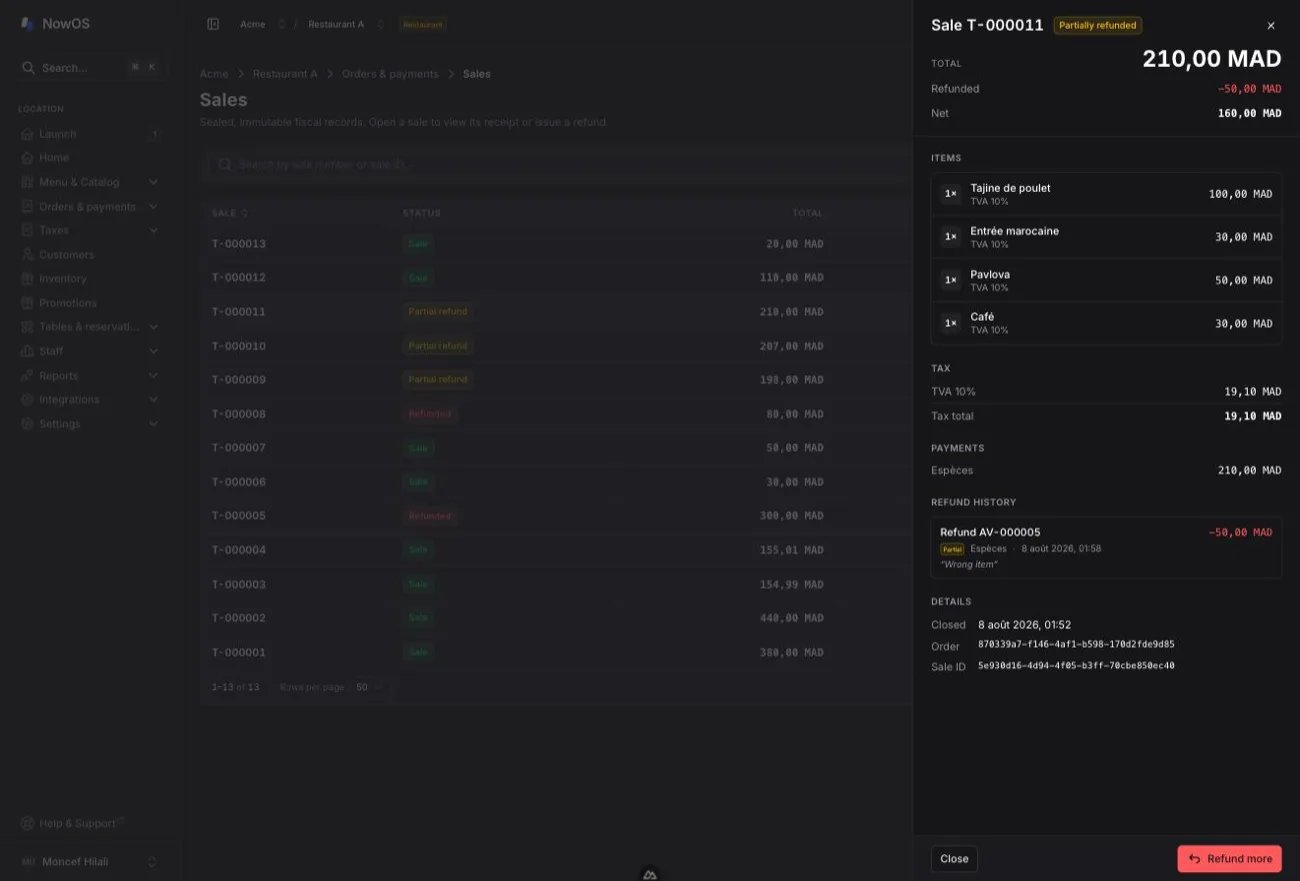
Refunding from the backoffice
You can issue a refund without going through the register — useful remotely, or after the fact. The refund creates a new record: the original sale is never changed.1
Open the sale
In Sales, click the sale, then Issue refund (or Refund more if it has already been partially refunded).
2
Choose what to refund
- Full refund — everything still refundable on the sale.
- By item — pick items and quantities with the − / + buttons (or All for the whole line). Quantities already refunded are shown and cannot be refunded twice.
3
Set the tender and the reason
- Refund to — your configured payment methods. Defaults to the original tender; picking a different one (for example handing cash back on a card payment) asks for an override reason — it is written on the credit note.
- Reason — required: Wrong item, Quality, Returned, or Other.
- Details — your own words; required when the reason is Other.
- Return items to stock — for a stock-tracked product (retail mode), leave it on when the customer brings the goods back; turn it off when they are damaged or kept.
4
Confirm
The refund total, tax included, shows at the bottom. Click Refund followed by the amount to confirm.If a free-amount refund was already issued at the register for this sale, less money may be left than items: the backoffice then warns you that the selection exceeds what is still refundable, and asks you to reduce the quantities.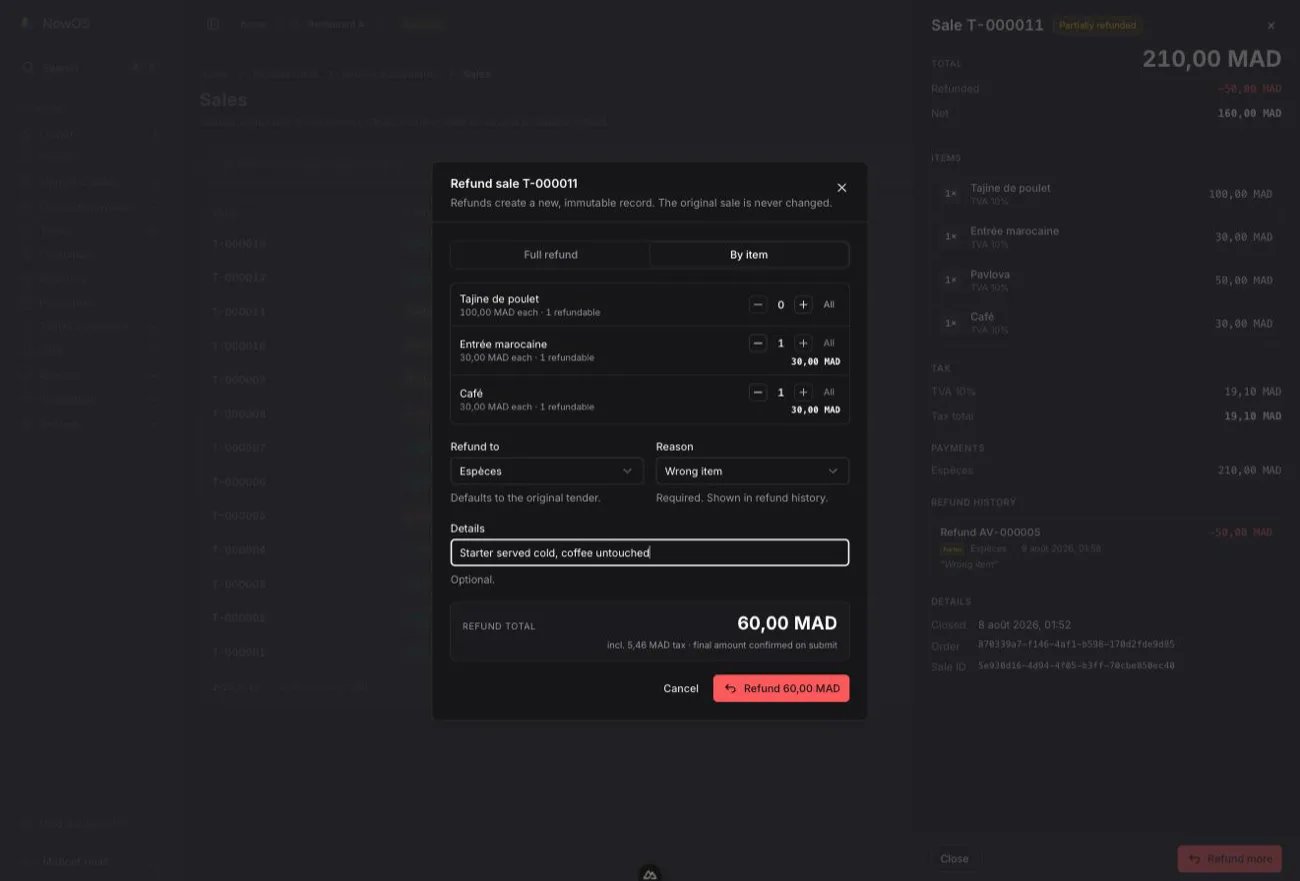
The refund history
Open Orders & payments → Refunds. This is the log of every refund, whether it was issued at the register or from the backoffice. It is read-only: each refund is a final record that points to its original sale. At the top, the total refunded over the range and the number of refunds. In the list: the refund number and its sale, the scope (full or partial), the tender (cash / card), the amount, the reason, and the time. The default range is 30 days.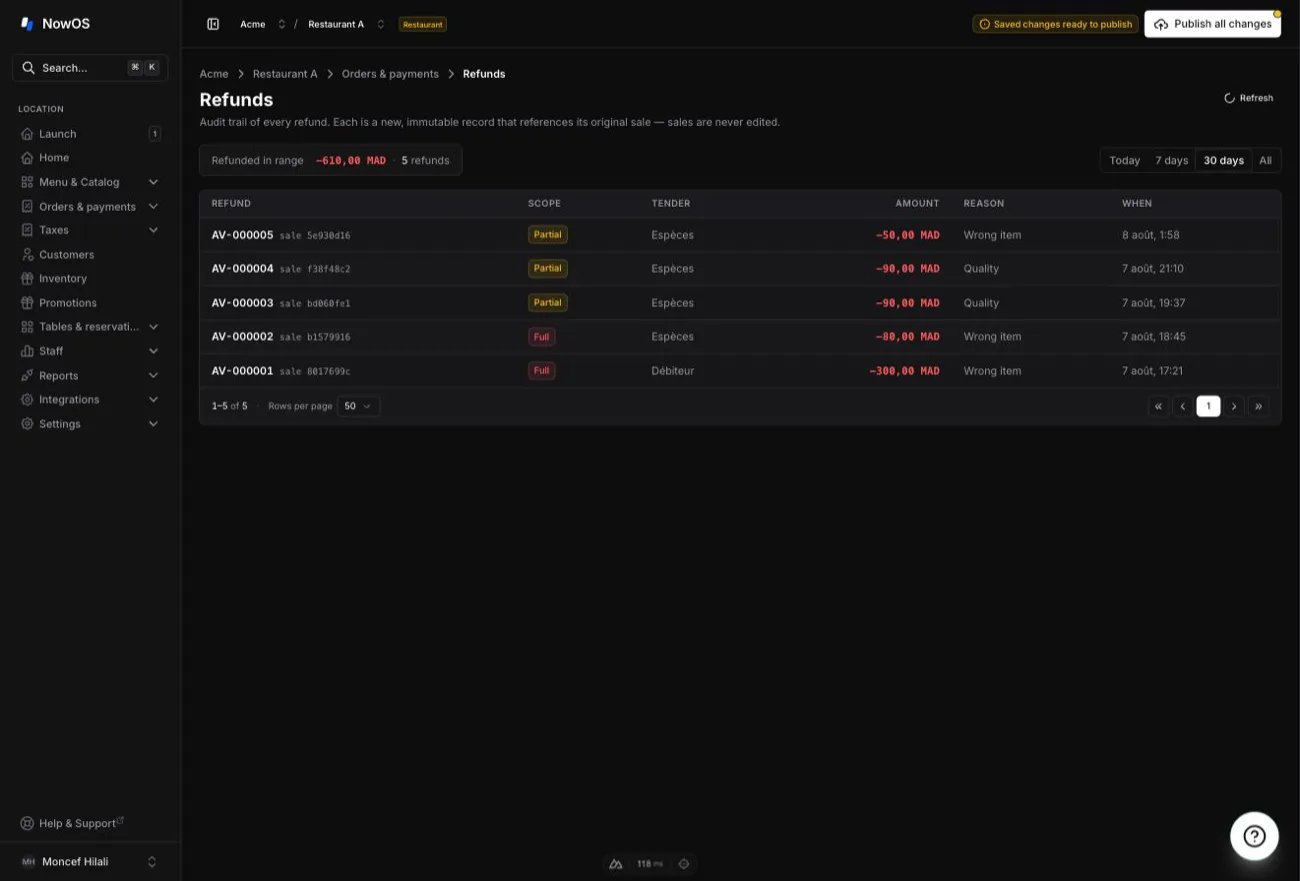
Invoices
Open Orders & payments → Invoices. This is the register of every invoice issued at the POS (see how to issue an invoice). It is read-only: an invoice is a final document, numbered and sealed the moment it is issued — you browse it here, you don’t create it here. In the list: the invoice number (F-000123), the customer when a customer block was filled in, the mode (Aggregated — invoice without details — or Detailed), the original sale, the amount, and the issue date. Search by invoice number or customer name, filter by mode and by date range — the default range is 7 days.
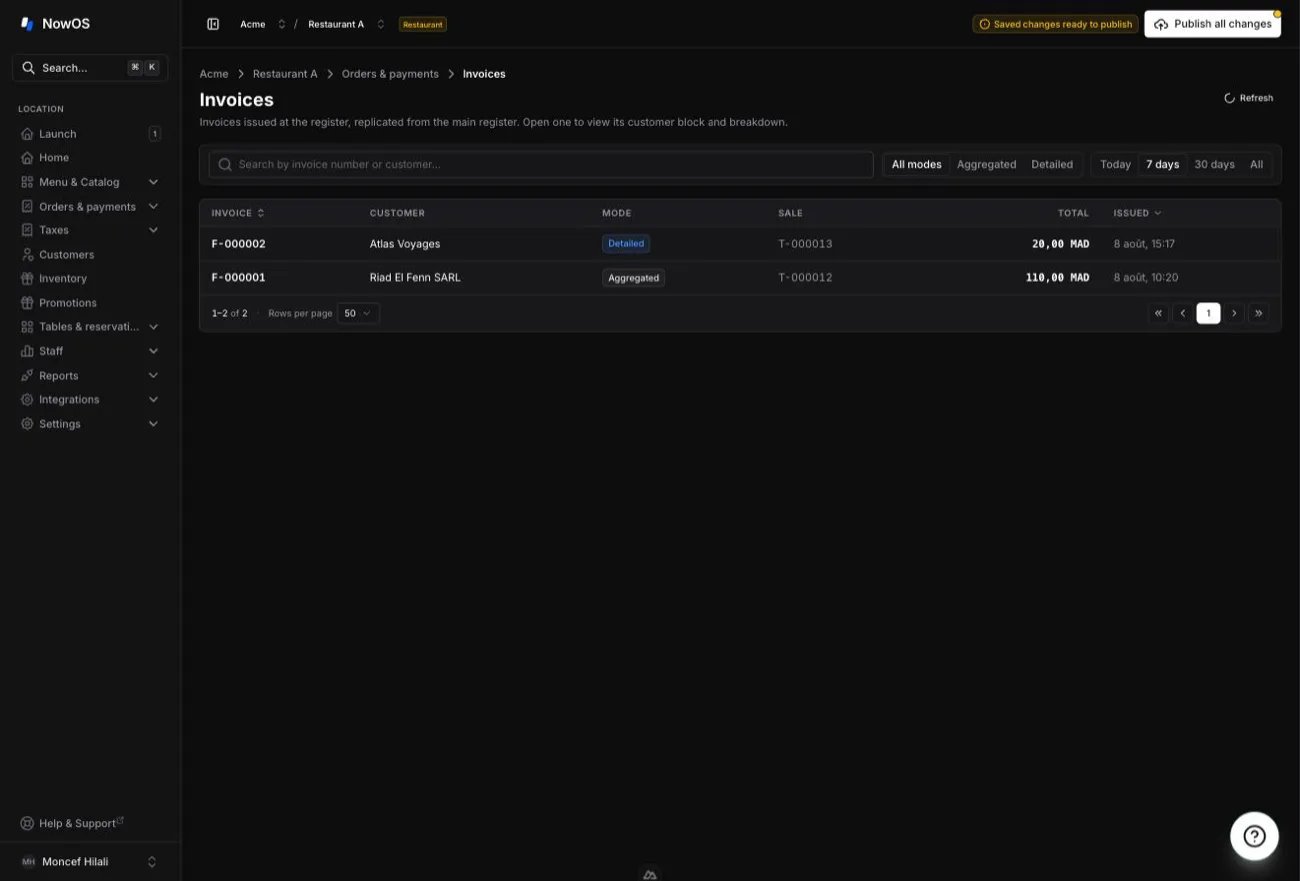
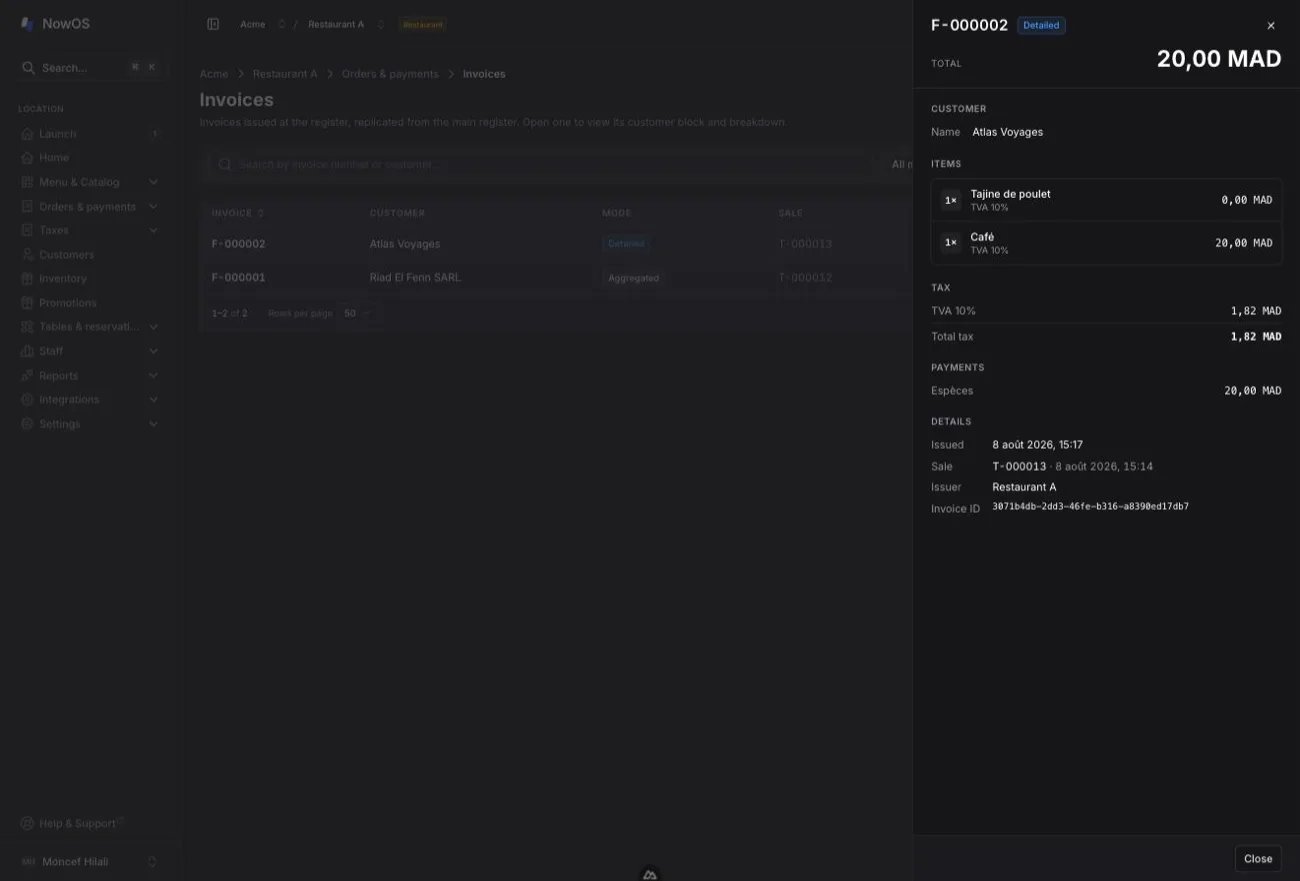
Invoices appear here as soon as the main register syncs with the cloud. An
invoice issued while offline arrives once the network is back.