

On screen, the page is titled Primary iPad — it is the Devices page of
the Settings menu.
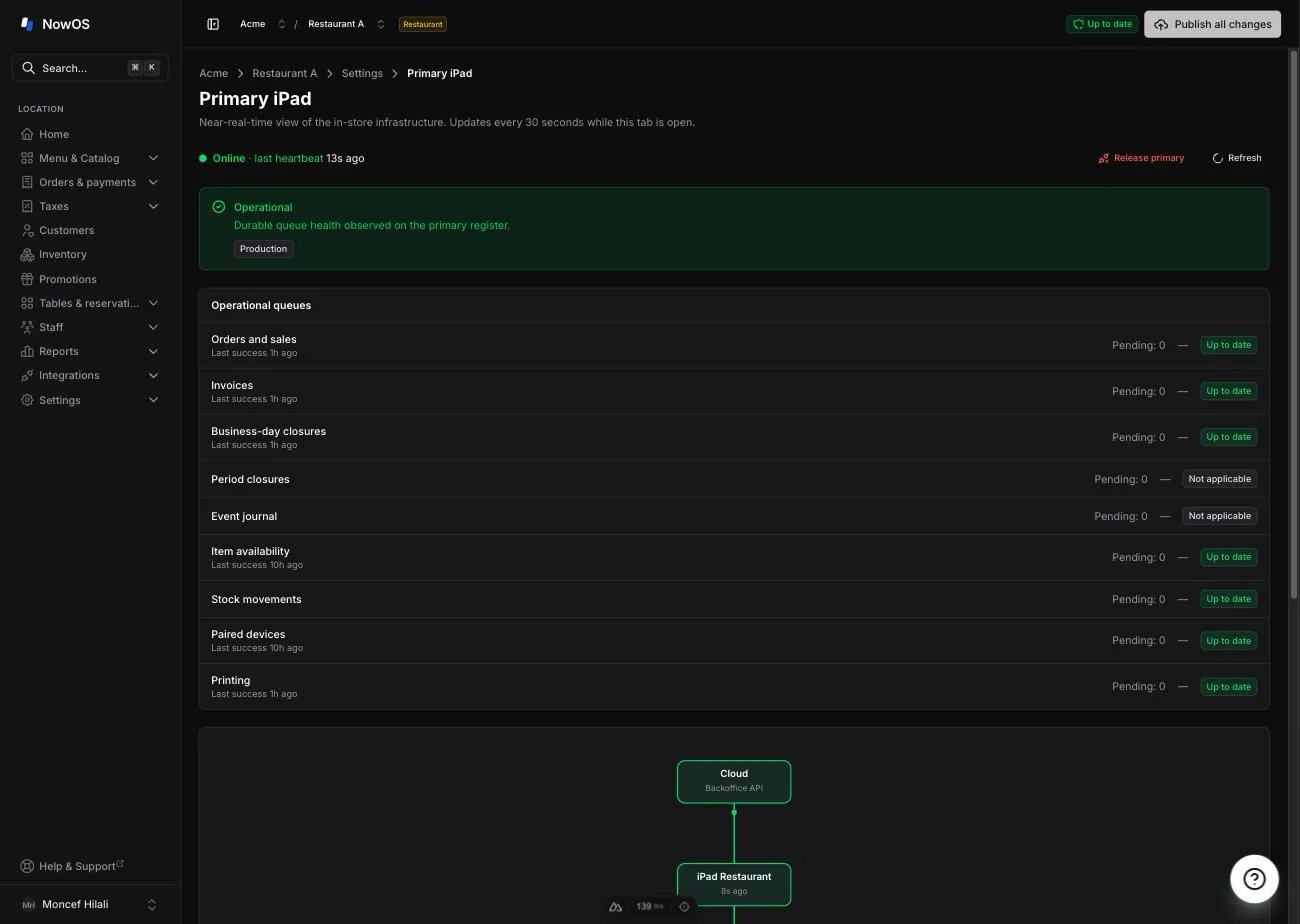
Main register status
The main register regularly sends a sign of life to the cloud whenever it has internet access. At the top of the page, a colored dot and a label summarize its status, followed by the time of the last sign of life (“last heartbeat”):- Online (green) — a sign of life was received less than one minute ago. All good.
- Silent (orange) — no sign of life for one to two and a half minutes. A Primary iPad has been silent banner appears.
- Offline (red) — no sign of life for more than two and a half minutes. A Primary iPad appears offline banner appears.
- No heartbeat yet — the main register has never reported in (it was just claimed).
- No primary iPad claimed — this store has no main register yet.
Silent or Offline does not mean the store has stopped. This page
reflects what the cloud knows: if the store’s internet is down, the main
register stops sending signs of life but service continues normally on the
local network — see Connectivity. In that case, the
device connection states shown below may be stale.
Operational health and queues
The second banner does more than check whether the iPad answers. It summarizes whether its durable queues are actually draining: orders and sales, closures, availability, stock, paired devices and printing. France-only fiscal queues show as Not applicable in Morocco.- Operational — no queue is delayed and local storage is responding.
- Delay detected — a queue is taking longer than expected or several attempts have failed.
- Action required — a queue is blocked, a print outcome is uncertain, or the local database is no longer writable.
- Operational state unknown — facts are missing, invalid or stale. This is never presented as green.
- Training mode — facts come from the training space and do not count as live-service health.
The overview
When the store has a main register, the page shows a diagram of the store — the main register in the center, linked to each paired device — followed by four summary cards:- Reference data — the version of the published menu and settings the main register is using, and when it last synced. Handy for checking that a recent publish has arrived — see Menu.
- Live orders — how many live order connections the main register sees right now. Pairing is shown separately in the diagram and table.
- Pending sync — pending device updates. Every other queue is detailed in Operational queues.
- Uptime — how long the app has been running uninterrupted on the main register.
The Paired devices table
The Paired devices section lists every paired secondary device:- Device — the name given to the device when it was paired.
- Model — the iPad model.
- App — the installed NowOS app version.
- Paired — when the device was paired.
- Last seen — its last known activity.
- Connection — whether the device is currently receiving live order updates from the main register: Connected (with since when), Offline, or Unknown when the information is not available.
Designating the main register
At the bottom, the Claim a primary iPad card (or Re-claim this location if a main register already exists) is where you designate the store’s main register.1
Generate the token
Click Generate claim token. The Claim token window shows a
one-time QR code, valid for 5 minutes, with its expiry time and the
location it belongs to.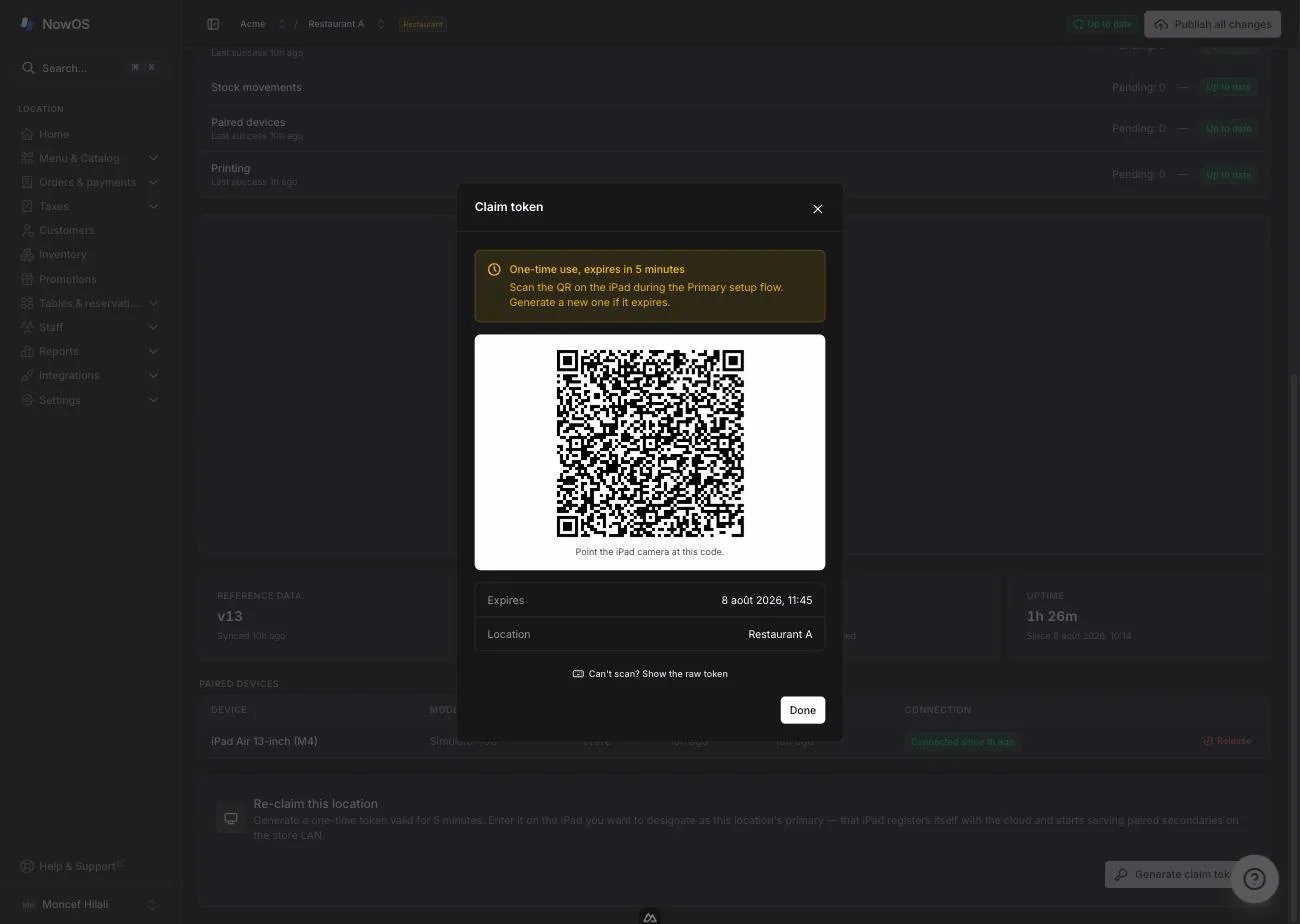
2
Scan it on the iPad
On the iPad that will become the main register, scan the QR code during
setup. Can’t scan? Click Can’t scan? Show the raw token, then
Copy token, and enter the token on the iPad.
Releasing a device
A secondary device
On its row in the Paired devices table, click Release. The Release paired device window recaps the device and its last activity; confirm with Release device. The device signs out on its next sync and will need to be re-paired on site to serve again.The main register
At the top of the page, click Release primary, then confirm in the Release primary iPad window.Going further
- The main register’s day-to-day role: The main register.
- What devices see during an outage: Connectivity.