

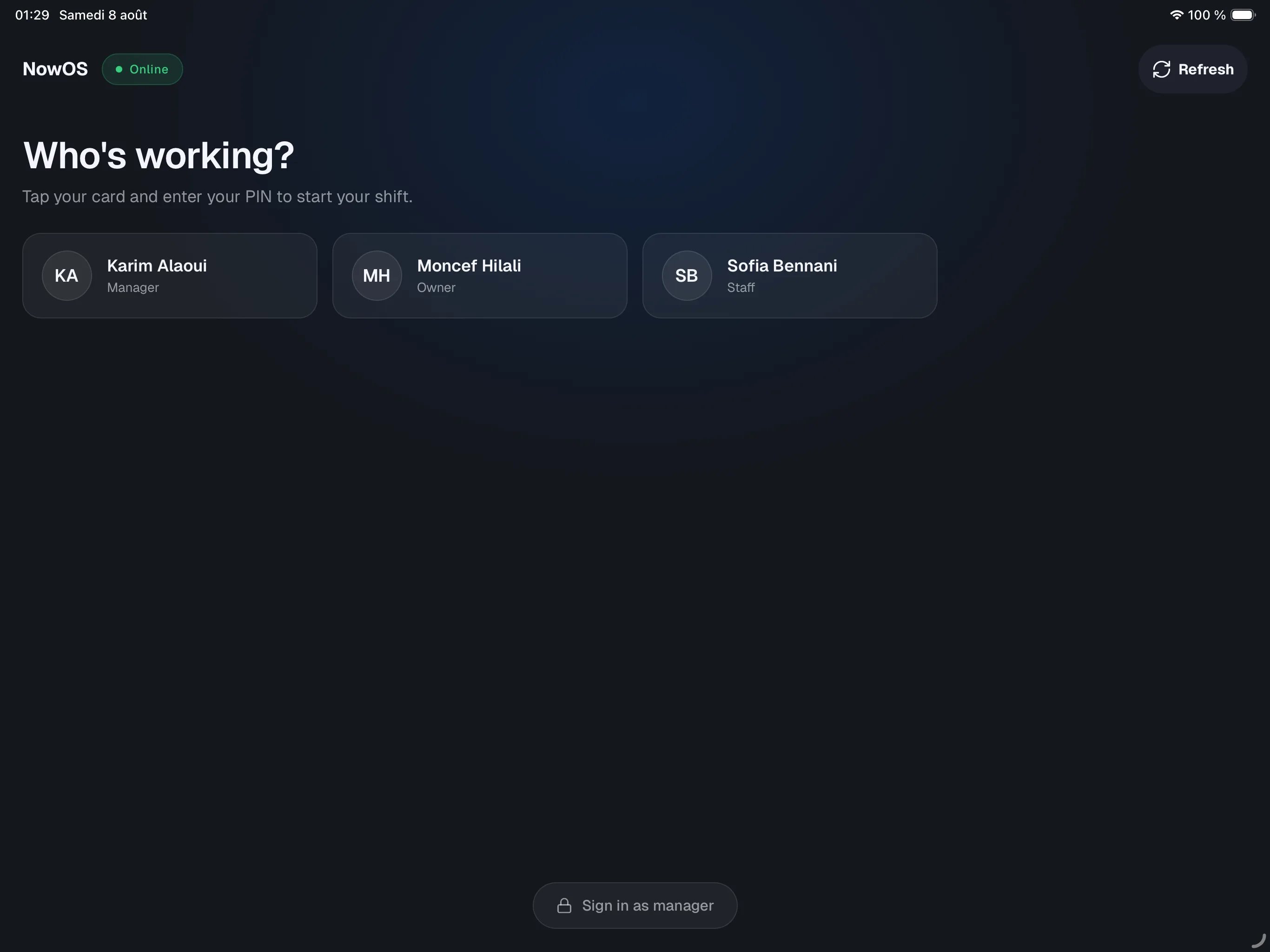
Who appears in the roster
The Who’s working? screen lists every team member added to your store in the backoffice — servers, cashiers, managers, and owners. Each card shows the person’s name and role. You add or remove team members from the backoffice, in the Staff section.A new team member can take up to 30 seconds to appear on the register after
being added in the backoffice. The list updates automatically — no need to
restart the app.
Signing in
1
Tap your card
On the Who’s working? screen, tap the card with your name. The PIN
screen takes over, showing your name and the message Enter your PIN to
open the register.
2
Enter your PIN
Type your code on the keypad. Sign-in confirms automatically as soon as
you enter the last digit — there is no confirm button. Staff members have
a 4-digit PIN; managers and owners a 6-digit one.
3
You're on the register
The selling screen opens right away. On the first sign-in of the day, the
register may prompt you for start of day.
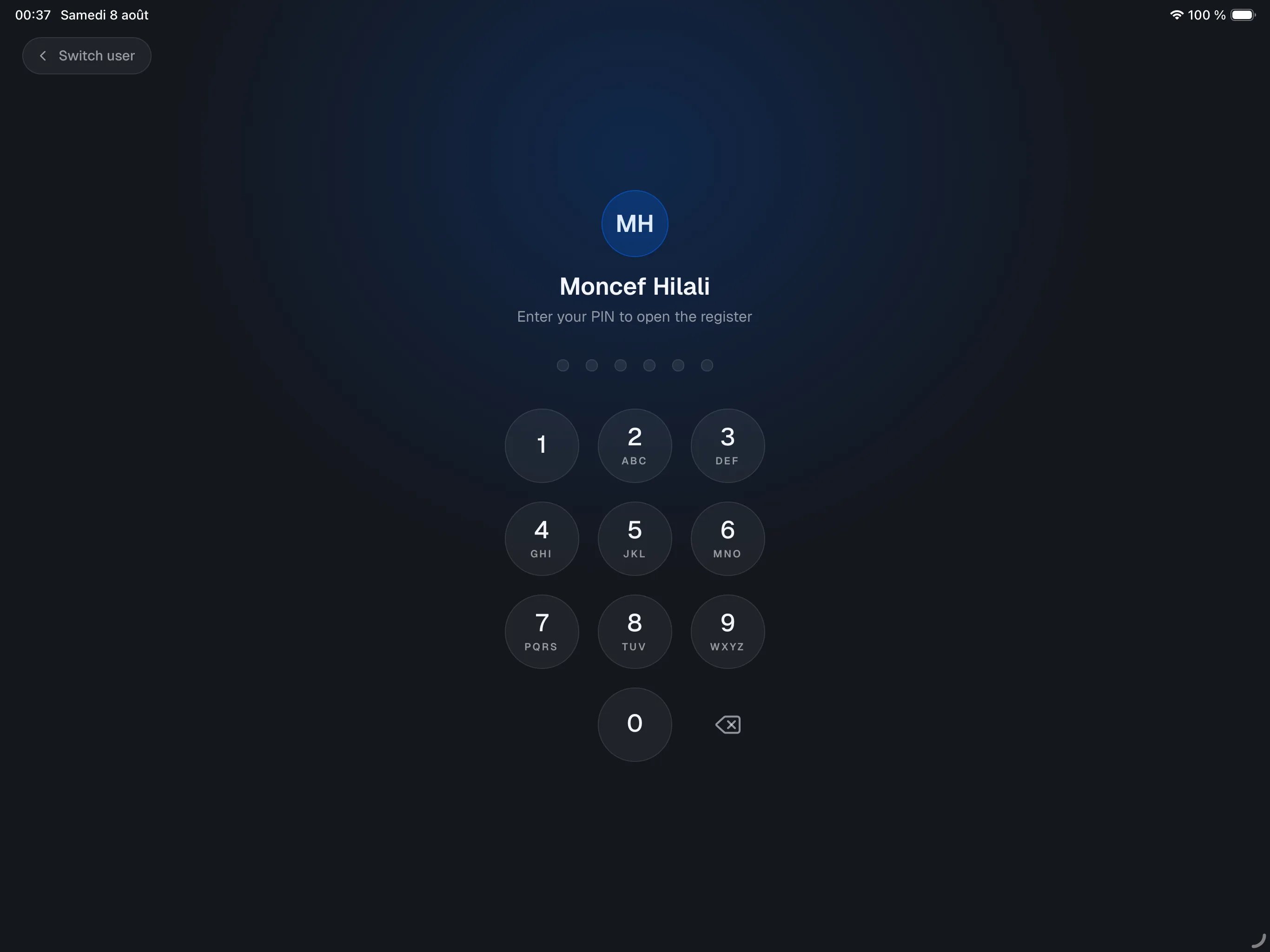
Signing in as a manager
At the bottom of the roster screen, the Sign in as manager button opens a Manager sign-in window listing only manager and owner accounts. Tap your account, then enter your 6-digit PIN.Switching users
- From the PIN screen, tap Switch user at the top left (or swipe from the left edge) to go back to the roster.
- Once signed in, tap Log out at the top right of the selling screen to hand over. The register returns to the roster, ready for the next person.
Automatic lock
After 10 minutes without interaction, the register locks itself and asks for a PIN again. This is intentional: an unattended register should not stay open under someone’s name.Locking does not delete anything. Sign back in and you find the register
exactly as it was.
If the register can’t find the main register
The roster is served by your store’s main register. If the screen shows Connecting to the main register… or Can’t reach the main register:- Check that the main register is powered on, with the NowOS app in the foreground.
- Check that both devices are on the same Wi-Fi network.
- In most cases the register finds the main register again on its own. If not, the Find my main register panel lets you scan again (Rescan) and pick the main register from the list.