

“Unavailable” is a manual, one-off decision. Tracking a product’s stock is different: when its quantity hits zero, it automatically shows Sold out (see Manage stock). The badge therefore tells you at a glance whether it’s a team choice or a real stock rupture.
Mark an item unavailable
1
Press and hold the item
Hold your finger on the item’s tile in the menu. The tile lifts and an Availability menu appears.
2
Tap Mark unavailable
The item is pulled from sale. You’ll see a confirmation at the bottom of the screen.
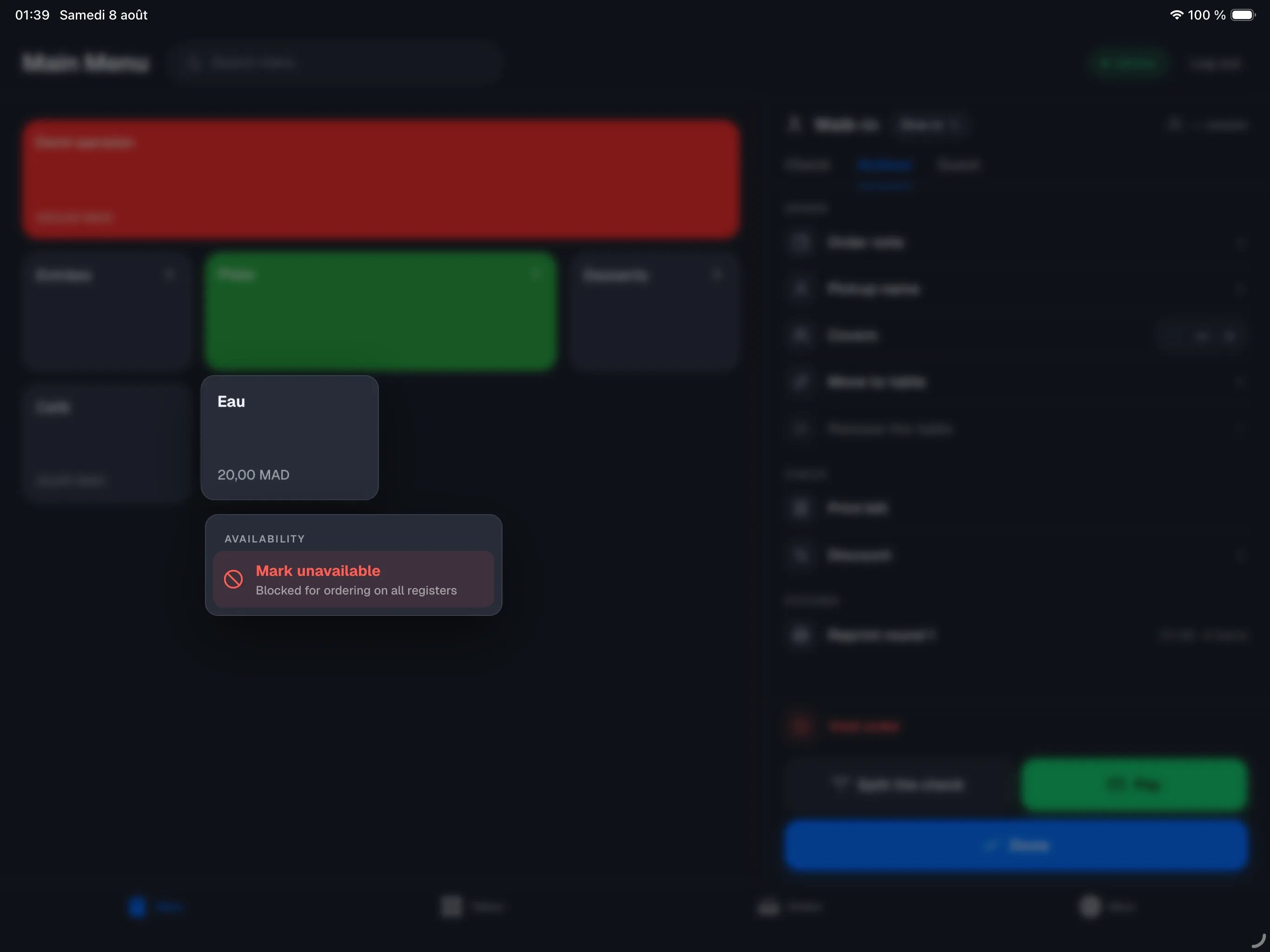
Anyone on the team can mark an item unavailable — no manager code is asked. The person’s name and the time are recorded.
What changes for the team
- An unavailable item can no longer be added to an order, on every register. The kitchen therefore receives no new orders for that item.
- An open order is not affected: if the item is already on it, it stays and is paid normally.
- A single tap on an unavailable tile adds nothing — that’s intended.
Mark an option unavailable
A customization option can run out too (for example “Oat milk”). On an item’s options screen, press and hold the option, then tap Mark unavailable. The option appears greyed out and can no longer be chosen.Put an item back on sale
Press and hold the unavailable item (or option), then tap Restore availability. It’s orderable again immediately on every register.Reset at start of day
At every start of day, all unavailable items become available again automatically. No need to put them back one by one the next morning.To remove an item for good (end of season, taken off the menu), don’t mark it unavailable: edit the menu in the backoffice. “Unavailable” is meant for the current day.