

Some documents only exist in restaurant mode: the bill printed before
payment and kitchen tickets. In retail mode, printing comes down to the
receipt issued at payment (and the refund ticket when applicable).
What prints
The receipt
As soon as a check is fully paid, the receipt prints automatically on the counter printer — whichever device took the payment. The receipt carries your business details (name, address, tax identifiers), configured in the backoffice. To reprint:- right after payment, tap Reprint on the Payment complete screen;
- at any time, find the receipt in the main register’s Receipts tab (search by number, name or amount) and tap Actions → Reprint receipt;
- or reopen the paid order from the Orders list:
- in restaurant mode, open the Actions tab — the RECEIPTS section lists each receipt with its number; tap Reprint receipt;
- in shop mode, open the paid order and tap Actions: the sheet lists Reprint receipt, Issue invoice, and — if the sale was refunded — Reprint refund.
Every reprint is stamped DUPLICATA: the original receipt stays unique —
that’s a legal requirement.
The bill (restaurant mode)
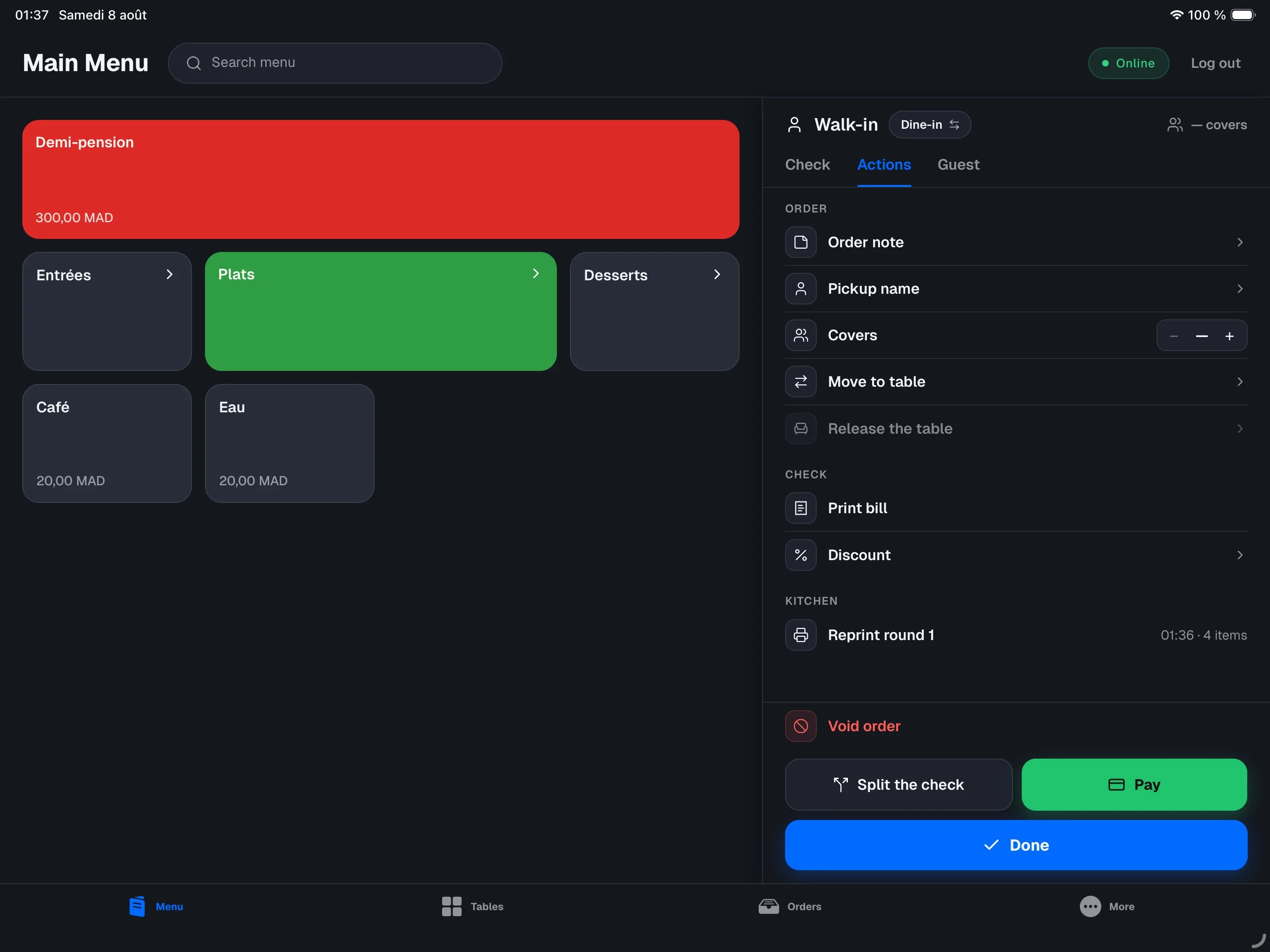
Before payment, you can drop the printed bill at the table: open the order, go to the Actions tab, then tap Print bill in the CHECK section. If the check was split, one slip prints per check. The printed bill is not a sales receipt: it’s stamped “Not a receipt”, with no sale number and no payments. The button stays disabled until at least one item has been sent to the kitchen (it shows Nothing sent yet).Kitchen tickets (restaurant mode)
When you tap Send, each item goes to its preparation station. Depending on the station setup, staff receive it verbally, a kitchen ticket prints, or no preparation is needed. Verbal handoff never raises a printer alert. At a printer-backed station, the ticket only contains items assigned to that station and displays its name, such as HOT KITCHEN or BAR. Modifiers follow their parent item. If a kitchen note is set on the order, it prints as a banner on every round. To reprint a round: Actions tab, KITCHEN section, tap Reprint round 1, Reprint round 2… Each row shows the time it was sent and the item count. If you void an item that was already sent to the kitchen, a void notice prints automatically on the same printer: the kitchen knows to stop making it.The refund ticket
When a refund is confirmed on the register, its ticket prints automatically on the counter printer, stamped REFUND, with negative amounts, the original sale number and the reason. See Refunding a sale.Other documents
- The invoice — tap Issue invoice on the Payment complete screen, or reopen the paid order and go through Actions (the tab in restaurant, the sheet in shop mode): the invoice prints on the counter printer.
- The Z ticket — at close of day, the summary prints on the counter printer.
- Aggregated — a single line. On a dine-in order it reads “N× covers” and the Covers field is carried over from the order: the number set at the table is already filled in, change it only if you are invoicing a different number of guests. On a takeaway or shop sale there are no covers: the single line reads “Goods & services” and no number is asked for.
- Detailed — every item on the sale appears on the invoice.
Manual print actions (Print bill, receipt and kitchen-round reprints) work
from any device: a secondary sends the request to the main register over your
local network, and the register prints. Automatic prints (receipt at payment,
kitchen ticket on send) also work from any device.
Setting up your printers
Setup happens in two steps: you declare the printers in the backoffice, then the main register pulls the list.1
Declare the printer in the backoffice
In the backoffice, open Settings → Printers and add the printer: its
name, its IP address (static, on the store network) and its paper width (80
mm or 58 mm). Also choose the default receipt printer.
2
Set up preparation stations
In restaurant mode, open Settings → Preparation stations. Create each
destination — it may stay empty while you configure the catalogue — then
choose its mode: Verbal handoff, Printer, or No preparation.
Assign every item afterward and check that Unassigned is zero before
service. Keep All registers enabled unless the station should only
receive sends from selected devices.
3
Pull the list on the main register
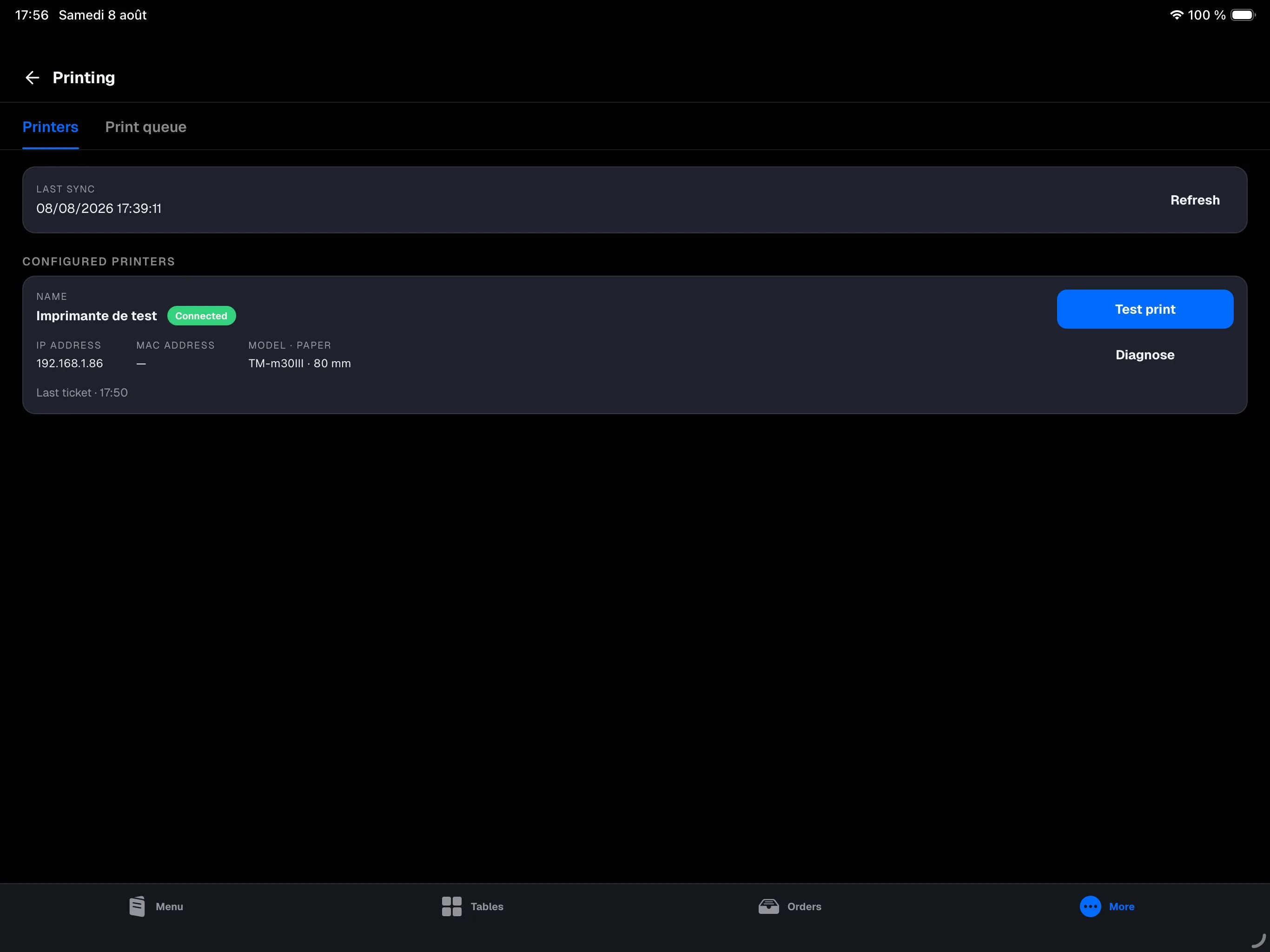
On the main register, open More → Printing (manager sign-in required).
The Printers tab lists each printer with its status (Connected, Failing,
Inactive), IP address, MAC address and paper width. Tap Refresh to pull
the latest configuration.
4
Run a test print
On the printer’s card, tap Test print. A test page comes out within a
few seconds if the connection is good; otherwise the error shows on the
card.
Give each printer a static IP address on your network (a DHCP reservation on
your box or router). If the address changes, the register can no longer find
the printer.
The print queue
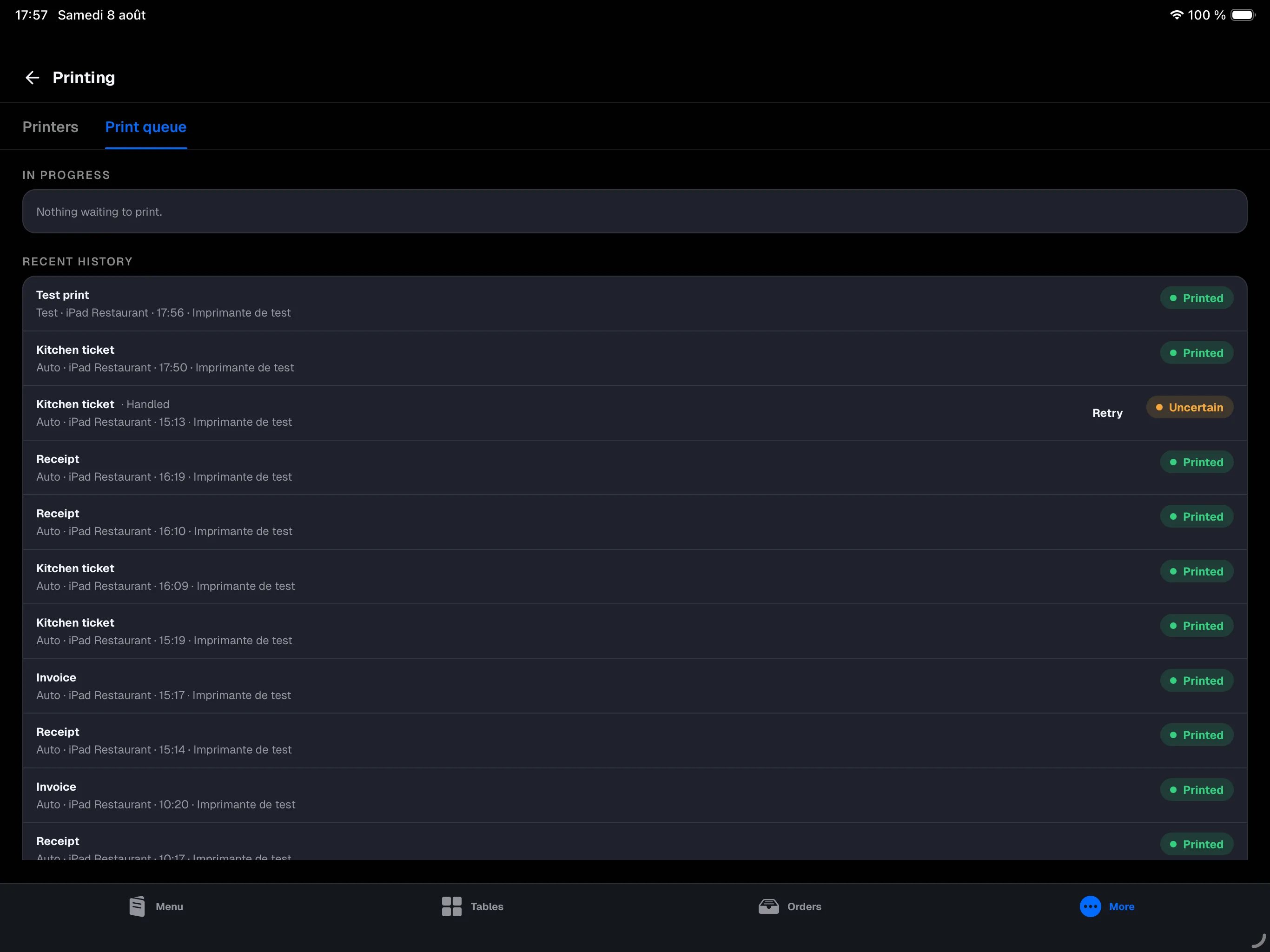
On the main register, the Print queue tab of More → Printing shows everything going through the printers, all printers combined — filter by printer with the chips at the top of the screen:- Needs attention — prints that failed, isolated at the top, with the reason in plain words (out of paper, printer unreachable…), the device that asked for the print, and the time. The actions sit on the right of each card: Retry runs the print again, Dismiss files it without retrying. When the register could not tell whether the sheet came out, it says so: confirm with It came out, or tap Retry otherwise.
- In progress — what is waiting to print, with any scheduled retries.
- Recent history — the latest successful or handled prints. A filed failure can still be retried from the history.
When nothing prints
Check, in order:1
The print queue
Open More → Printing, Print queue tab, on the main register: if the
print failed, it is listed there with the exact reason. Fix the cause, then
tap Retry — no need to look further.
2
The printer itself
Powered on, paper loaded, cover firmly closed. Out of paper or open cover:
the print fails immediately, with no retry.
3
The network
The printer must be on the same network as the main register, at the IP
address declared in the backoffice.
4
The main register
It must be on, with the NowOS app in the foreground: it’s the device that
sends everything to the printers. See The main
register.
5
The configuration
The message No receipt printer configured for this device. means no
printer has that role. For preparation, check the station in the backoffice (Settings →
Preparation stations). Then tap Refresh in the Printers tab of
More → Printing on the main register.
6
The test print
Run Test print from the Printers tab of More → Printing. If it
passes, the connection is good: just trigger the document again (receipt
reprint, Print bill, etc.).
After a transient hiccup (printer rebooting, flaky Wi-Fi), the register
retries automatically for several minutes. No need to trigger the print again
right away: give it time to recover.