

Closing is reserved for managers: sign in with a manager or owner account. It also needs a live link to the main register — if the main register is unreachable, the screen tells you so and the close waits.
Before you close
The Close of day screen shows a BEFORE YOU CLOSE checklist and, on the right, the THIS DAY SO FAR card with the day’s numbers: gross sales, sale count, discounts, tax, cash, card, the opening float, and cash paid in/out.This card counts only the day currently open, from the moment it opened — not the calendar date. If you already closed a service earlier the same day (a lunch, then a dinner), it is sealed under its own Z and no longer appears here. For the whole day’s total, closed services included, open More → Reports.
Gross sales = what customers actually paid, with discounts and comps already taken off. The Discounts and Comps lines just below it recall what was given away — they explain the gap with what was rung up, they are not to be subtracted a second time. Refunds never enter this figure (see Refunds).
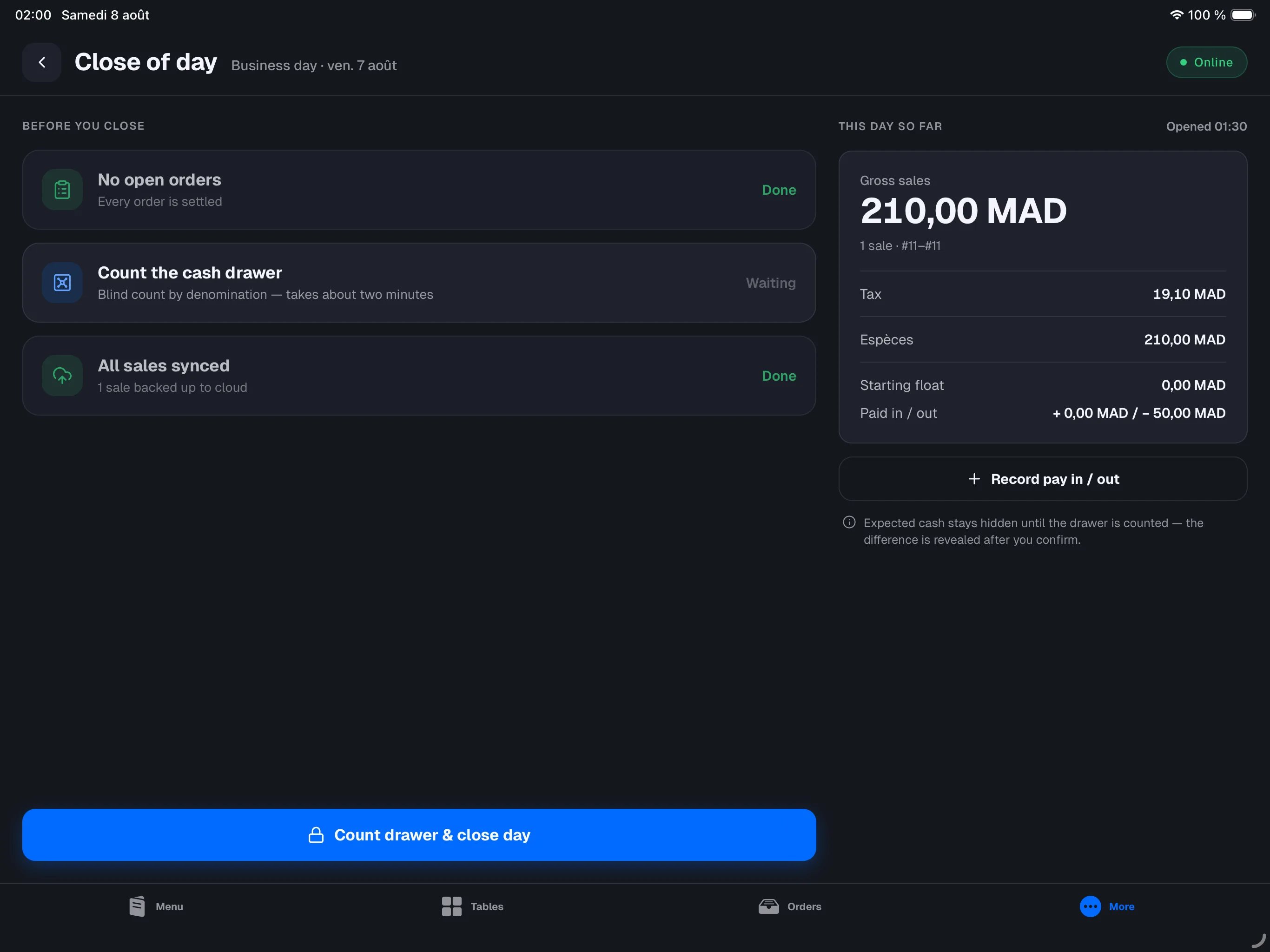
- Open orders. While unpaid orders remain, the Count drawer & close day button stays greyed out, with “Settle the N open orders to continue”. Tap Review to find them in the orders list, then pay them or void them with a reason. The register never settles an order on your behalf.
- The drawer count. That’s the next step — it takes about two minutes.
- Sync. If some sales aren’t backed up to the cloud yet, the register shows it, but it doesn’t block: “Closing is safe — sync resumes automatically”. Sync picks up again on its own.
The expected cash is never shown before the count: that’s the point of a blind count. You count what’s there, and the register reveals the difference afterwards.
Recording a pay in or pay out
If cash entered or left the drawer outside a sale — supplies paid in cash, change top-up, an owner withdrawal — record it before counting. Tap Record pay in / out:1
Choose the direction
Pay in for money going into the drawer, Pay out for money coming out.
2
Enter the amount
Type the amount on the keypad.
3
Give the reason
The Reason field is required — for example “fruit market run” or “change from bank”.
4
Confirm
Tap Record pay in or Record pay out followed by the amount.
When a cash refund is made from the register, the matching pay-out is created for you, with the reason “Refund #N” — see Refunds.
Counting the drawer
Tap Count drawer & close day. The Count cash drawer screen opens: denominations on the left (NOTES and COINS sections), the keypad on the right.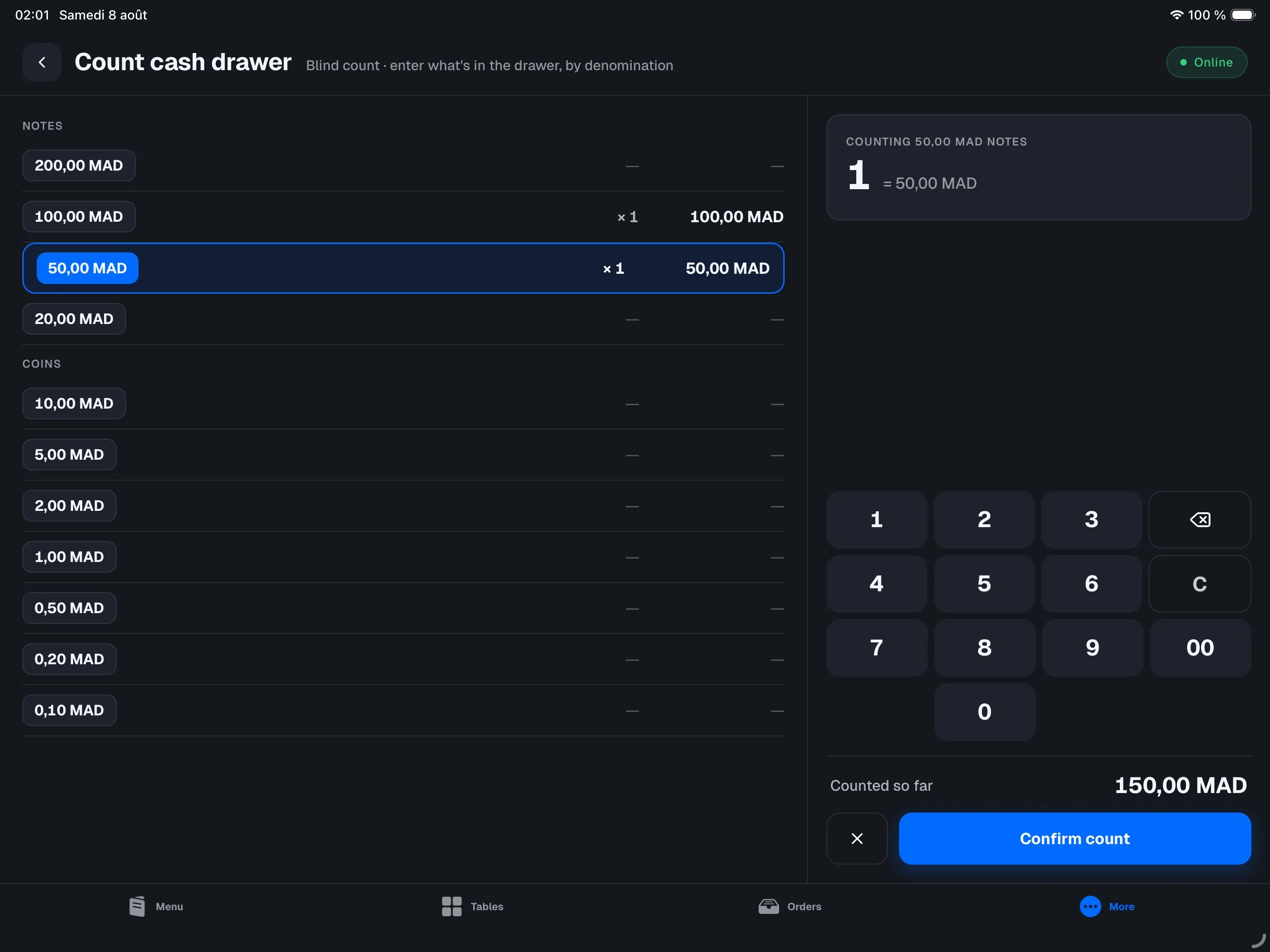
1
Select a denomination
Tap a row, for example the 20 note.
2
Enter the quantity
Type the number of notes or coins on the keypad. The register works out the line subtotal — no mental arithmetic.
3
Move to the next one
Repeat for every denomination in the drawer. The Counted so far total updates at the bottom right.
4
Tap Confirm count
Once the whole drawer is counted, confirm. You can still go back at the next step.
The difference and the seal
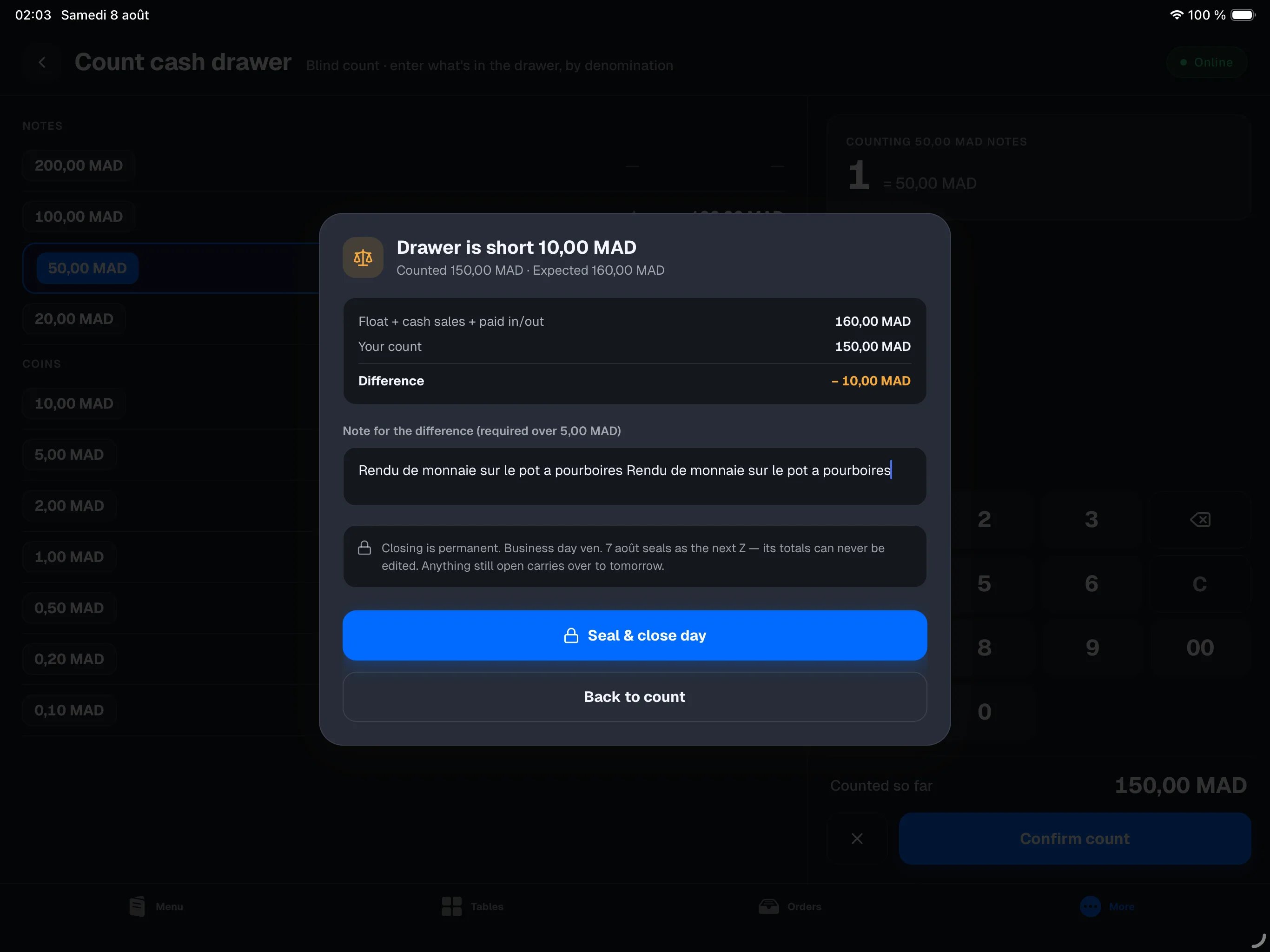
Only now does the register reveal the expected cash and the difference with your count:- Drawer counts exactly right — the count is spot on;
- Drawer is short … — money is missing;
- Drawer is over … — there is too much money.
1
Explain the difference if needed
The Note for the difference field is required when the difference exceeds your location’s threshold (the threshold is shown in the window). Below it, the note is optional.
2
Double-check one last time
If anything feels off, tap Back to count to recount — nothing is sealed yet.
3
Tap Seal & close day
The day is sealed.
The sealed day
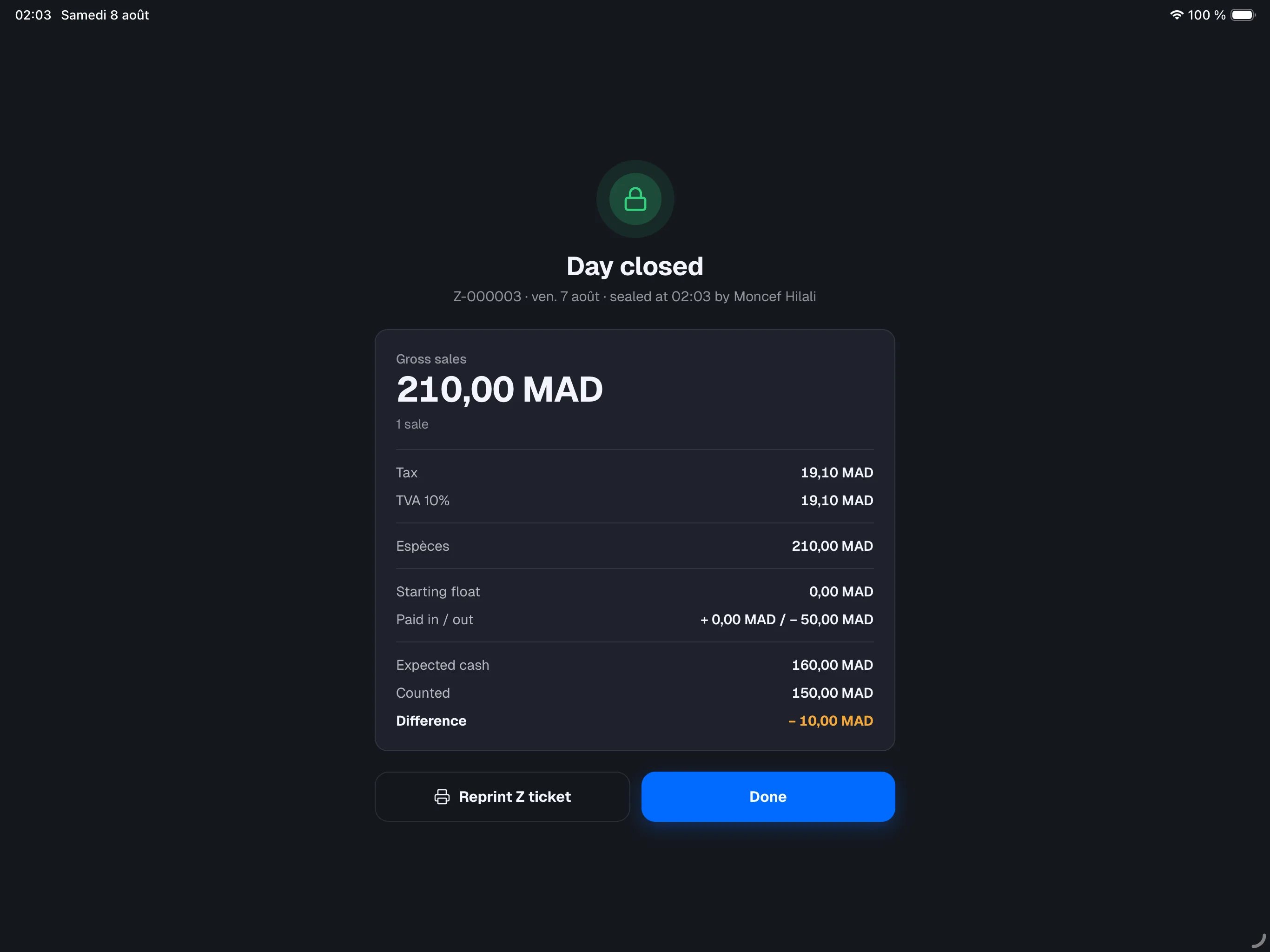
The Day closed screen confirms the seal: the Z number, the date, the time and the name of the person who closed, then the full recap — gross sales, discounts and comps, tax by rate, the breakdown by payment method, the opening float, paid in/out, expected cash, counted cash and the difference. The Z report breaks takings down by payment method, under your own names: “Cash”, “Card”, “Luncheon voucher”, “Cheque”… That is what French regulation asks for, and what you reconcile against. Four lines appear when they apply:- Discounts and Comps — what you gave away during the day. Gross sales are already net of these amounts; the two lines are there for the record, not to be subtracted.
- Change given — what went back out of the drawer. Already deducted from expected cash; shown separately so the count adds up.
- Retained overpayment — the part of a voucher the customer handed over beyond the bill, which stays with you. It is not revenue: money taken in with no sale behind it, which is exactly why the Z keeps it apart.
If you forget to close
Nobody is blocked the next morning. When the new day opens, the forgotten day is sealed automatically:- its Z is issued without a count — the drawer reads “drawer not counted” on it;
- orders left open are carried over to the new day as they are, with no automatic payment or cancellation;
- the float entered in the morning restates the reality of the drawer — any difference left from yesterday shows up there.
The default float, the day cutoff hour and the difference threshold are set in the backoffice — see Settings.