

Coursing is optional and turned on per location. While it is off, sending
fires everything in one go — see taking orders. To
turn it on and define your courses, see the menu and
items.
The check grouped by course
When coursing is on, the right panel groups lines by course. Each course has its own header — an order number, its name (for example STARTERS, MAIN COURSE, DESSERTS) and the item count — and its own Send button. An item joins its default course automatically, as set in the backoffice. Items with no course gather at the top, under NO COURSE, and go out first: a drink, or an item whose course has not been set yet, reaches the kitchen straight away instead of waiting until after dessert.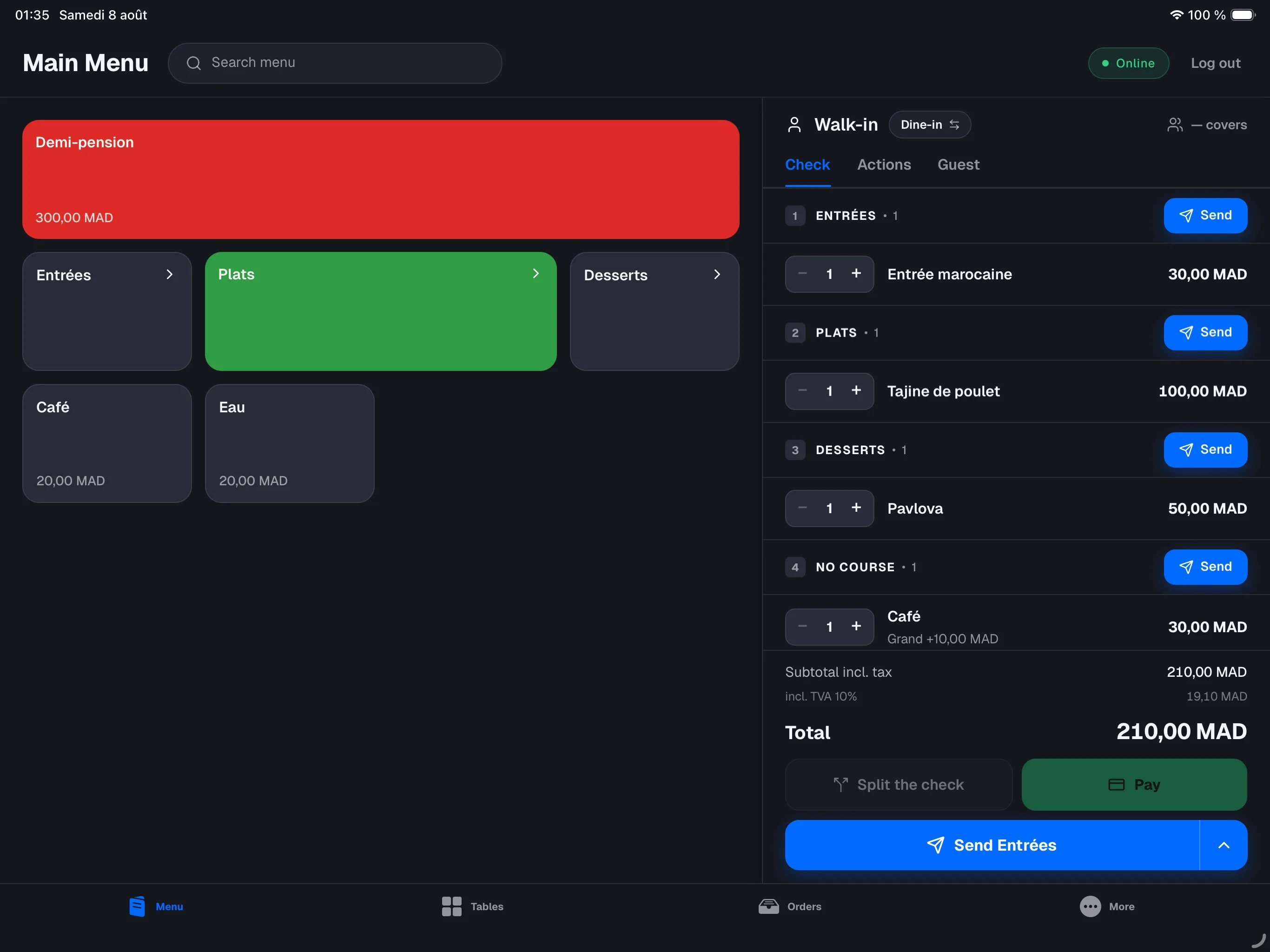
Sending a course
There are two ways to fire to the kitchen:1
The main button: Send + the next course
At the bottom of the panel, the large button reads Send followed by the
name of the next course to fire — for example Send Starters. Tap it:
only that course goes to the kitchen, then the register takes you back to
the floor plan if the order is at a table, otherwise to
the orders list. The button then shows the next
course (Send Main course).
2
A course's own Send button
Each course header has its own Send button. Use it to fire a course
out of order — for example to start the desserts early.
Sending everything at once
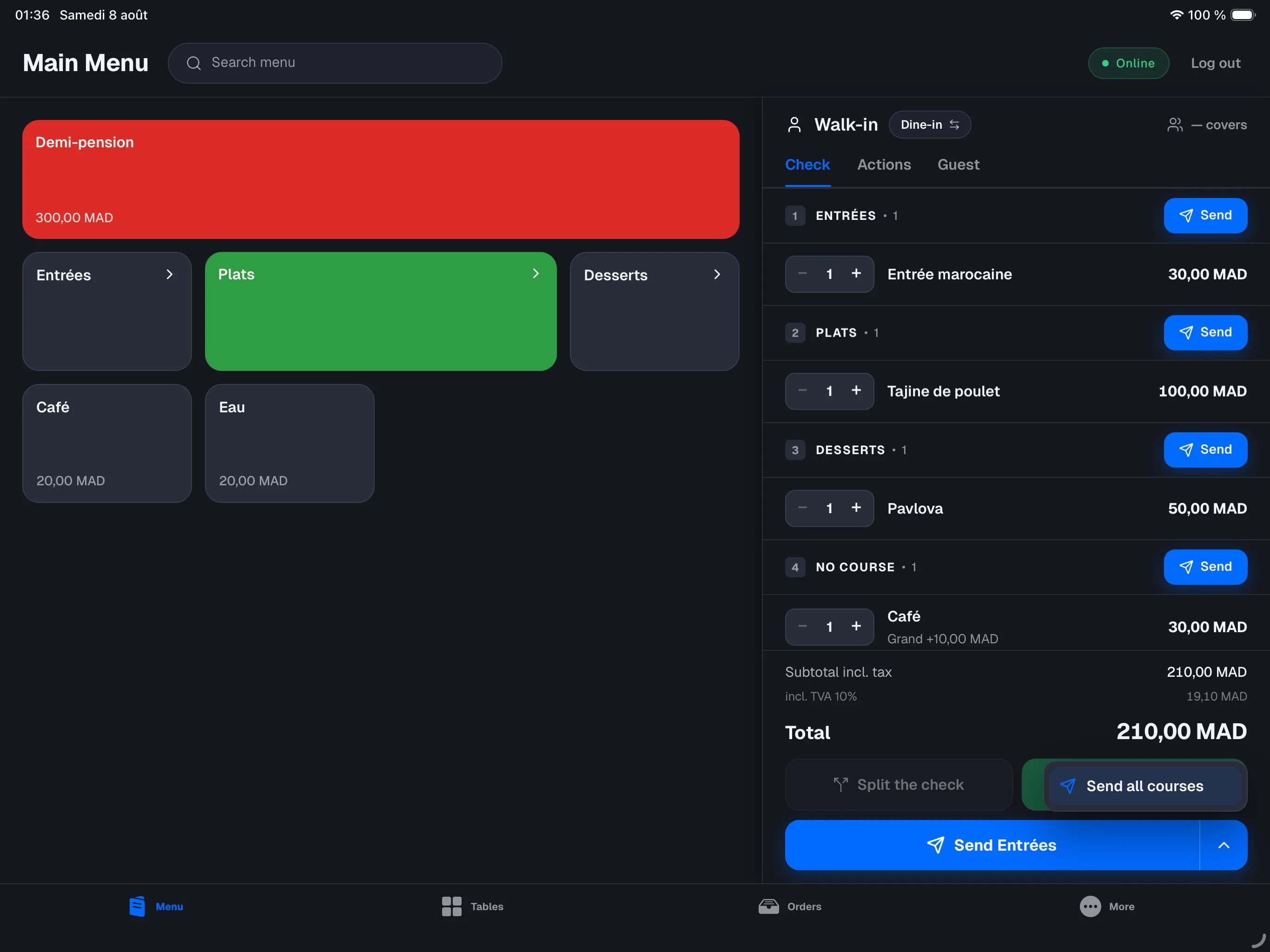
Next to the main button, the ▾ caret opens Send all courses: every pending course fires together. Handy for a table in a hurry. The caret only appears when at least two courses are still waiting.A course that has been sent reads Sent and its lines are locked. You can
keep building the later courses in the meantime.
Moving a line to another course
An item landed in the wrong course, or you want to move it?1
Swipe the line to the right
On a pending line, swipe right: the blue Course button appears.
Tap it — the line lifts and the MOVE TO COURSE menu opens.Long-pressing the line opens the same menu, if you prefer that gesture.
2
How many? (when the line holds several items)
Two salads on one line and the guest wants only one as a main? Pick 1
before tapping the course: that single unit moves, the other stays where it
is. By default the whole line moves.
3
Pick the course
Tap the target course — the line joins that group right away. Tap No
course to take it out of any course.
An item already sent to the kitchen
A line that was already sent does not move: the kitchen received it under its course. The register offers to replace it instead — long-press the sent line, then pick the course. Under the hood the item is voided and entered again in the new course. The kitchen gets a void slip, then the normal ticket for the new course when you send it. The void reason recorded is “Course change”.If the item became unavailable in the meantime, nothing is voided: the guest
keeps the dish they have. Tell the kitchen in person.
The “kitchen is waiting” reminder
The register never sends a course on its own. What it does is tell you how long the kitchen has had nothing, as long as a course is still waiting to go. The header of the last course sent reads Sent 14 min ago. Past a first delay that text turns amber, then red. Courses sent before it stay grey: their turn at the pass is over. The same cue shows wherever you look during service:- on the floor plan, a mark in the corner of the table. The table’s color still tells you how long it has been seated — two different cues;
- on the table’s card, on the Sent row;
- in the orders list, next to the check number — on the iPad and on the phone alike.
The cue only appears when a course is still waiting and something has
already been sent. An order nothing has gone out from yet is not late for
anything — that is what the table’s color is for.
The kitchen ticket
Each course you send prints one kitchen ticket per course, with the course name at the top. The kitchen sees clearly what to prepare, and when. See receipts and printing.For an item to land in the right course automatically, give it a default
course in the backoffice. Otherwise it arrives under NO COURSE, goes out
with the first send, and you move it by hand if needed. See the menu and items.