

Only products with stock tracking turned on offer these actions. Tracking is enabled per product in the backoffice catalog.
Open the stock actions
1
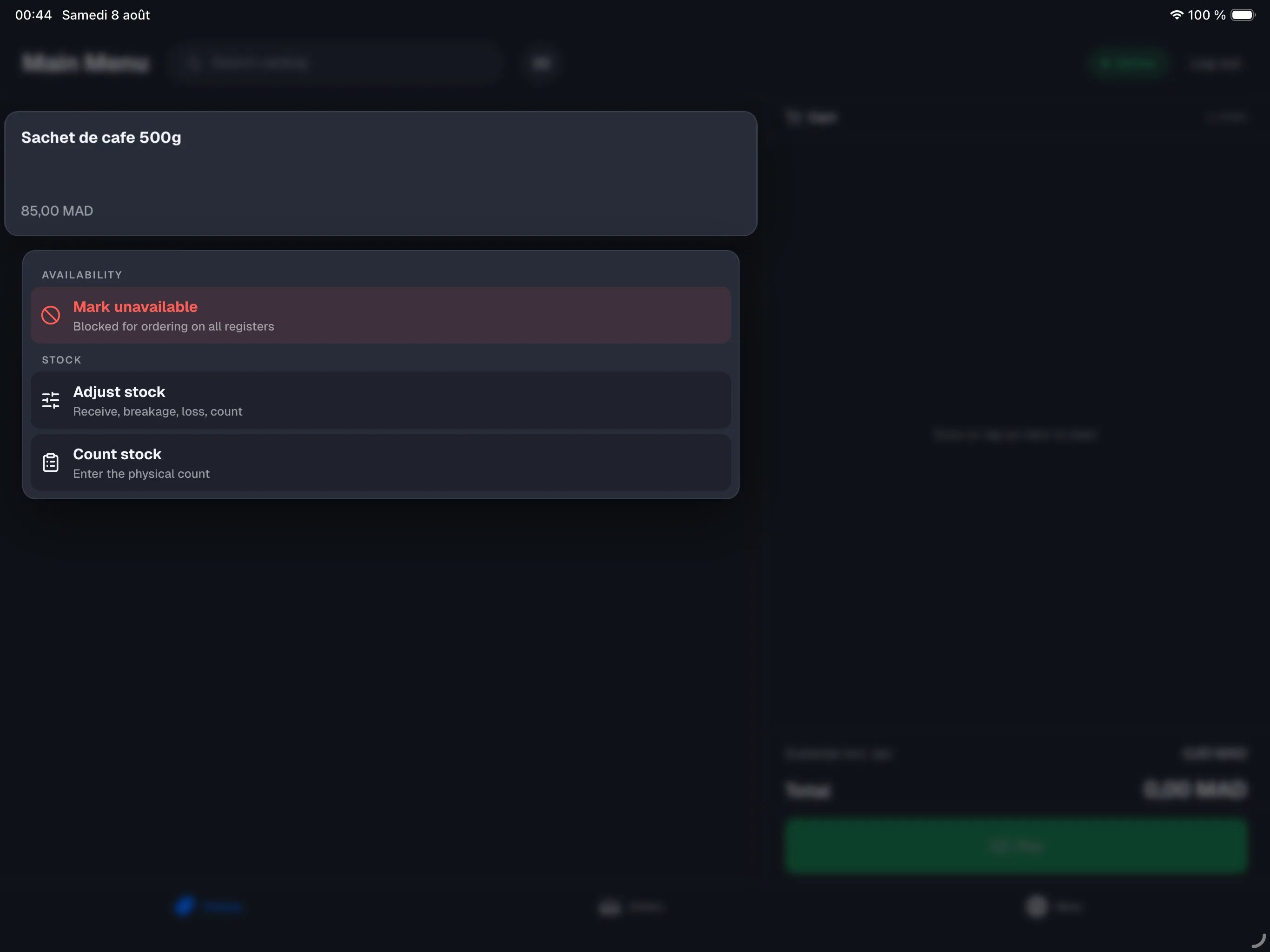
Long-press the product
Press and hold the product tile in the menu. The tile lifts and a menu appears.
2
Pick a stock action
Under the STOCK section, tap Adjust stock or Count stock.
Products with versions (variants)
For a product sold in several versions (sizes, formats…), stock is counted per version: each version has its own stock. Long-pressing the tile then opens the list of versions instead of the direct menu.1
Long-press the variant product
The Stock by version sheet opens: each version shows its stock (in stock, low, out, or unavailable).
2
Tap a version
You reach the actions for that exact version: Adjust stock, Recount, and Mark unavailable (or Make available).
Adjust stock
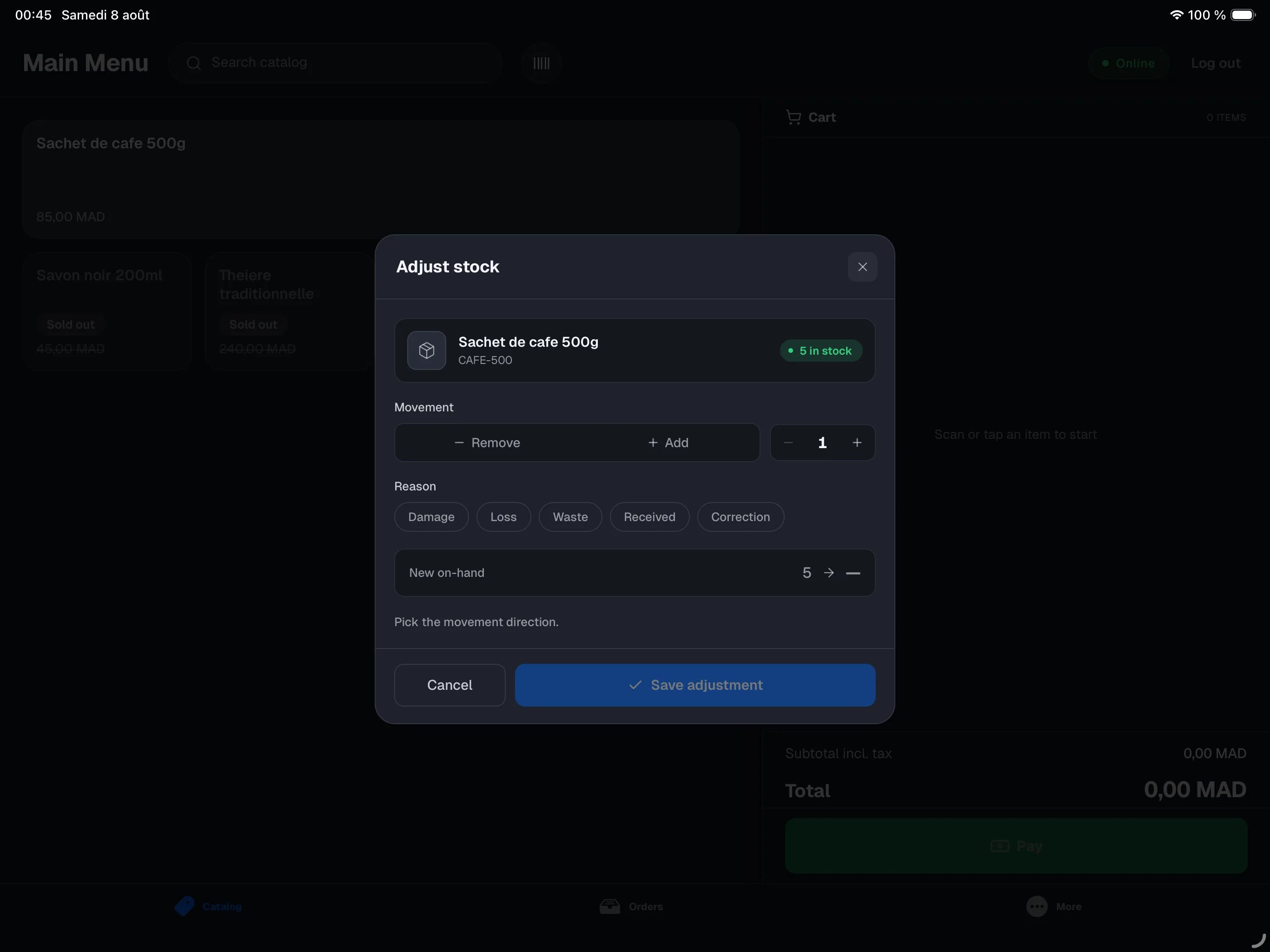
Adjust stock adds or removes units — this is what you use for a delivery receipt or to record breakage, loss or waste. The sheet opens blank: no direction and no reason are preselected, and Save adjustment stays unavailable until you have picked both. A stock movement names a physical cause and stays attached to your name — NowOS never picks it for you.1
Pick the movement
Add (e.g. a receipt) or Remove (breakage, loss…).
2
Set the quantity
Use the − and + buttons for the number of units.
3
Pick the reason
Received, Damage, Loss, Waste or Correction. The reason shows up in the product’s history.
4
Save
Tap Save adjustment. On-hand stock is updated.
Count stock
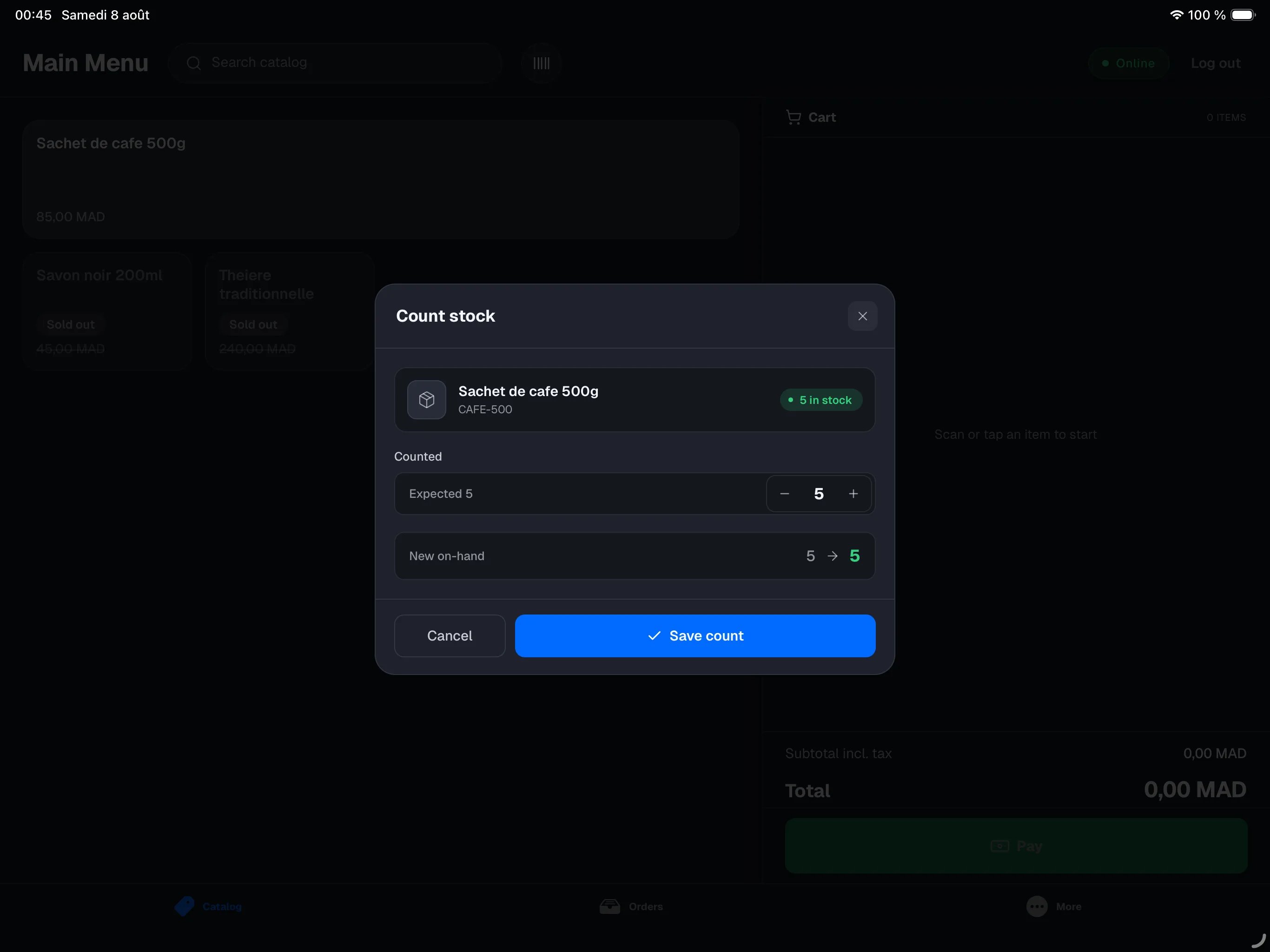
Count stock is for a physical count: you enter the quantity actually on the shelf, and NowOS shows the variance against the expected stock, then sets on-hand to your count.1
Enter the counted quantity
Type the number of units you actually counted.
2
Check the variance
The sheet shows the expected stock and the variance against your count.
3
Save
Tap Save count. On-hand becomes exactly your count.
Sales and refunds
Stock updates automatically through service: each sale of a tracked product decrements its quantity. A refund credits it back only when “Return items to stock” is enabled (on by default for item or full refunds, never for a free-amount refund) — leave it off when the goods are damaged or kept. These movements appear in the product’s history.Good to know
- Any team member can adjust or count stock — no manager PIN is required. The name and time are recorded.
- When a product drops to zero, by default it can no longer be ordered: it shows Sold out until the next receipt — automatically, without the manual unavailable mark. If overselling is allowed (see setting), it stays orderable with an “Out” badge.
- A scanned product always sells, even at zero: the item is physically there (on-hand then goes negative, to reconcile later). A manual removal stops at zero, unless overselling is allowed.
- These actions need the main register. If it’s unreachable, a message tells you — try again once the connection is back.