

Inventory is a retail mode feature. This is a read-only page: receiving, adjustments and counts happen at the register — see Manage stock at the register. Configuration (track a product, low-stock threshold) lives in the catalog and settings.
Open the page
In the backoffice, open Inventory from the location menu. Two views are available from the selector at the top right: Stock (on-hand stock) and Sold-out (86) (the sold-out history).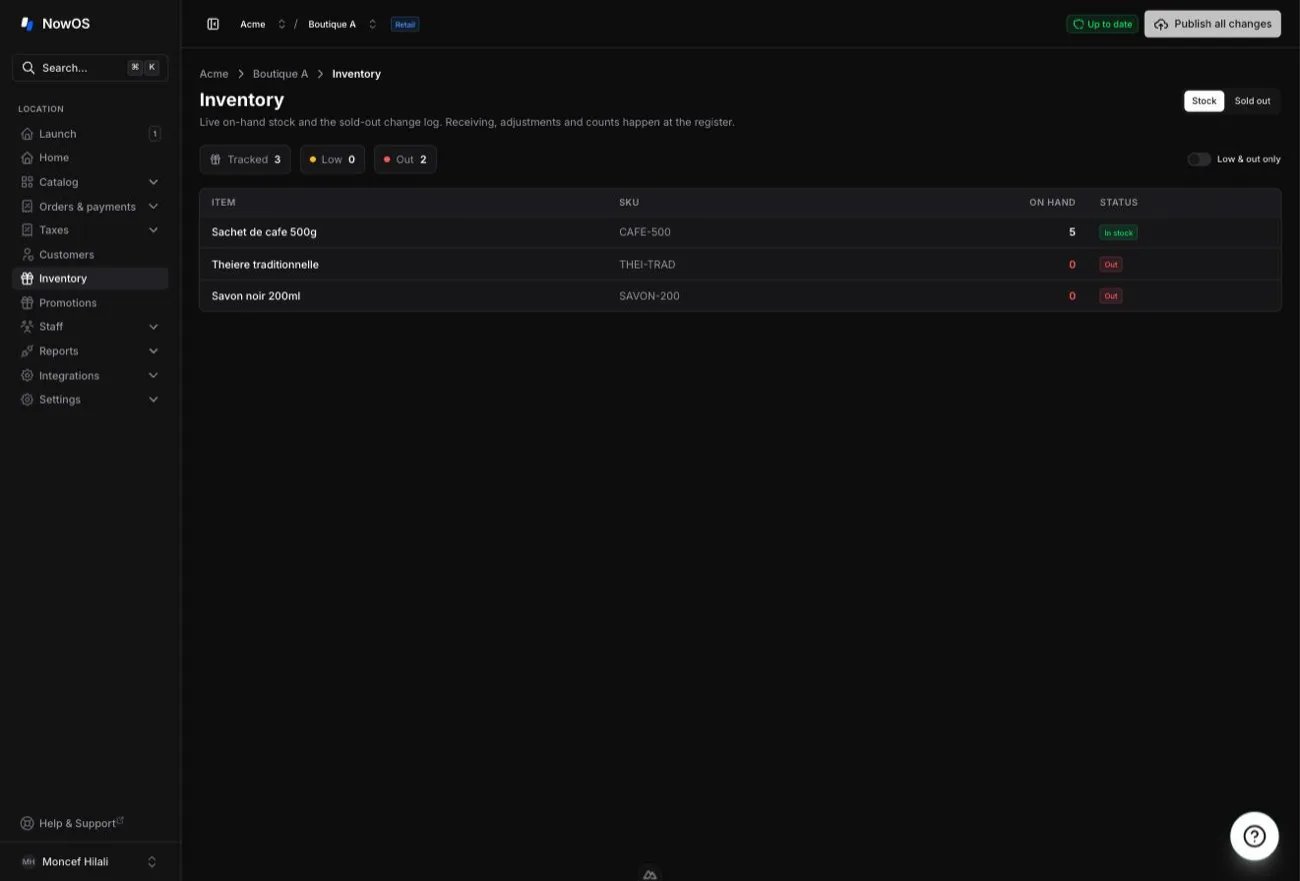
Stock view — on-hand stock
The Stock view lists every product that has stock tracking turned on. At the top, three counters summarize the location:- Tracked — the number of stock-tracked products.
- Low — the number of products at or below their low-stock threshold.
- Out — the number of products at zero (or below).
- Item — the product name.
- SKU — the internal code, if any.
- On hand — the quantity in stock (red at zero or below).
- Status — In stock, Low, or Out.
By default, a product that drops to zero can no longer be ordered at the register — as if it were marked sold out — until stock is received. You can allow overselling (see Overselling setting): the product then stays orderable with an “Out” badge.
Stock card — movement history
Tap a row to open the stock card on the side. It shows on-hand, status, then the list of movements newest first: receipts, adjustments, counts, sales and refunds. Each movement shows the reason, the date, who made it, and the change (+ or −).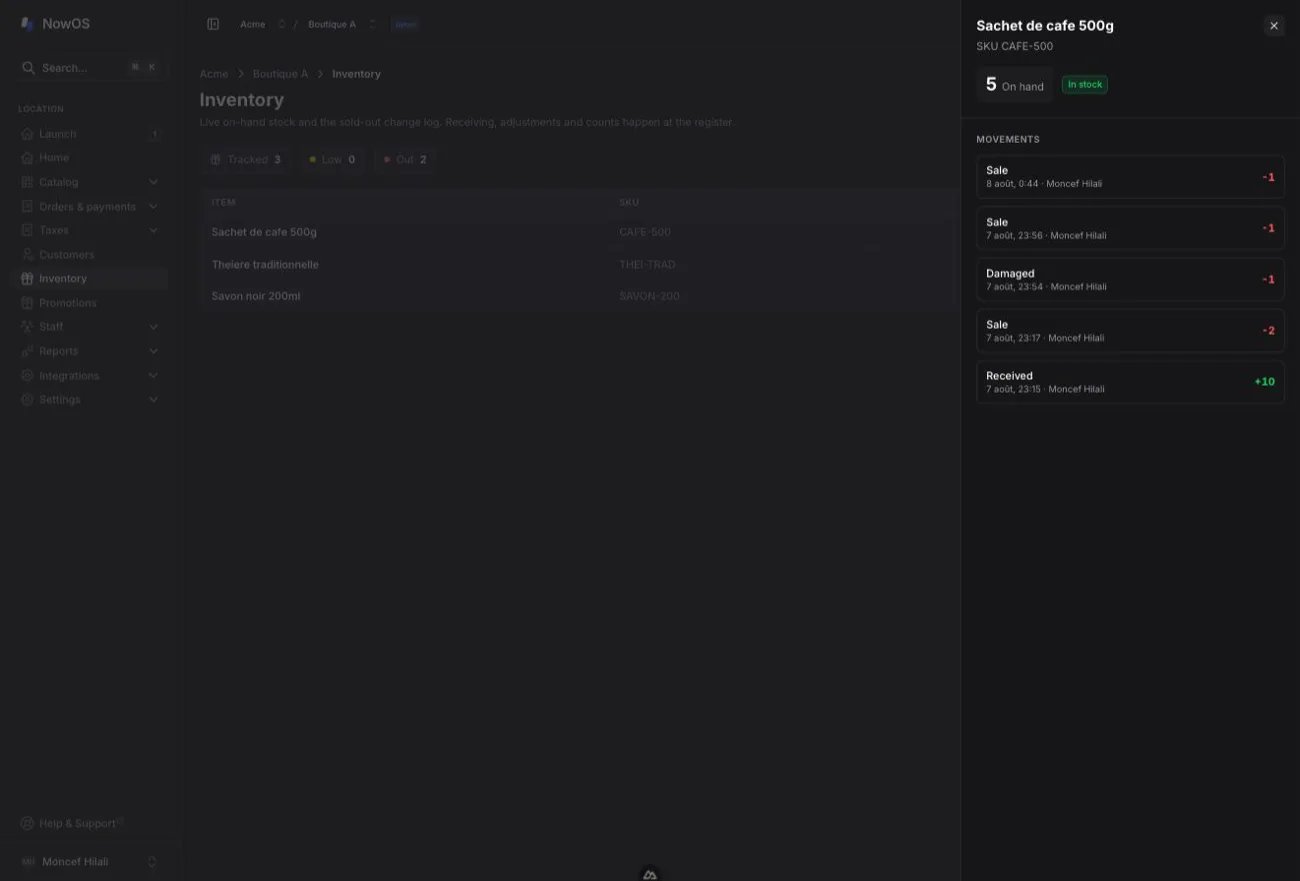
Configure tracking for a product
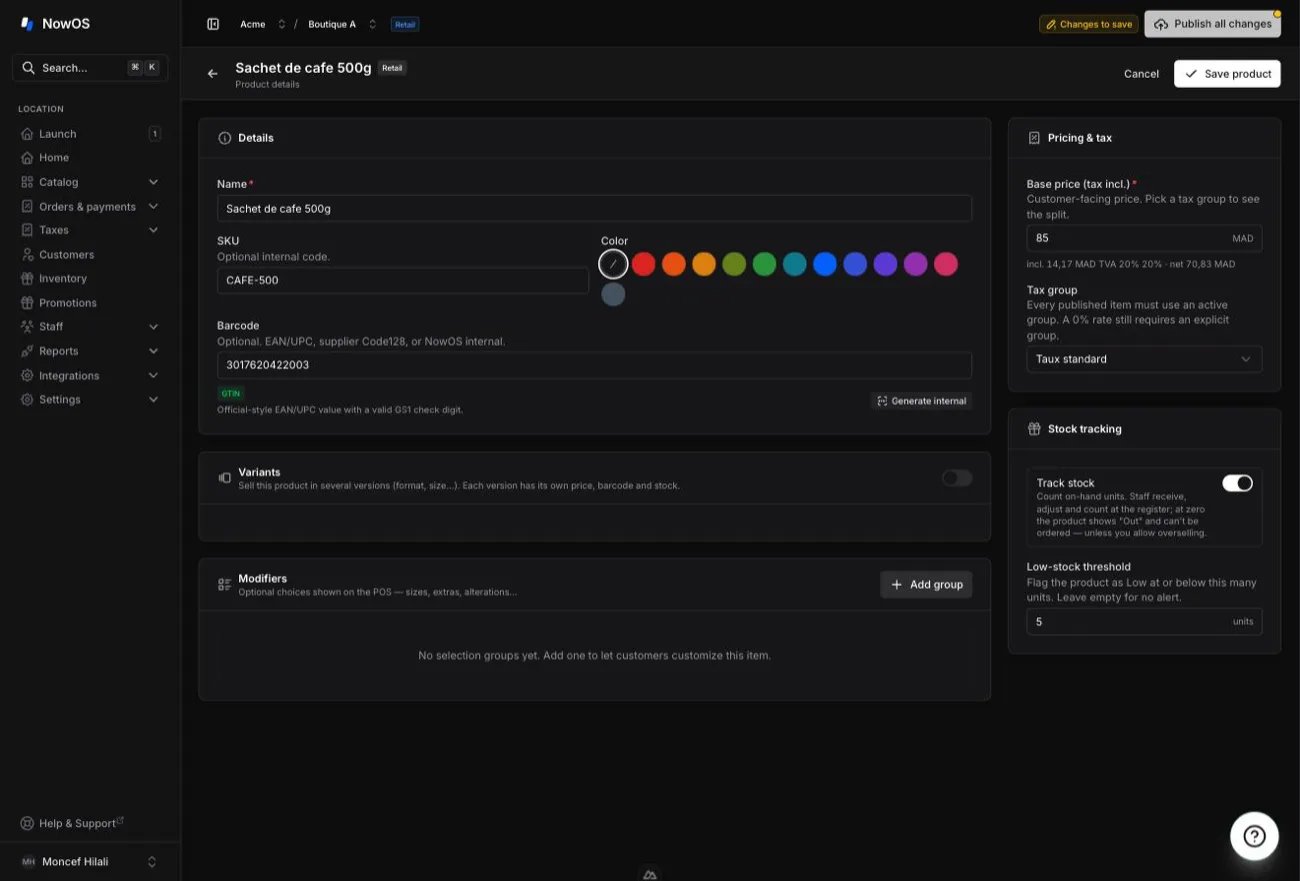
Stock is tracked per product. In the catalog, open a product and, in the Stock tracking section:- Turn on Track stock to follow this product’s on-hand quantity.
- Set a Low-stock threshold in units: the product shows Low at or below it. Leave empty for no alert.
Overselling (negative stock)
In Settings → Inventory, the Allow overselling (negative stock) option controls what happens when a tracked product hits zero:- Off (default) — an out-of-stock product can’t be added at the register: it’s unorderable, like a sold-out item, until the next receipt. A manual removal stops at zero.
- On — staff can keep selling past zero: the product shows an “Out” badge but stays orderable, and manual removals may go negative. Useful when counts are advisory or stock arrives late.
Sold-out (86) history
The Sold-out (86) view keeps the history of items marked sold out at the register. Each row is an availability change, newest first:- When — the date and time of the change.
- Item / option — the name of the affected item or option, with an Item or Option tag.
- Change — Sold out (marked unavailable) or Available (put back on sale).
- By — the team member who made the change.
Good to know
- The By column (and a movement’s author) shows a name only if the operator was signed in (PIN) at the time of the action.
- Product names come from the most recent published menu. If a product has since been removed, its identifier is shown instead.
- This page is read-only — it’s a log. Stock is managed from the register — see Manage stock at the register and Unavailable items (86).