

What is already there
When your location is created, NowOS installs a list suited to your country. In France: Cash, Card, Luncheon voucher, Cheque, Bank transfer. In Morocco: Cash, Card, Cheque, Bank transfer. Everything is editable: the name, the order, the voucher face values. You can add methods and switch them off.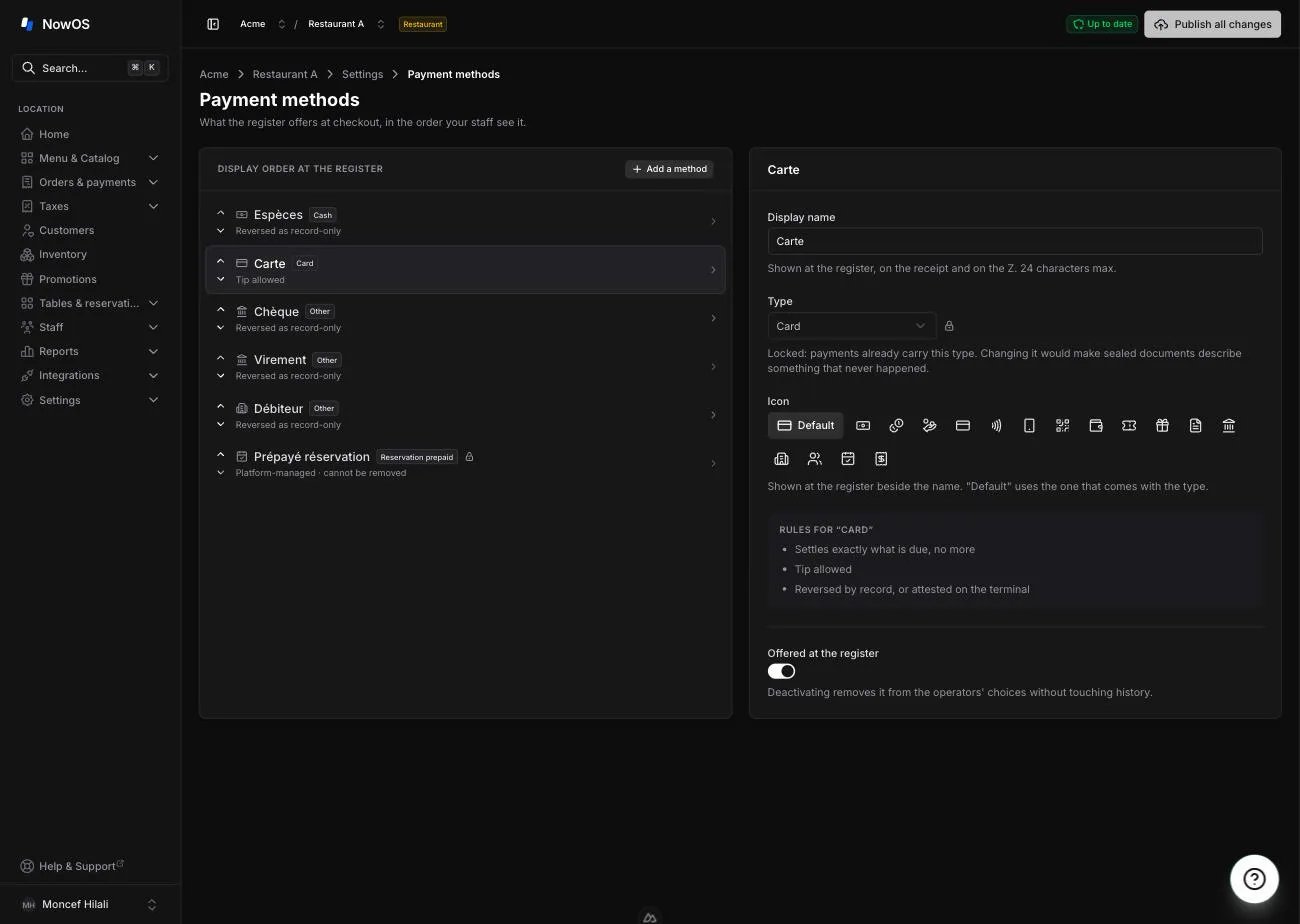
The name and the type
Every payment method has a name and a type, and that distinction is the point of this page.- The name is yours. “Luncheon voucher”, “Meal tickets”, “TR” — it is what your staff see at the register, what prints on the customer’s receipt, and what appears on your Z report. Change it whenever you like. 24 characters maximum, so it fits on a receipt line.
- The type decides the behaviour: does it fill the cash drawer? does it give change? does it take a tip? You pick from a closed list — Cash, Card, Voucher, Other — and the inspector shows you, read-only, the rules that come with it.
That is why you cannot, say, tick “gives change” on a luncheon voucher: it is
not an option, it is what the type means. The rules shown under the Type
field are there to tell you which ones apply.
The type locks
Once a payment method has been published and used, its type stops changing — a padlock appears next to the field. The reason is fiscal: every payment keeps the type it was taken under. Changing the type afterwards would make already-sealed receipts describe something that never happened. If you picked the wrong type, switch the method off and create another one.Vouchers and their face values
For a method of type Voucher, list the face values it is issued in — €7.00, €9.00, €11.00… This is not cosmetic: the register does not ask the operator for an amount, it asks how many vouchers and of which value. The values you list here become the buttons they tap. It is also what lets the register refuse one voucher too many.A voucher may exceed the amount due without you giving change: the difference
stays with you. NowOS calls it the retained overpayment, puts it on its
own line of the Z report, and never counts it as revenue — it is money taken
in with no sale behind it.
The icon
Every method carries an icon at the register, beside its name. One is already picked for you: notes for cash, a card, a ticket for luncheon vouchers, a document for cheques, a bank for transfers. You can choose another from the list on offer — useful when you run several methods of the same type, say a “House account” and a “Transfer”, which would otherwise look alike. Default goes back to the one that comes with the type.Display order
The list order is the register’s order. Put what your staff use most at the top: that is what they will tap dozens of times a service. Use the arrows on the left of each row to reorder.Adding, switching off, deleting
1
Add
Tap Add a method, give it a name and a type, then publish.
2
Switch off
Toggle Offered at the register. The method disappears from the pay
screen, but every past sale and every report keeps it. This is what to do
for a method you no longer accept.
3
Delete
Possible as long as the method has never been published. After that only
switching off remains — sales reference it.
As with the rest of your menu settings, changes only reach the register once
published. See Publishing your changes.
The method NowOS manages
If you take reservations, one method carries a padlock and a Platform-managed label: it is the one deposits collected by your provider land on. Your staff never pick it at the register — it applies on its own when the order carries a deposit. You can rename it; you cannot delete it or change its type, or a deposit would arrive with nothing to record it against. A retail shop does not have it: with no reservations, there is no deposit to receive.Where they show up next
- Z report: takings broken down by payment method, plus the Change given and Retained overpayment lines. See Close of day.
- Payment methods report: the same totals over the period you choose. See Reports.
- Customer receipt: the method’s name as it read on the day of the sale.