

How it works
Three building blocks fit together:- A tax rate is a percentage: VAT 20%, VAT 10%, VAT 5.5%…
- A tax group decides which rate applies. The simple case: a “Standard rate” group that always applies VAT 20%. The restaurant case: a “Packaged goods to take away” group that applies VAT 10% for dine-in and VAT 5.5% once the order leaves.
- Every published item is linked to a tax group. Never directly to a rate: the group does the choosing. An exemption uses an explicit group linked to a 0% rate.
Tax-inclusive or tax-exclusive prices
Your location runs either on tax-inclusive prices (tax is included in the displayed price — the case in France and Morocco) or on tax-exclusive prices (tax is added at payment time, as in North America). This setting comes from your location’s country and is fixed at creation; it can’t be changed in the backoffice. All your catalog prices are interpreted under this setting — the price field in the item editor even says tax incl. or tax excl.Where it happens
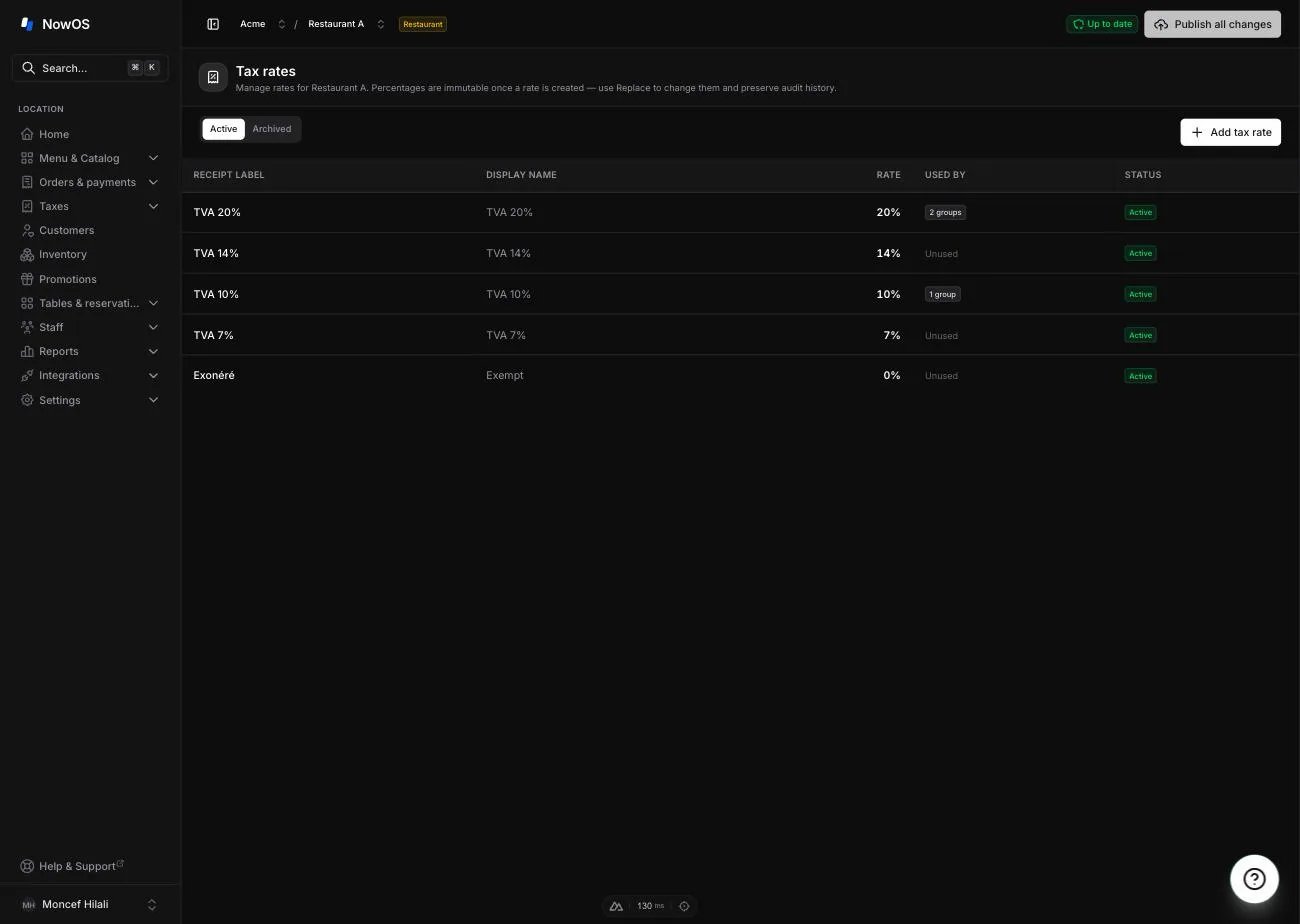
In the backoffice sidebar, open the Taxes section. It contains two screens:- Rates: the list of your rates.
- Groups: the list of your groups.
Tax rates
1
Click Add tax rate
The creation window opens.
2
Fill in the fields
- Display name: the name used in the backoffice, e.g. “VAT 20%”. - Receipt label: the label printed on receipts — use the local abbreviation, e.g. “TVA 20%”. - Percentage: the percentage, whole number or one decimal (e.g. 20 or 5.5). - Enabled: leave it on so the rate can be used.
3
Click Add rate
The rate appears in the list. Then attach it to a group so it applies.
Changing a percentage: Replace this rate
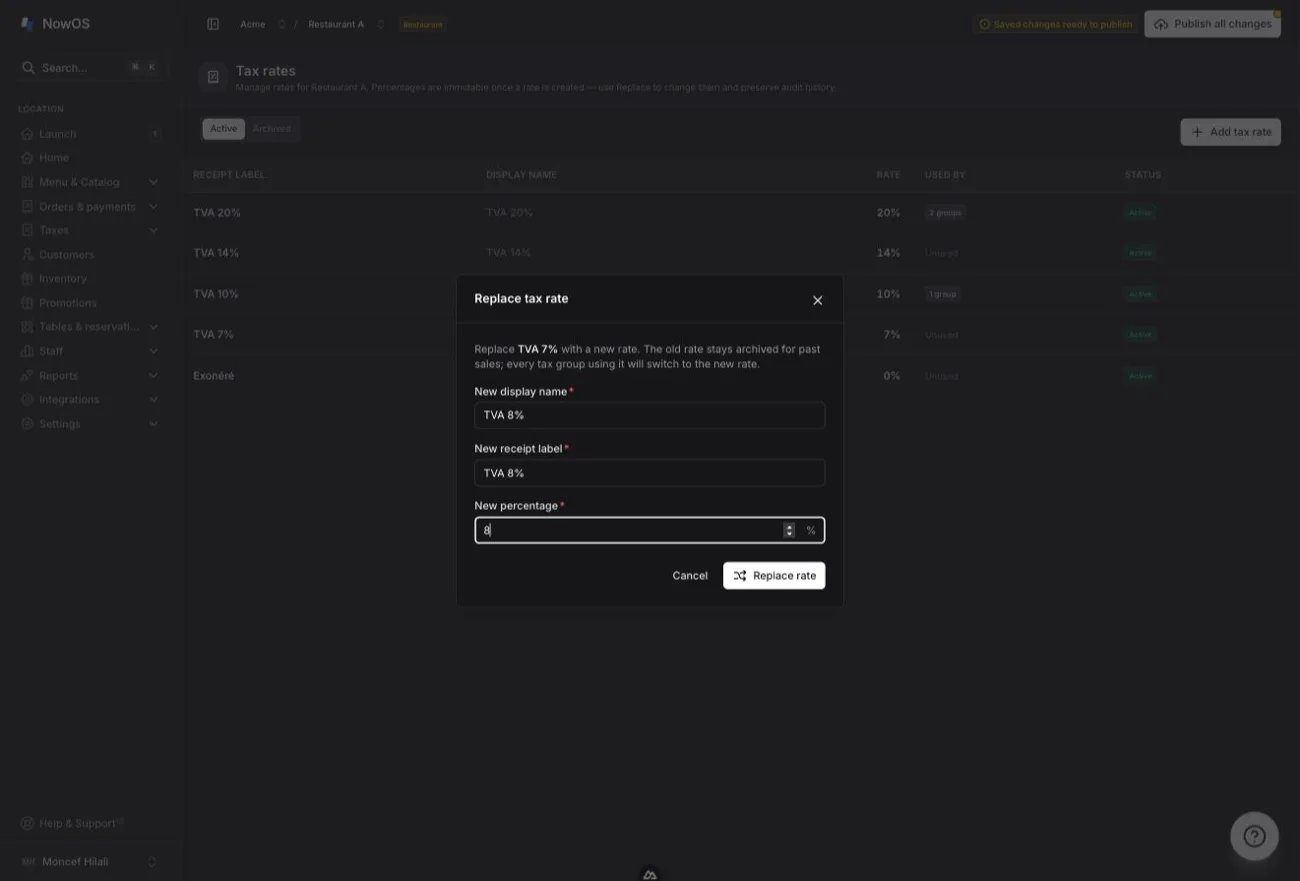
Once a rate is created, its percentage is locked — that’s what guarantees your past sales and their receipts keep, forever, the rate in force at checkout time. To change a percentage (e.g. a VAT moving from 19.6% to 20%):1
Open the rate
Click its row in the Rates list.
2
Click Replace this rate
The Replace tax rate window opens.
3
Fill in the new rate
New name, new receipt label, new percentage.
4
Click Replace rate
The new rate is created, the old one becomes Archived, and every group
that used the old rate switches to the new one automatically.
Tax groups
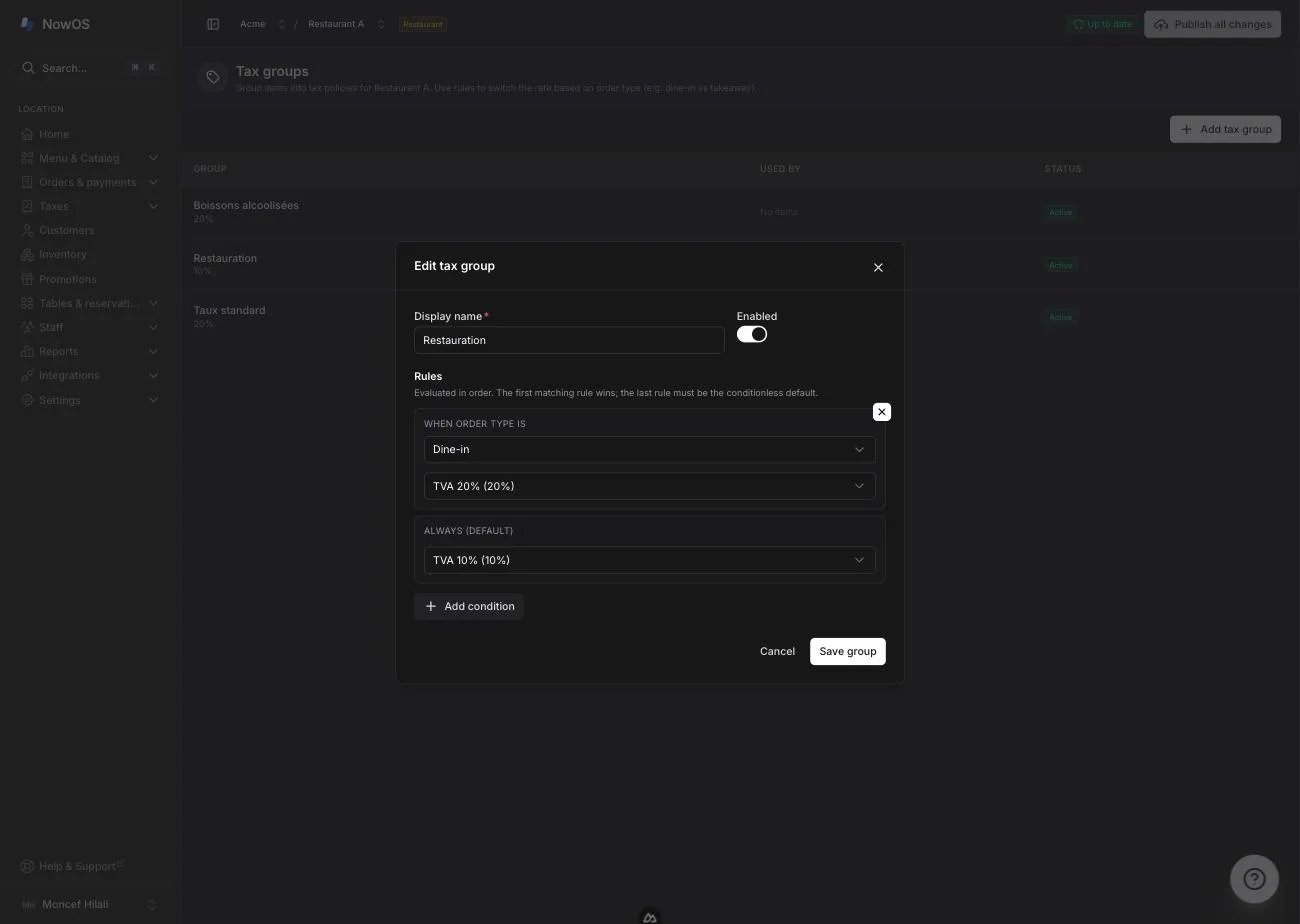
The Groups page lists your groups with a summary of their rules, the number of items attached, and their status. Your location starts with a “Standard rate” group at the country’s standard rate. While it remains the only active group, new items receive it automatically; with several active groups, you choose the appropriate one. A group holds one or more rules, evaluated in order: the first one that matches wins, and the last one is always the Always (default) rule.- A shop usually only needs the default rule: “always VAT 20%”.
- A restaurant in France only needs a conditional rule on packaged goods: “if the order is takeaway → VAT 5.5%; otherwise → VAT 10%”.
1
Click Add tax group (or an existing row)
The group editor opens.
2
Name the group
Display name, e.g. “Café food”. The Enabled switch controls whether
it’s offered in the item editor.
3
Set the rules
The bottom rule, Always (default), picks the rate applied when no
condition matches. Add condition adds a rule above it: When order type
is followed by one or more order types (Dine-in, Takeaway,
Standard) and the rate to apply.
4
Click Save group (or Add group)
The group is saved to the draft.
In retail mode, orders are always of type Standard: order-type conditions
are pointless, so keep a single default rule. In Morocco, restaurants are at
10% for dine-in and takeaway alike: there too, one rule is enough.
What you already have on day one
When your location is created, NowOS seeds your country’s rates and a set of ready-made groups matching your mode. In restaurant mode, in France:
In Morocco: Restauration (10%), Boissons alcoolisées (20%) and Taux standard (20%) — catering there is taxed the same eaten in or taken away, so no conditional rule is needed.
In retail mode, a single Taux standard group is created.
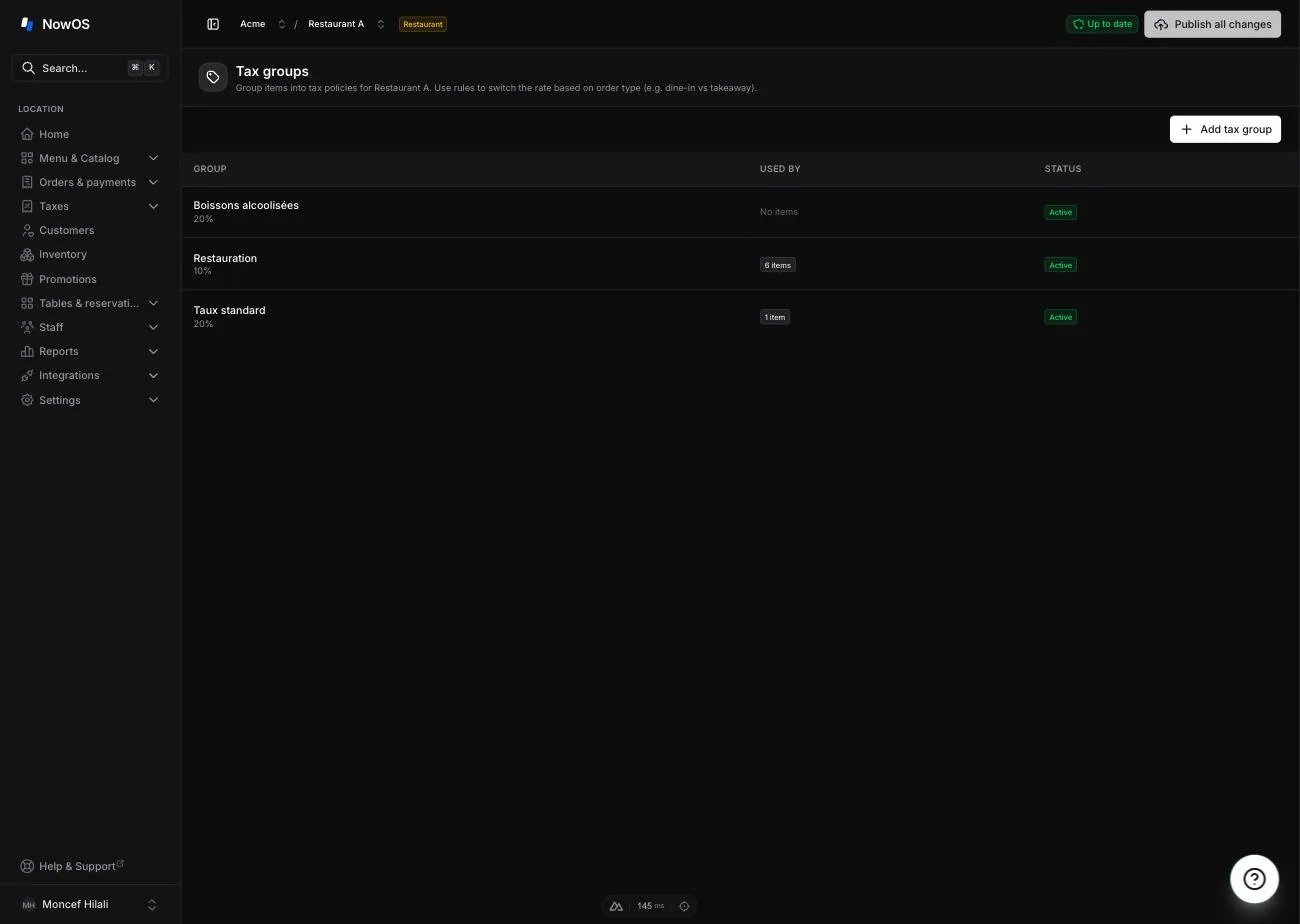
Because several groups exist, a new item is not assigned one automatically:
choosing between food, packaged goods and alcohol is yours to make.
Publishing is blocked while a sellable item has no group — deliberately, as
that choice must not be guessed.
Attaching an item to a group
In the item editor (item library), the Tax group field offers your active groups. Configure before publishing means the draft is incomplete — not that the item is exempt. For an exemption, create and select an explicit group using the 0% rate. As soon as a group is chosen, a preview under the price shows the tax breakdown — and for a multi-rule group, one line per case (dine-in / takeaway), so the difference is obvious. See menu and items.On the register and on the receipt
Your staff has nothing to set up: tax is computed on its own.- On the order, at a tax-inclusive location, the totals panel shows Subtotal incl. tax, then one informational line per rate (“incl. TVA 10% …”) and the Total — identical to the subtotal, since tax is already included. At a tax-exclusive location, tax is added between the subtotal and the total.
- In restaurant mode, the Dine-in / Takeaway button on the order switches the order type, and taxes recompute immediately on every line. In retail mode, this button doesn’t exist.
- On the printed receipt, the breakdown appears rate by rate, with the Receipt label you chose, along with your location’s legal identifiers (SIRET, ICE…) configured in receipt settings — see settings.
Staff at the register cannot edit taxes: switching the order type (dine-in /
takeaway) is the only lever. Every completed sale freezes its tax breakdown —
reprinting a receipt or viewing a report always shows the rates from the day
of the sale, even if you’ve changed them since.