The Members page manages who can access your workspace’s backoffice — across all your locations at once. This is where you invite a business partner, an accountant or a multi-site manager. In the organization sidebar, open Members.
Don’t confuse this page with a location’s Staff: the servers and cashiers who use the register with a PIN are managed location by location — see staff and PINs. The Members page only covers backoffice access.

Roles

A workspace member holds one of two roles:
  • Owner — full control, including managing other owners. The workspace always keeps at least one owner: the last one can be neither removed nor demoted.
  • Admin — the whole backoffice, but they can neither change an owner nor invite one.
An admin can invite other admins; only an owner can invite an owner.

Invite a member

1

Click Invite a member

At the top right of the Members page, click Invite a member.
2

Enter the email and role

Type the person’s email address, pick their role, then click Create invitation.
3

The invitation goes out by email

The person receives an invitation email right away. A window also shows the link: copy it if you would rather share it yourself (message, email…).
The email may land in the spam folder, or the address may hold a typo. If it does, the link shown is the only other way to join the workspace — keep it at hand. The invitation is valid for 48 hours.
The invitee opens the link, then signs up — or signs in — with the email address that received the invitation. With any other address, the invitation is refused.

Track pending invitations

Below the member list, the Pending invitations card lists invitations not accepted yet. For each one you can:
  • Copy link — the same link, to share again if needed.
  • Resend — sends the email again and extends the invitation by 48 hours; the link stays the same.
  • Cancel invitation — any link already shared stops working.

Change a role or remove a member

The menu at the end of each row lets you change a member’s role or remove them. A removed member immediately loses backoffice access. A few guard rails apply: you cannot change your own access, an admin cannot touch an owner, and the last owner is untouchable.

Your account

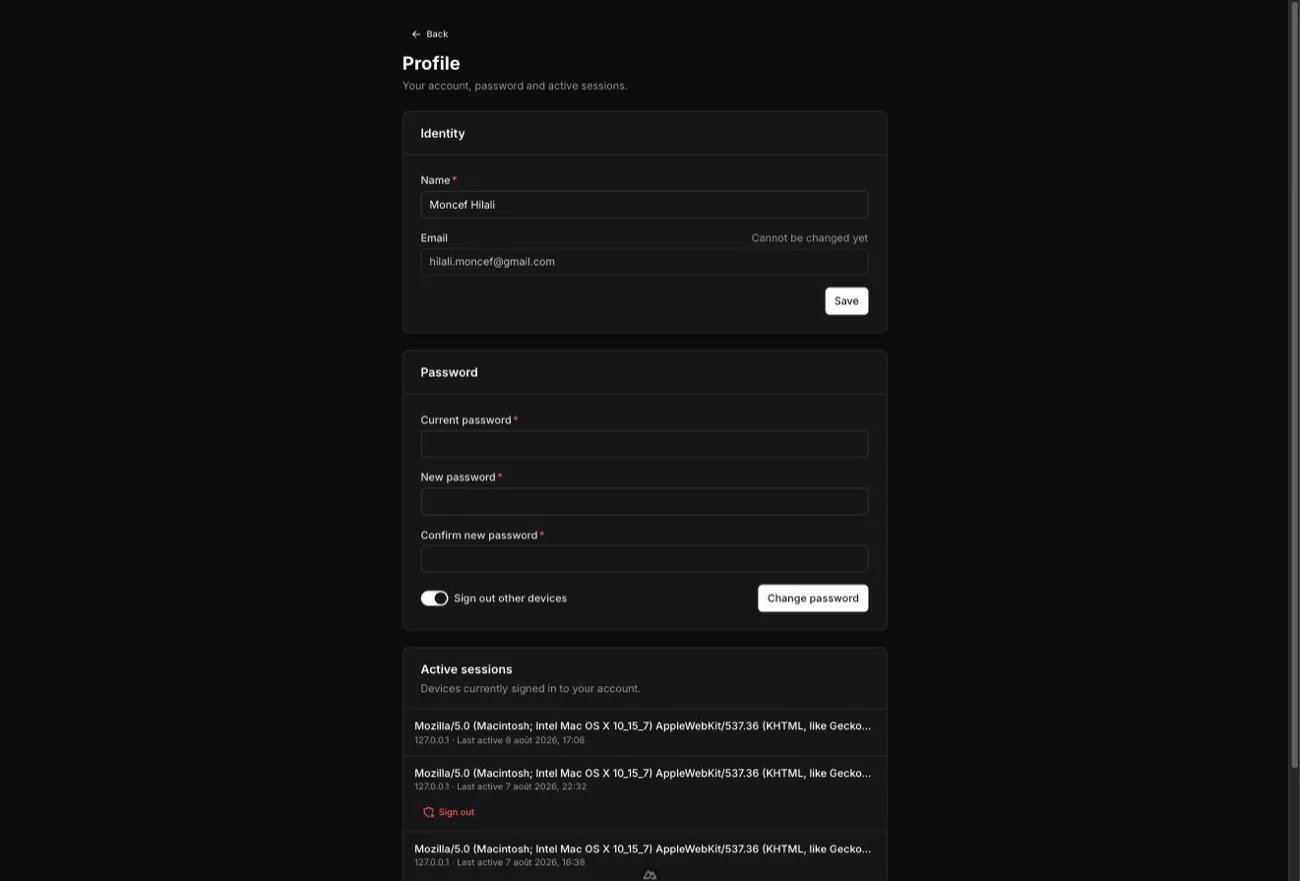
From the menu at the bottom of the sidebar, open Profile to manage your own account: edit your name, change your password and review the devices signed in — with the option to sign out any you don’t recognize.