

The numbers arrive from the main register, automatically. If the store loses its internet connection, service continues on site and the reports fill in as soon as the connection returns — a short delay is therefore possible.
Closures (Z)
Open Reports → Closures (Z). This report answers the question: “what did each business day officially do?” Every close of day done on the register seals a Z: a final record, numbered without gaps, that is the official figure for the day. Those Zs land here, read-only — nobody can change them, at the register or in the backoffice.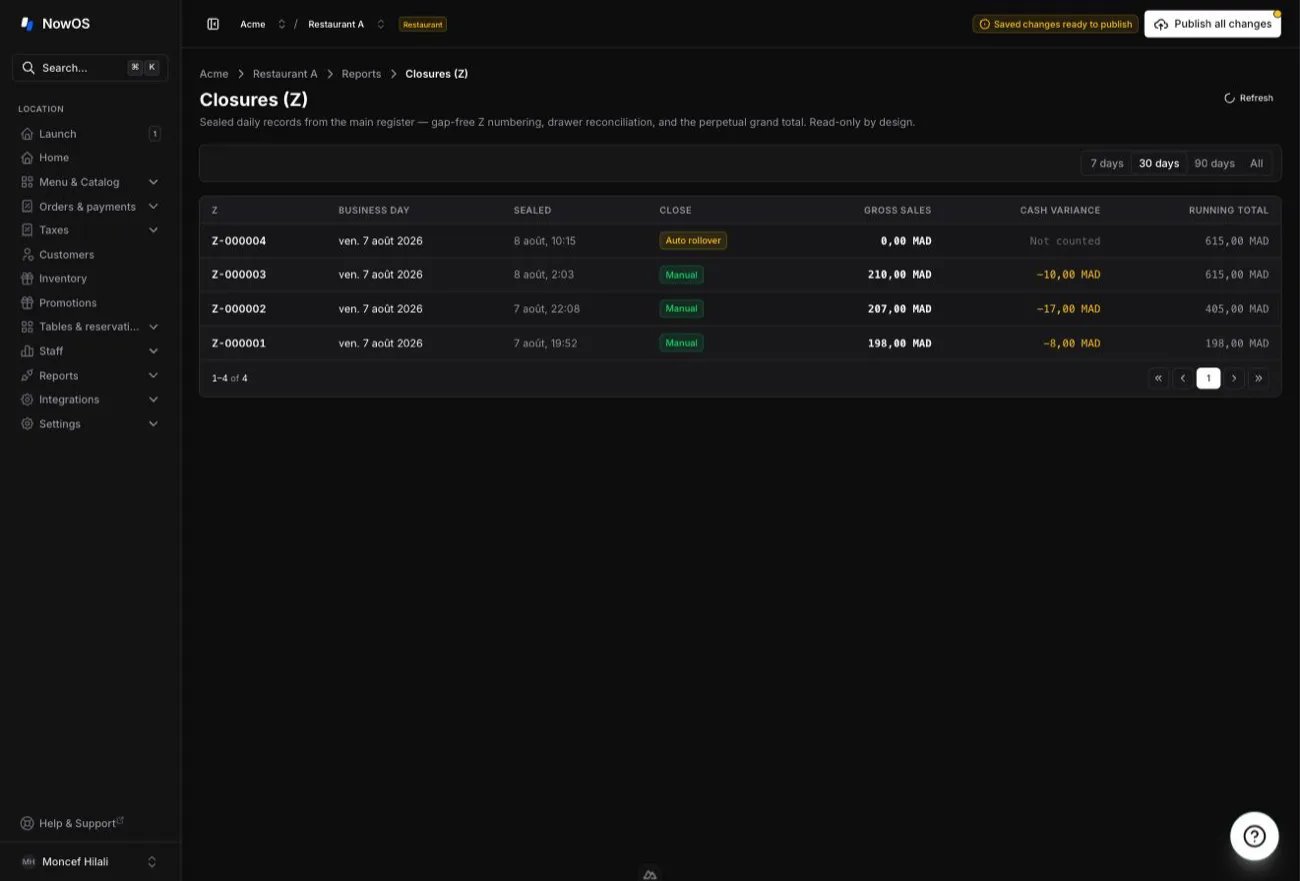
- Z — the closure number;
- Business day — the business day it covers;
- Sealed — when it was sealed;
- Close — Manual (a manager closed the day) or Auto rollover (the previous day was closed automatically at the next start of day);
- Gross sales — the day’s gross sales;
- Drawer — the drawer count result: Exact, the difference (“+2.00”), or Not counted;
- Grand total — the perpetual running total, which only ever grows from Z to Z.
- the gross sales, the number of sales, and the day’s receipt number range;
- taxes, in total and per rate;
- the takings per payment method, under your own method names — plus the Change given and Retained overpayment memo lines when they apply;
- the Cash drawer section: the opening float (Starting float), pay-ins and pay-outs (Paid in / out), the expected cash (Expected cash), the counted amount (Counted), and the difference (Difference), with the manager’s note if a difference was explained;
- the list of cash movements (Movements);
- orders carried over to the next day (Carried forward), if any;
- the Grand total (perpetual).
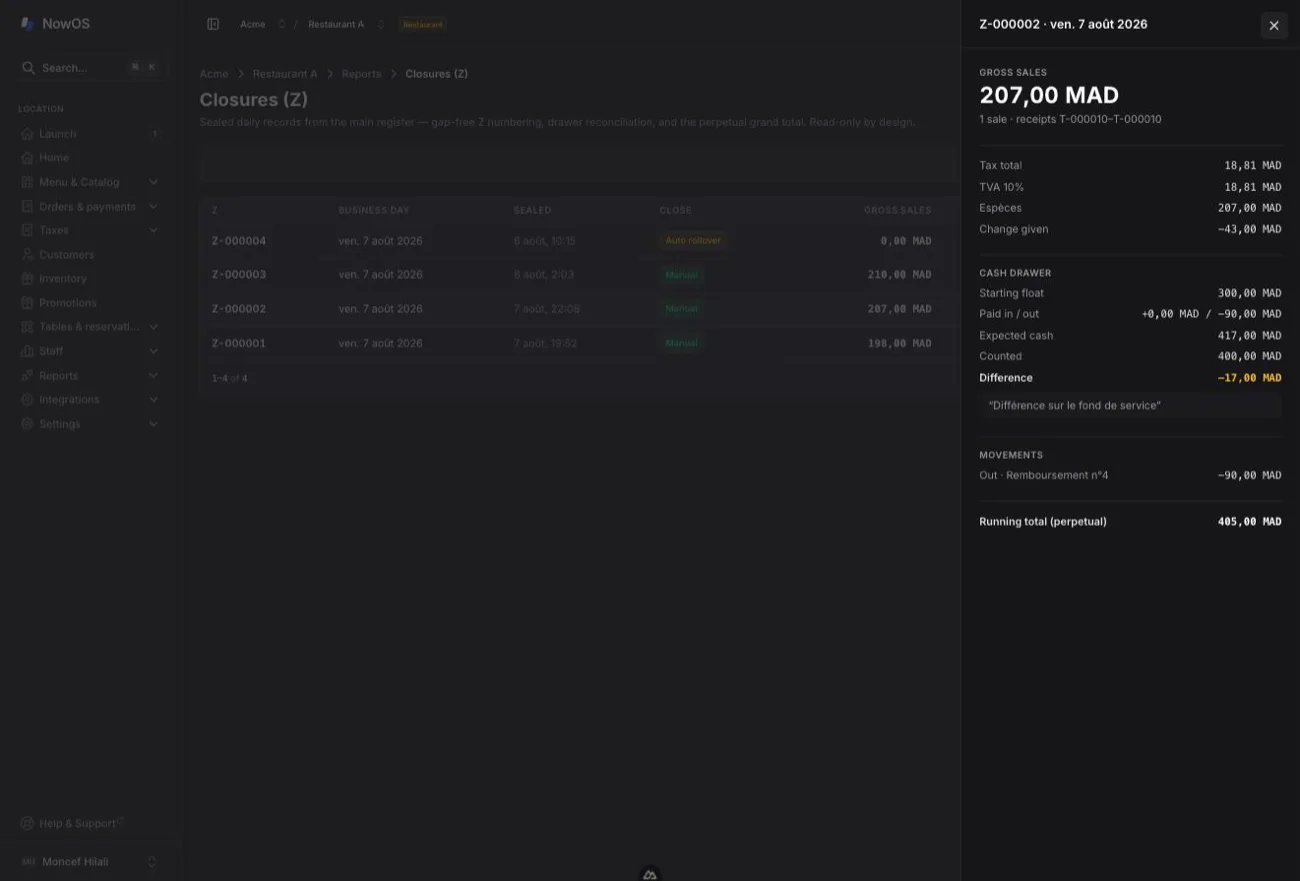
The difference shown here comes from the blind count done at the register: the team counts the drawer without knowing the expected amount, then the register reveals the difference. Not counted means the day was closed without a count — that’s the case for Auto rollover closures.
The refunds report
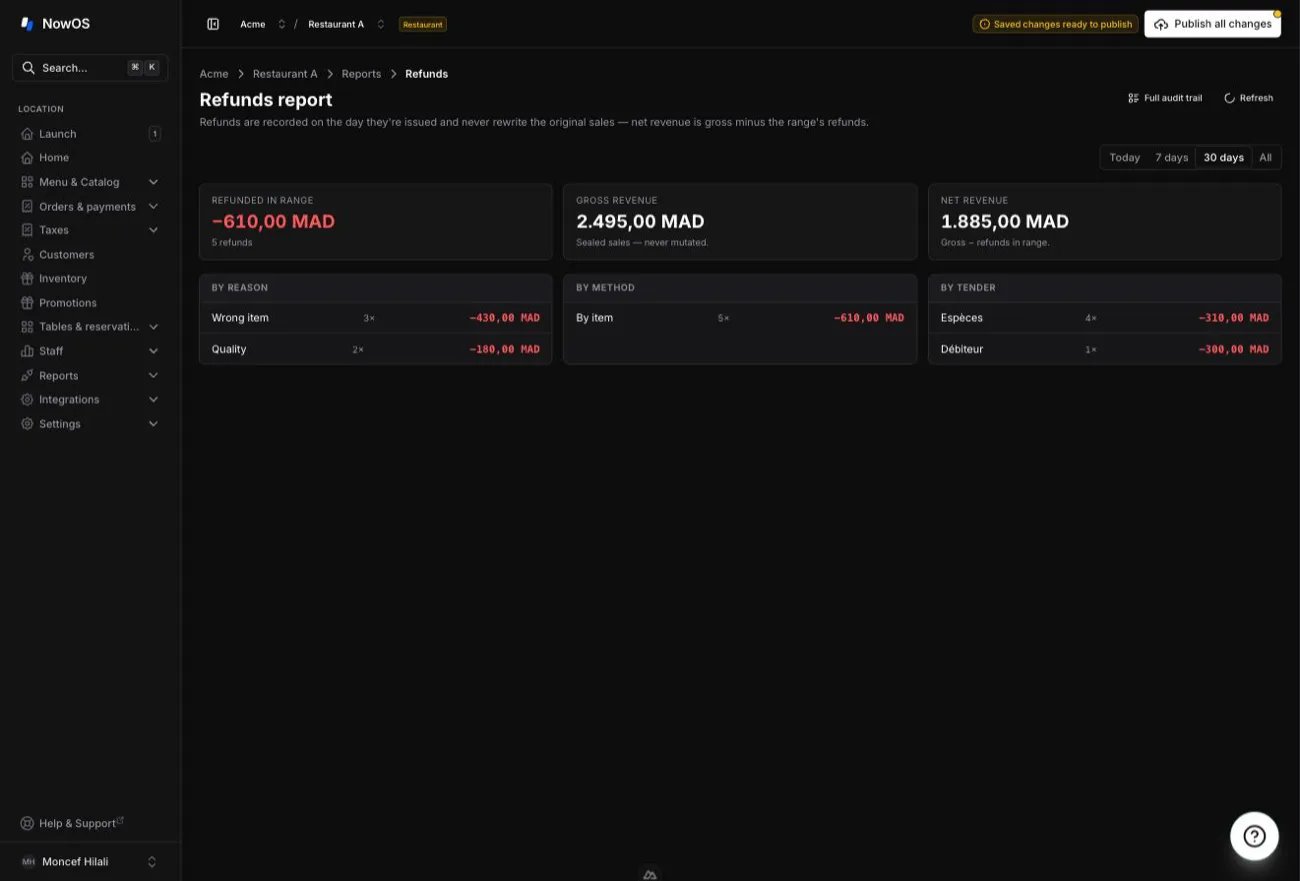
Open Reports → Refunds. This report answers the question: “how much did we refund, why, and what’s the impact on revenue?” Refunds count on the day they are issued and never rewrite the original sales. Three figures at the top of the page, over the chosen range (Today, 7 days, 30 days, or All):- Refunded in range — the total refunded and the number of refunds;
- Gross revenue — the gross sales, which never change;
- Net revenue — gross minus the range’s refunds.
- By reason — by reason: Wrong item, Quality, Returned, Other;
- By method — by method: By item (chosen items) or Amount (a free amount entered at the register);
- By tender — by payment method, under your own names (“Cash”, “Card”, “Meal voucher”…).
Sales summary
Open Reports → Sales summary. The headline of the period: Gross revenue (with the change versus the previous period), Net revenue (gross minus the range’s refunds), Orders (with the average ticket), and Checks (closed checks). A By service type breakdown splits the takings between dine-in, takeaway, and standard. Export CSV downloads the figures for your accountant.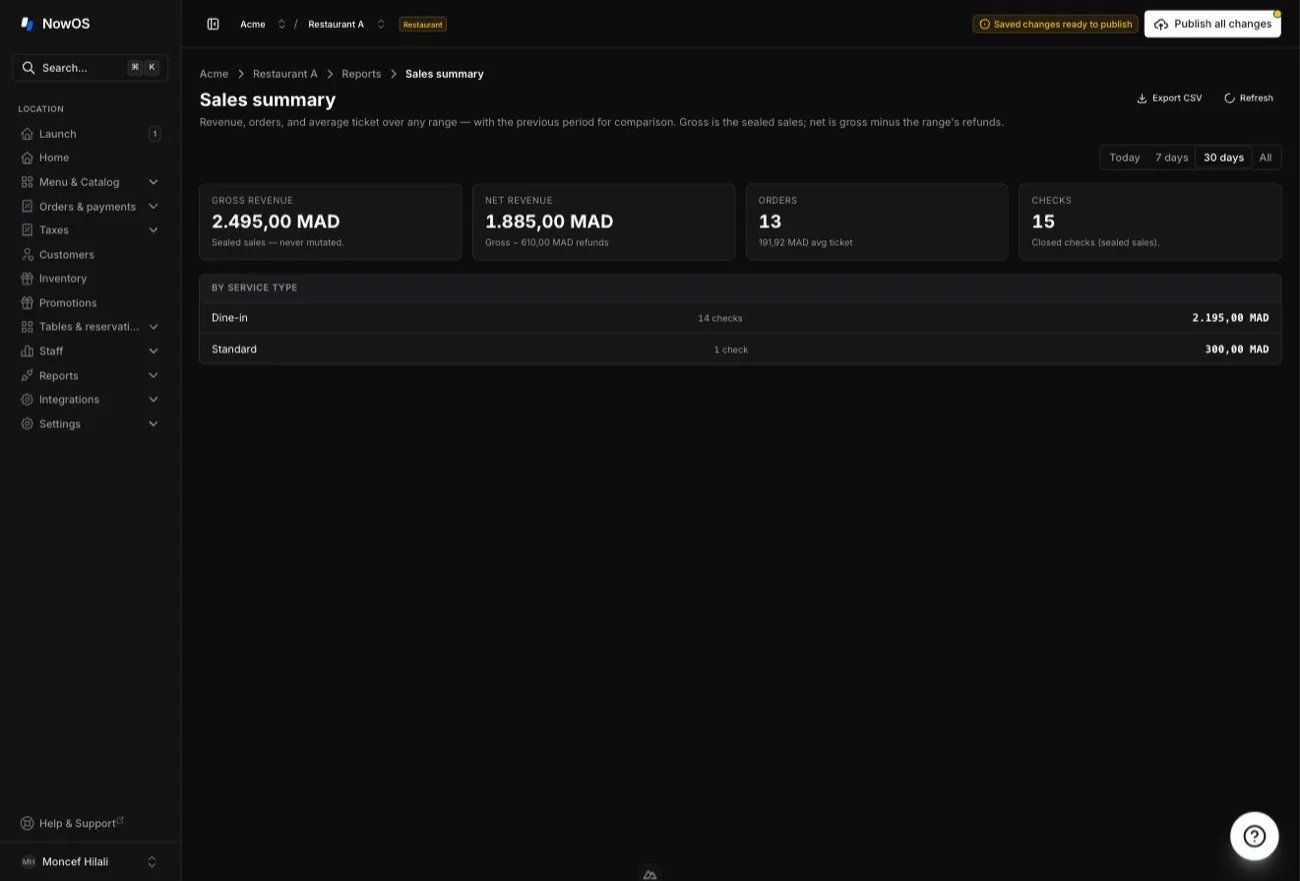
Product mix
Open Reports → Product mix. Every item sold over the period, ranked by revenue: units sold, revenue, and each item’s share of revenue — so the top sellers and the dead weight stand out at a glance. Export CSV downloads the full list.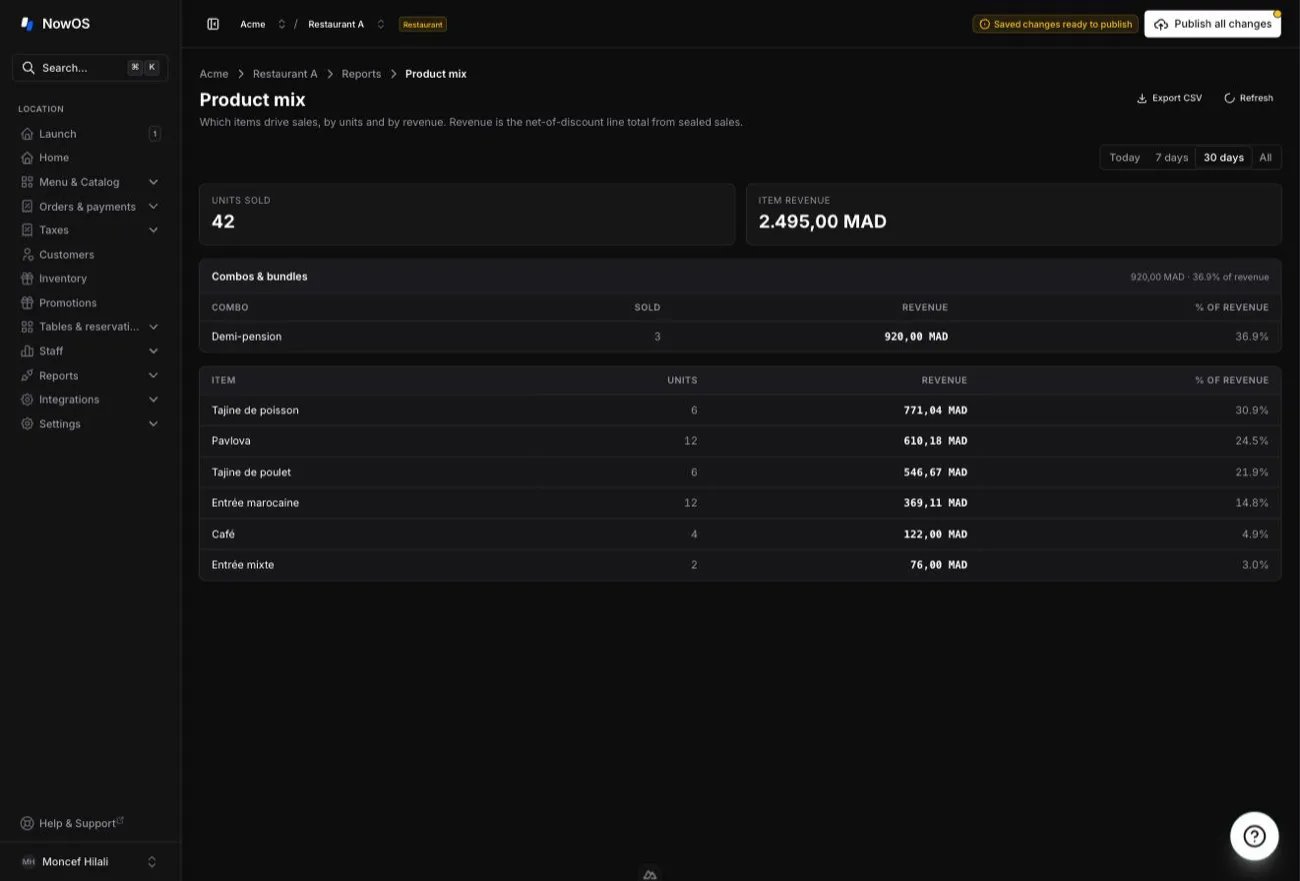
Payment methods
Open Reports → Payment methods. How guests paid: Money in by payment method — your methods, under your names — and Money out, the refunds returned, by method. Useful to reconcile the takings against the drawer. A Tips collected total shows the card gratuities owed to staff, and vouchers show their retained overpayment in its own column — neither is revenue. Rows are grouped by method and carry the method’s current name: renaming one mid-period keeps it on a single line. Sealed documents (customer receipt, Z report) keep the name of the day of the sale instead — that is the one that counts.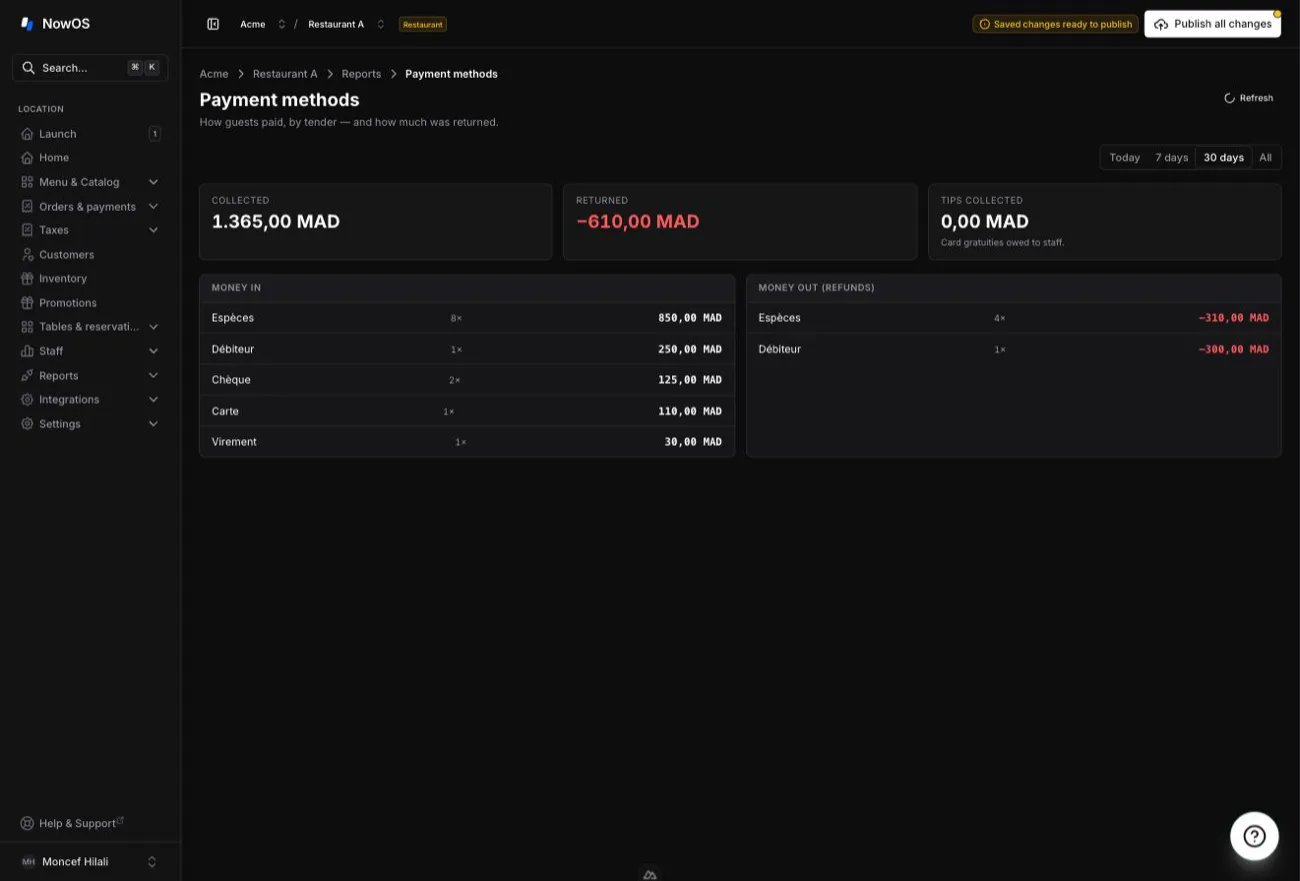
Discount usage
Open Reports → Discount usage. Every discount and comp applied at the register, with the total taken off the bills and the number of applications. Three breakdowns: By kind (comp, percent off, amount off), By reason — your configured reasons and preset names — and By operator, who applied them, to surface unusual patterns.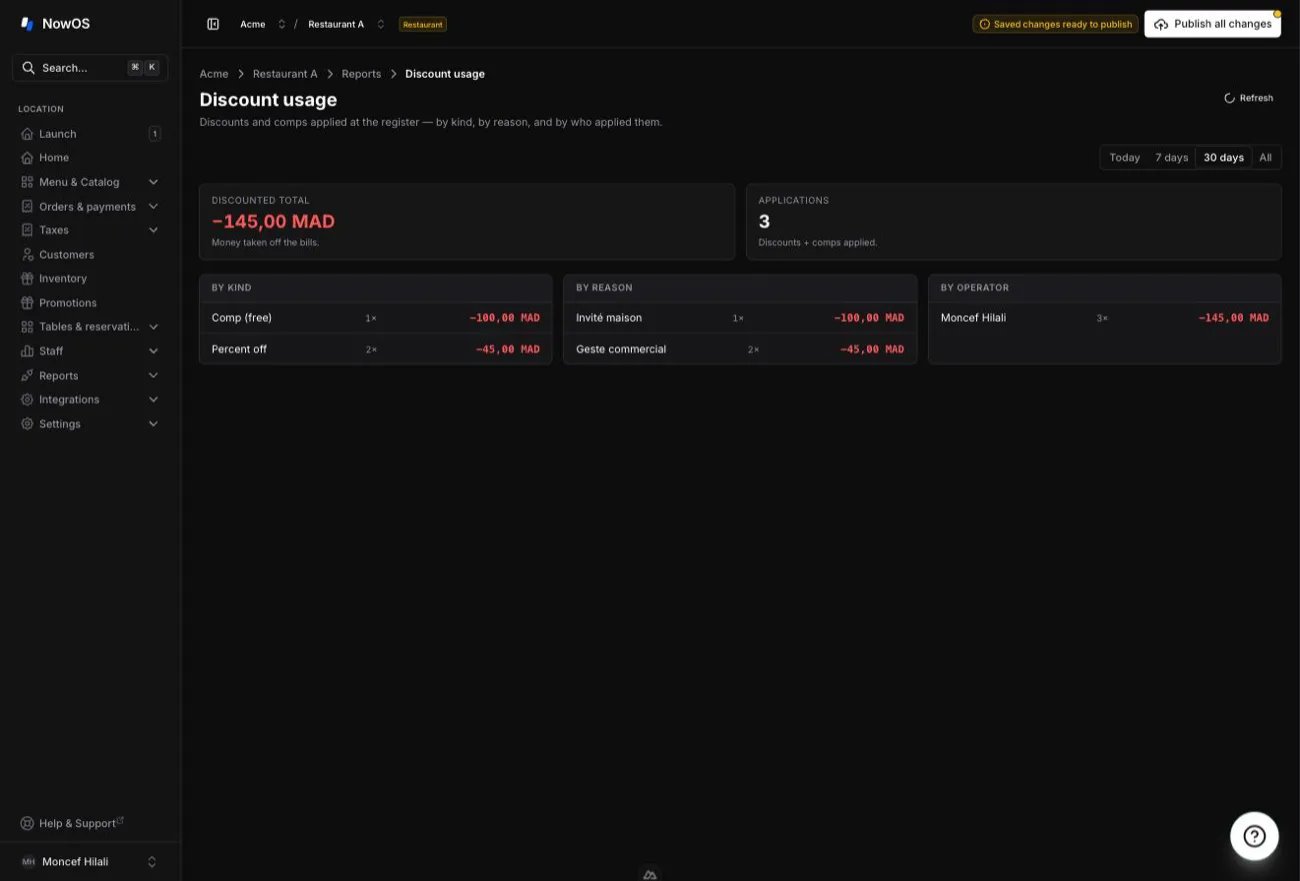
Staff performance
Open Reports → Staff performance (restaurant mode). One row per operator who closed checks: Checks, Revenue, Average ticket, Items per check, Comps applied, Tips (card gratuities on their checks), and Refunds against their checks. Everything attributes to the operator who closed the check.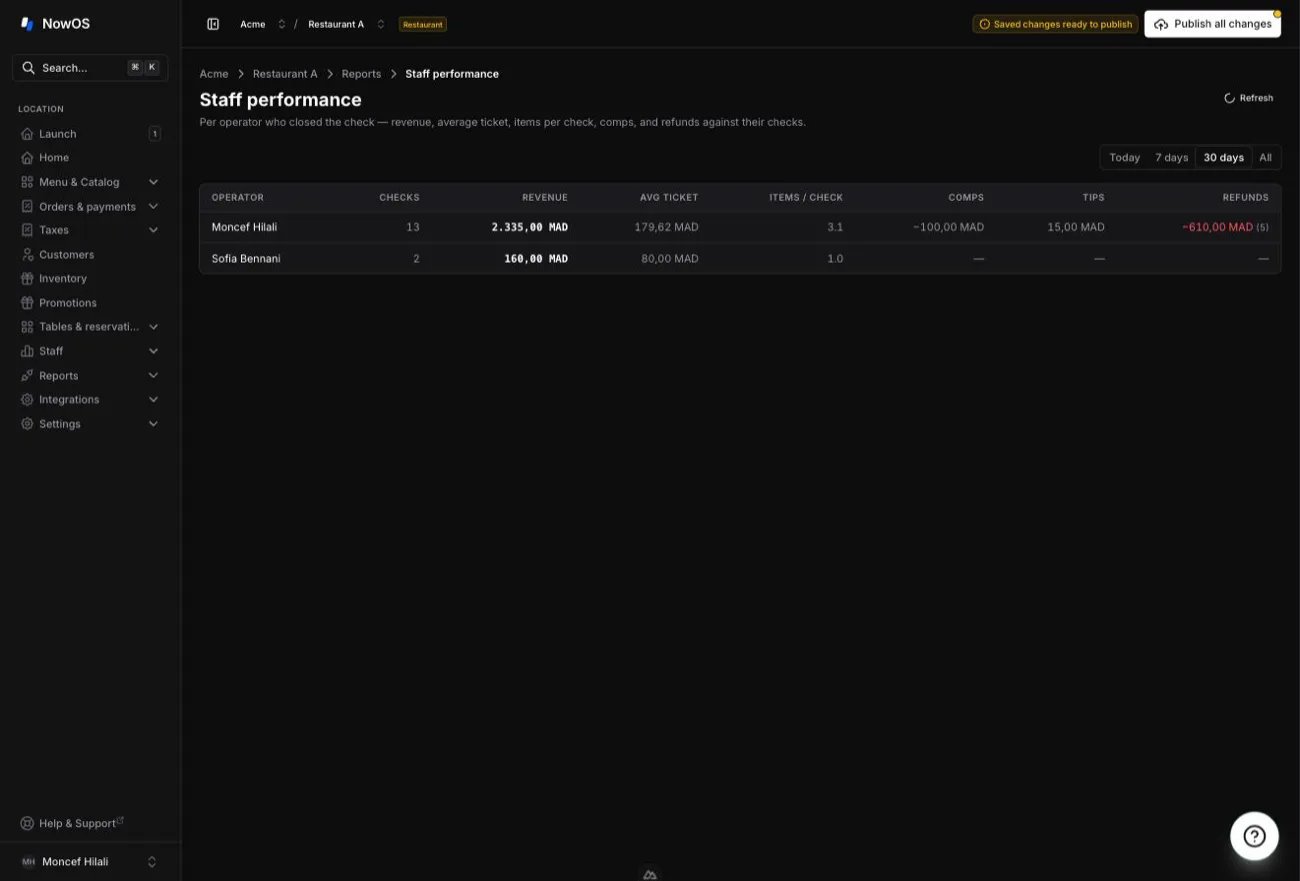
Hourly breakdown
Open Reports → Hourly breakdown. Revenue spread across the hours of the day, a bar per hour, with the Busiest hour highlighted — to plan staffing around rushes and slow periods. Hours are shown in your local time.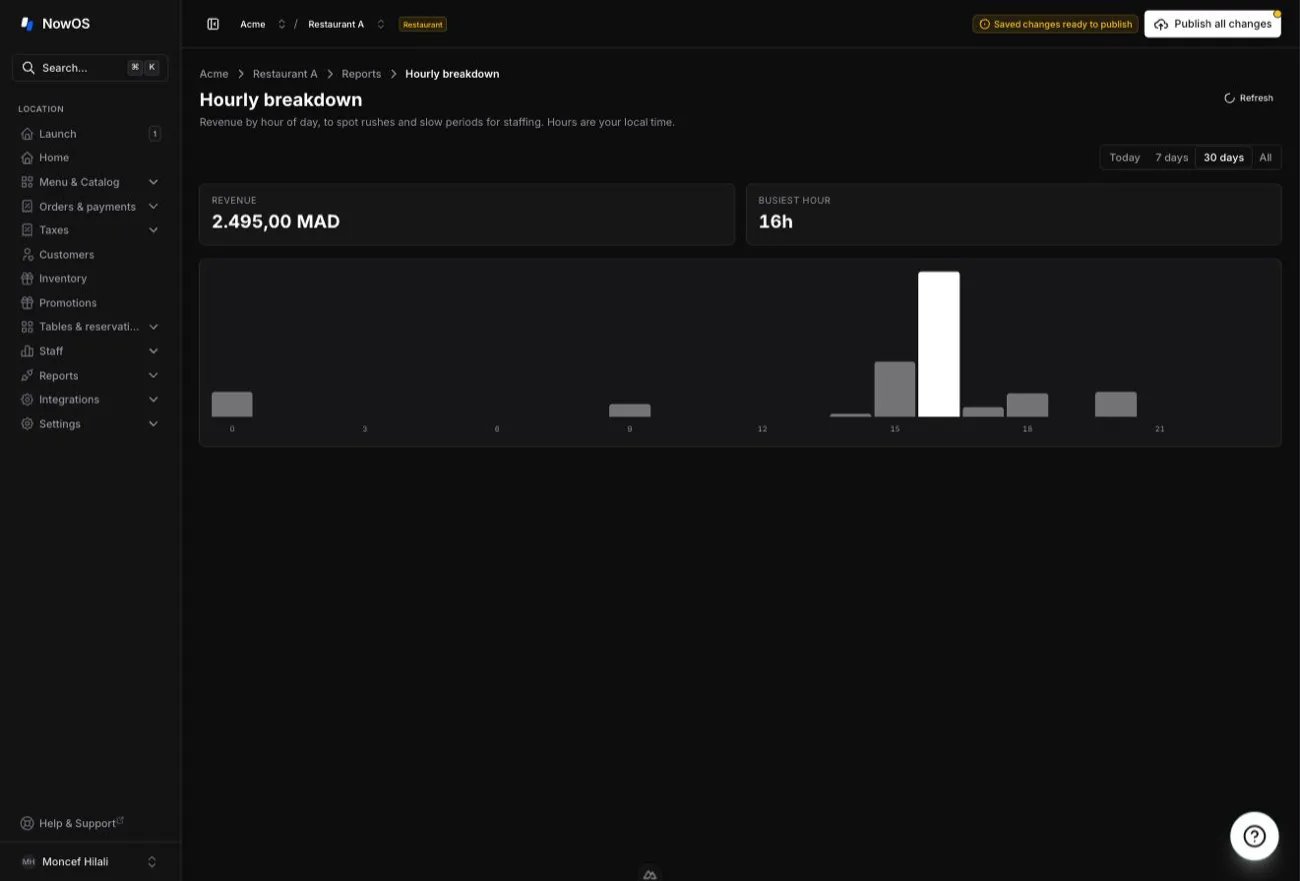
Voids & covers
Open Reports → Voids & covers. Lines voided after being fired to the kitchen — the Voided value and count, broken down By reason and by Most-voided items — alongside Covers (guests served) and the average covers per order. Voids and covers are operational: they never touch a sealed sale.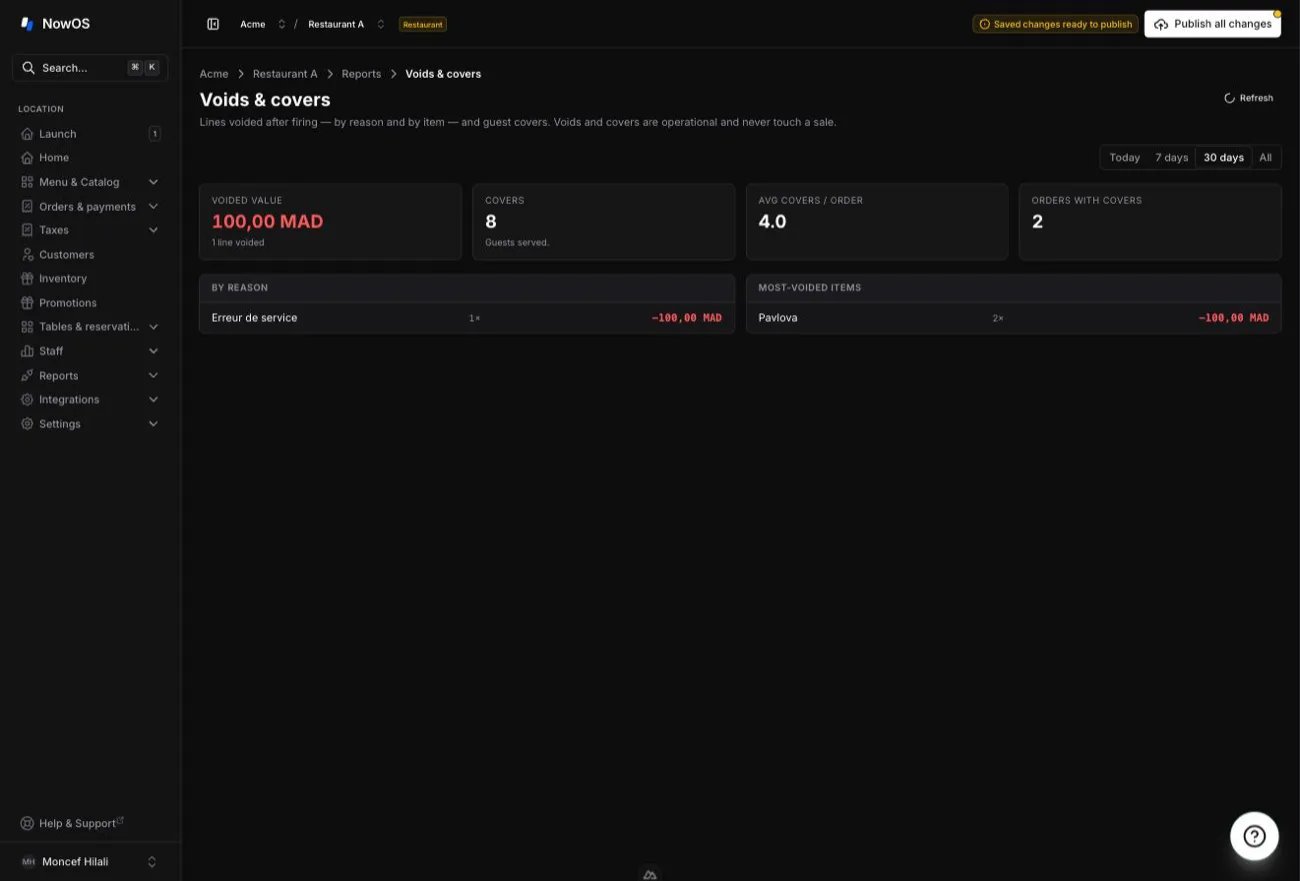
Coming soon
The Labor report — labor hours and cost relative to revenue — needs staff clock-in/out, which isn’t in yet. It appears in the menu (restaurant mode) but isn’t available.The Staff performance and Labor reports are restaurant-mode only: they don’t appear in the menu of a retail-mode location. The other reports are shared by both modes.