

Modifiers are mostly used in restaurant mode. In retail mode, most products
are simple: the Modifiers section sits at the bottom of the product
editor page, but works the same way.
How it works
An item can carry one or more choice groups (the Modifiers section of the editor page). Each group contains options:- The group sets how many choices are allowed: Min selections and Max selections. A minimum of 1 or more makes the group required — on the register it shows Required and must be completed before the item can be added. A minimum of 0 makes it optional (Optional).
- Each option can add a price surcharge (Price delta). The final line price is the item’s base price plus the surcharges of the chosen options.
Add a choice group
1
Open the item
In Item library, click the item, then find the Modifiers section.
2
Click Add group
Fill in:
- Group name: for example “Milk choice” or “Extras”.
- Min selections: 0 for an optional group, 1 or more for a required group.
- Max selections: the maximum number of choices in this group.
3
Confirm with Add group
The group appears in the editor with its summary, for example
“Choose 0–1 option”.
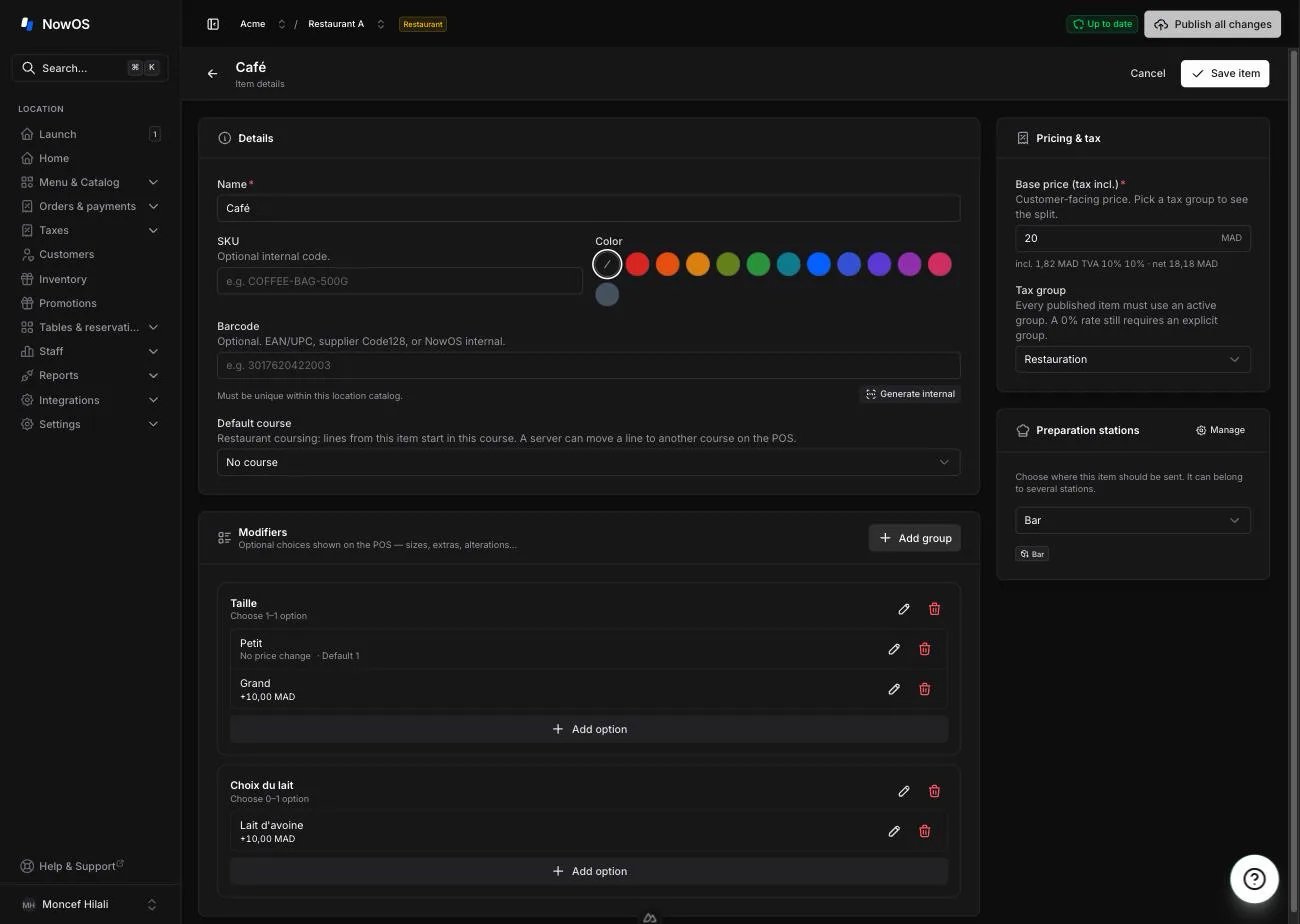
Add options
1
Click Add option inside the group
Fill in:
- Option name: for example “Oat milk”.
- Price delta: the surcharge billed when this option is picked. Leave it at 0 for an option with no extra charge.
- Default quantity: if greater than 0, the option is preselected when the item is added to the order.
- Allow repeated selection: allows picking the same option more than once (for example “double cheese”).
2
Confirm with Add option
Repeat for each option in the group.
3
Save the item
Click Save item: details, groups and options are saved together. Like
any catalog change, they only reach the registers at the next publish —
see menu and items.
A price surcharge cannot be negative: there is no “discount” option. Every
copy of a repeated option counts toward the group’s Max selections
limit.