

How many kitchen screens you can pair depends on your plan (one per
location by default). They are counted apart from registers: adding a
screen takes no register’s place.
Before you start
A screen shows only the tickets of the preparation stations it follows. In the backoffice, switch each station concerned to a screen mode — see Preparation stations:- Screen — the ticket shows, nothing prints;
- Screen, paper as backup — the ticket shows, and prints only if no screen has received it within 15 seconds;
- Screen + paper — the ticket shows and prints on every send.
Pair a screen
1
On the main register
Signed in as a manager, open More → Add a device and choose
Kitchen screen. The register shows a QR and an 8-character code.
If FULL shows under Kitchen screens, every screen in your plan is
already in use.
2
On the screen
Open the NowOS app. On iPad, choose Secondary device and scan the QR.
On Android, type the code shown under the QR — or scan the QR if the
screen has a camera.
3
Name the screen
Give it a name that says where it is: “Pass”, “Hot screen”, “Bar”. This
is the name the backoffice shows.
4
Choose the stations
Tick the station or stations to show, then tap Start service. A
station that is not in a screen mode is greyed out: change its mode in
the backoffice to show it here.
Read a ticket
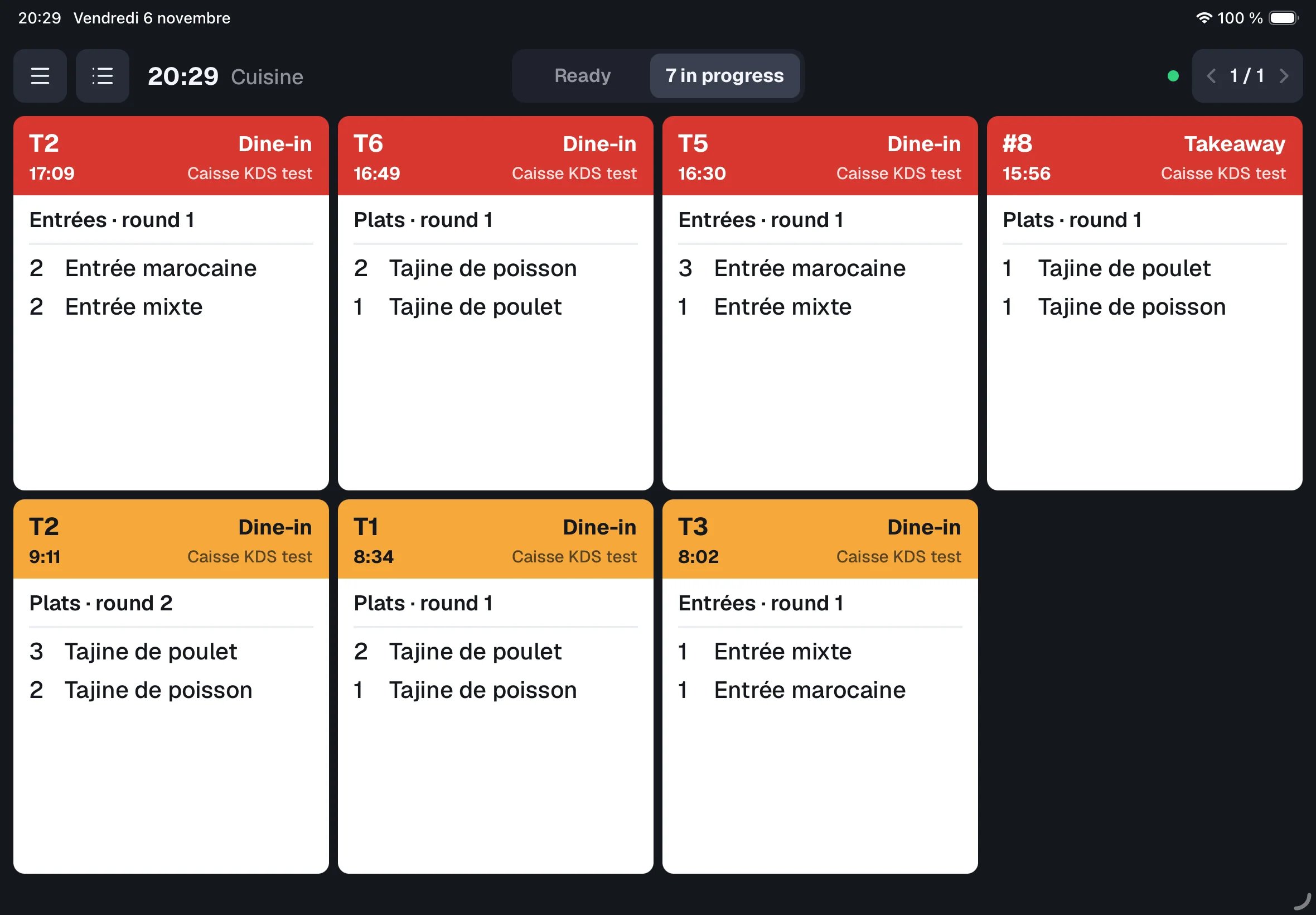
Each ticket carries the order number, its type (Dine-in with the table, Takeaway with the customer’s name, Counter), the register that sent it and the time since the send. Below come the items of that send, grouped by course when you use courses. The header changes colour as the wait grows: neutral, then amber, then red. Both thresholds are set per station in the backoffice (8 and 15 minutes by default): a grill and a cold station do not run at the same pace. The ticket follows the order live:- an item voided on the floor stays visible, struck through, marked Voided;
- a ticket changed after it arrived is marked CHANGED;
- a cancelled order is cancelled on the screen too, with Order cancelled.
Bump a ticket
When it is ready, tap the ticket’s header. It shows Bumping… Undo 3 for three seconds: tap Undo if it was a mistake. Then the ticket leaves the grid and moves to the Ready tab. The Ready tab keeps the tickets bumped in the last 30 minutes, newest first. Recall a ticket to put it back in progress — when a dish comes back to the kitchen, for instance.What the floor sees
As soon as every ticket of an order is bumped, the order is ready:- the register chimes and shows “T4 · #12 is ready” with Open, which opens the order;
- on the floor plan, the table gets a green ring with a bell, until the order is opened on that device;
- in Orders, the Kitchen column reads Cooking or Ready.
The takeaway queue
In Orders, the Takeaway · to hand over filter shows the business day’s takeaway orders that have not been handed to the customer yet — paid or not. For each: the payment (Paid, or Unpaid with the amount) and the kitchen status.- An unpaid order offers Charge, which opens the order.
- A paid order offers Hand over. It turns green once the kitchen has bumped it, with how long it has been waiting: past 5 minutes, the time shows in amber.
When the link is down
If the screen can no longer reach the main register, a banner says so and the screen freezes: tickets stay as they are, and nothing you touch is saved until the link is back. For a Screen, paper as backup station, new tickets print on the printer meanwhile. If the screen was unpaired from the main register, the banner says so: pair it again from More → Add a device. In training mode, practice tickets show with the TRAINING watermark and disappear when you leave the mode.Lock the screen
A kitchen screen stays on as long as the app is open. To keep a stray gesture from leaving the app, lock it in:- iPad — Guided Access
- Android — Screen pinning
- In Settings → Accessibility → Guided Access, turn on Guided Access and set a passcode.
- Open NowOS, then triple-click the top button (or the Home button).
- Tap Start. To leave, triple-click again and enter the passcode.