

What the main register does
- It records every order in the store. Every order taken on a secondary device goes through the main register, which validates it, saves it, and shares it with the other iPads. It is what keeps the whole team looking at the same orders in real time.
- It distributes the menu and the team. The menu published in the backoffice and the list of team members land on the main register first, which then pushes them out to every paired device.
- It syncs with the cloud. Whenever internet is available, it sends the store’s sales to the backoffice. Without internet, it keeps everything locally and catches up later — see Connectivity.
Why that iPad must stay on
Secondary devices need to reach the main register to save their orders. If it becomes unreachable, they switch to degraded mode and can no longer take orders. Three rules to follow at all times:- Plugged into power. A sleeping iPad stops answering the other devices.
- The NowOS app in the foreground. iOS suspends background apps: don’t switch to another app and don’t lock this iPad’s screen during service.
- On the store Wi-Fi. That network is how the other iPads reach it — even without internet, the local Wi-Fi is enough to keep working.
System status
On the main register, signed in as a manager, the More tab shows a Main register section the other devices do not have. It holds three entries: System status, Connected devices, and Add a device. Tap System status: this is the screen to open when something looks wrong, and the one to show NowOS support.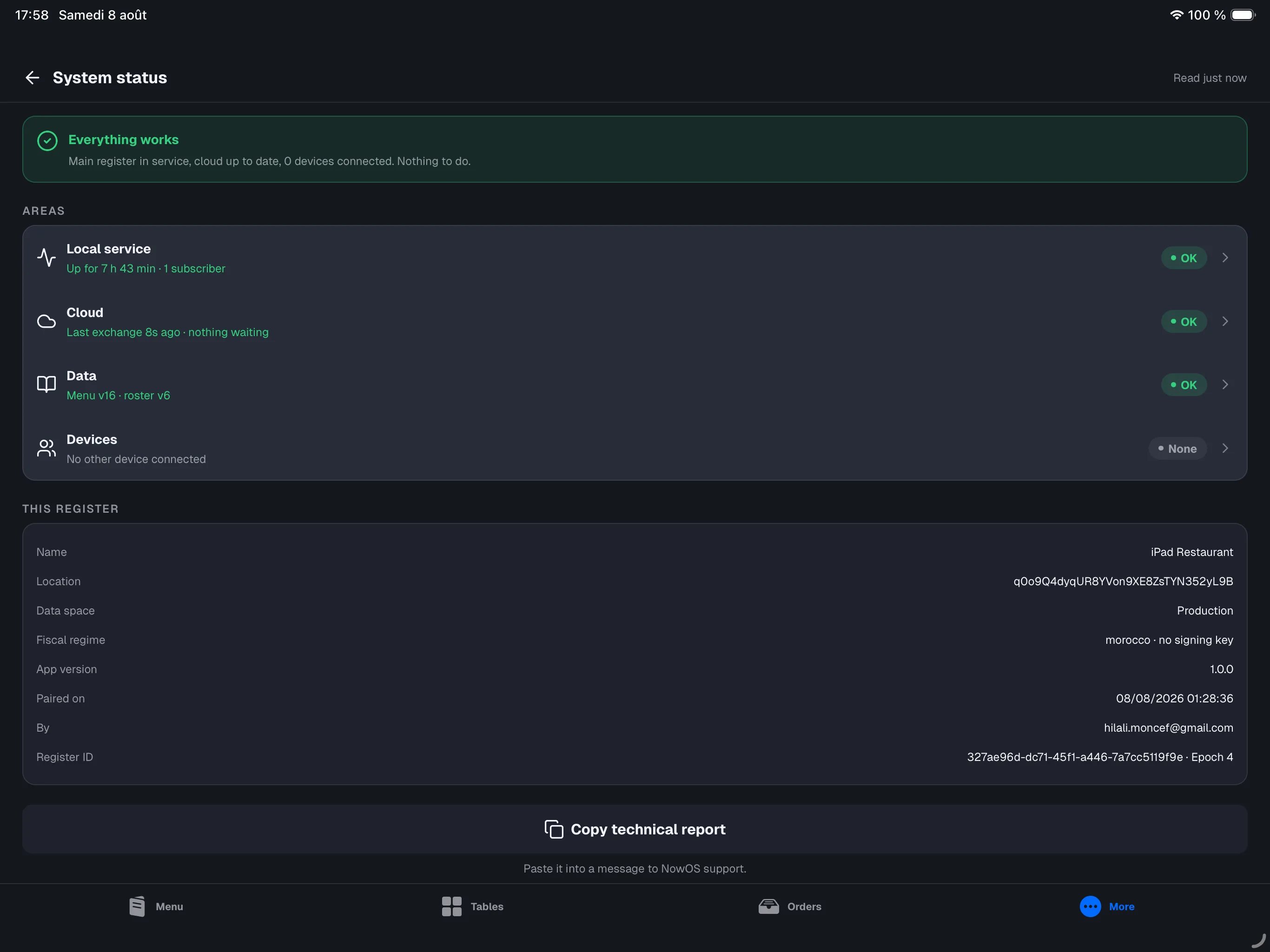
The verdict
At the top, one sentence answers the only question that matters: does everything work? It names the worst thing currently true and says what it changes for service — for example “The cloud is unreachable. Selling continues normally.” That sentence runs the same rules as the backoffice Health page: the two cannot contradict each other.The four areas
Each row carries a coloured pill and opens its own detail.- Local service — the service the other devices talk to. It must read OK during service. The detail shows the local address, how long it has been up, how many connections are active, and lets you stop or restart it.
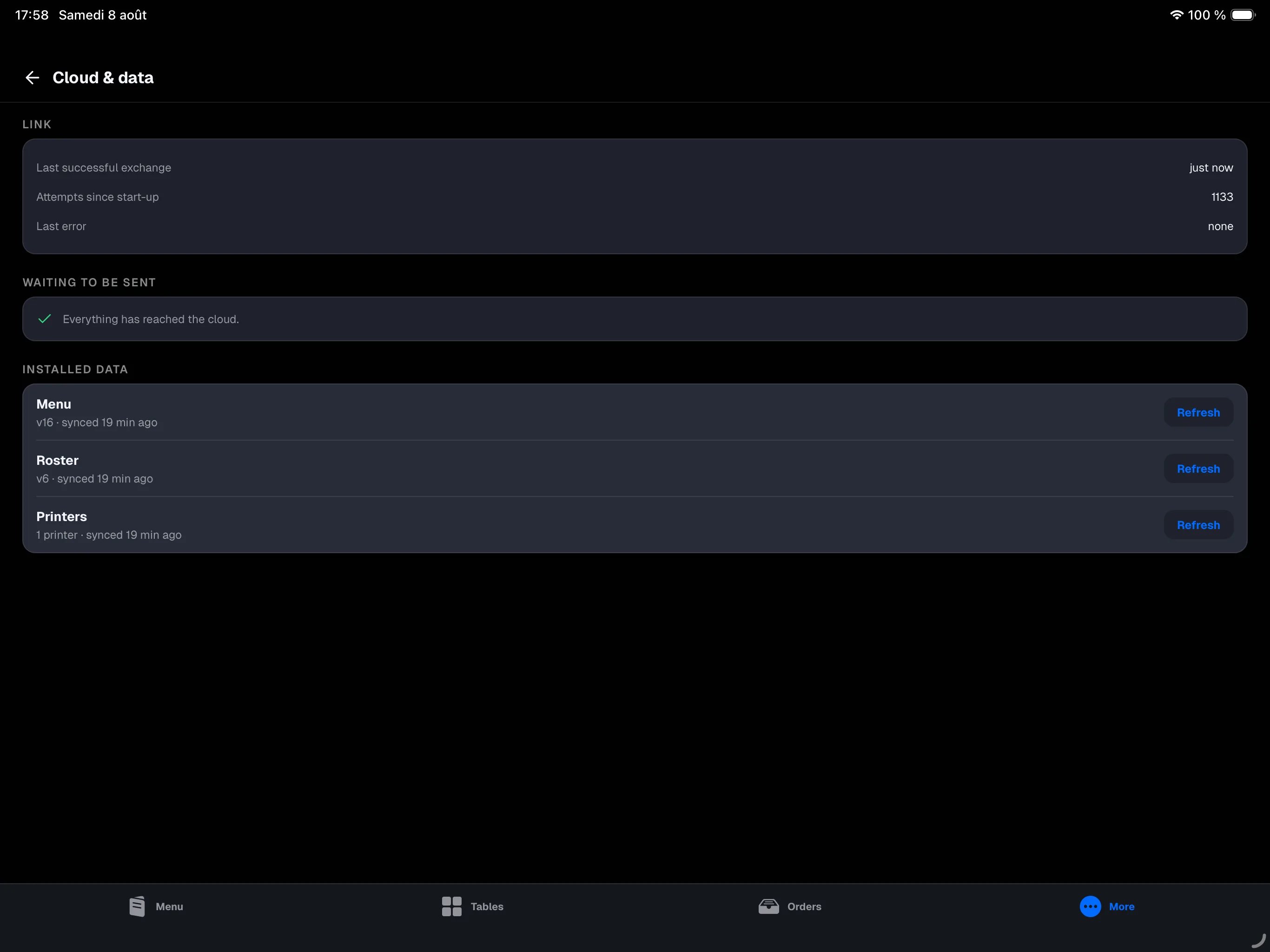
- Cloud — the link to the backoffice, and everything still waiting to be sent: sales, closures, fiscal journal, availability, stock, devices. Each queue shows how long it has been waiting and, where relevant, the last error.
- Data — the menu, roster and printer versions installed on this register, with the button to update them when a new version is published.
- Devices — how many devices are connected right now, out of your licence’s slots.
This register
The register’s identity card: name, location, data space (Production or Training), fiscal regime, app version, when it was paired and by whom.The technical report
Copy technical report puts a full summary on the clipboard — versions, queues, recent errors, devices. Paste it into a message to NowOS support when asked. It contains no amounts and no customer data.Reset
At the bottom of the screen, Reset this register removes this iPad’s main-register role and erases all of its local records. You are asked to confirm.Connected devices
More → Connected devices lists every iPad and iPhone paired to this store, with its model, iPadOS version, app version, and above all its live state:- Main — this iPad, the main register.
- Online — the device is receiving orders live.
- Silent — seen less than five minutes ago, but not connected right now.
- Offline — nothing heard for over five minutes.
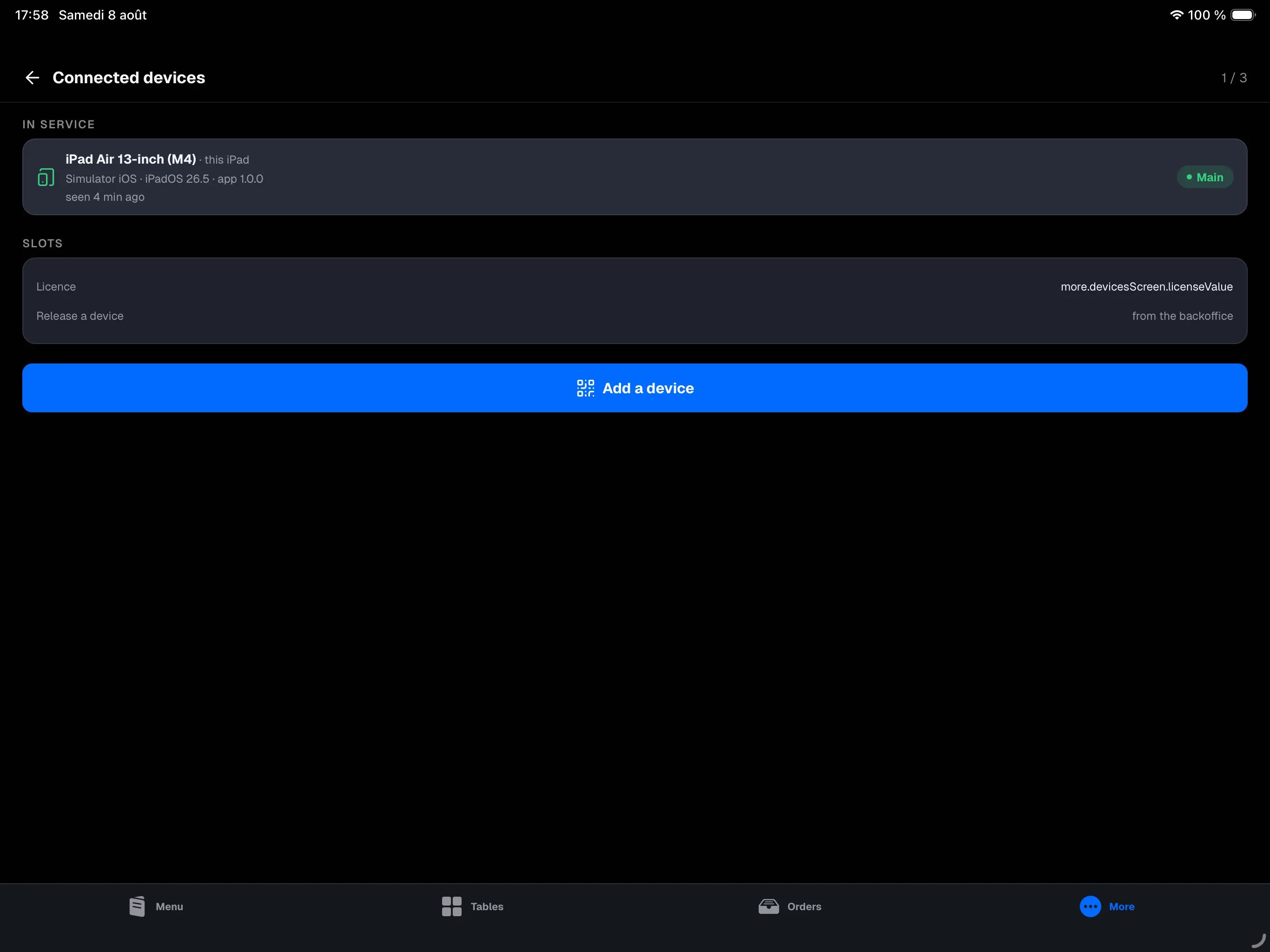
To release a device (unpair it and free its licence slot), use the
backoffice: Settings → Devices. See Devices.
Going further
- The rest of the device settings are covered in Device settings.
- Connection states as seen from secondary devices are explained in Connectivity.