

Open orders
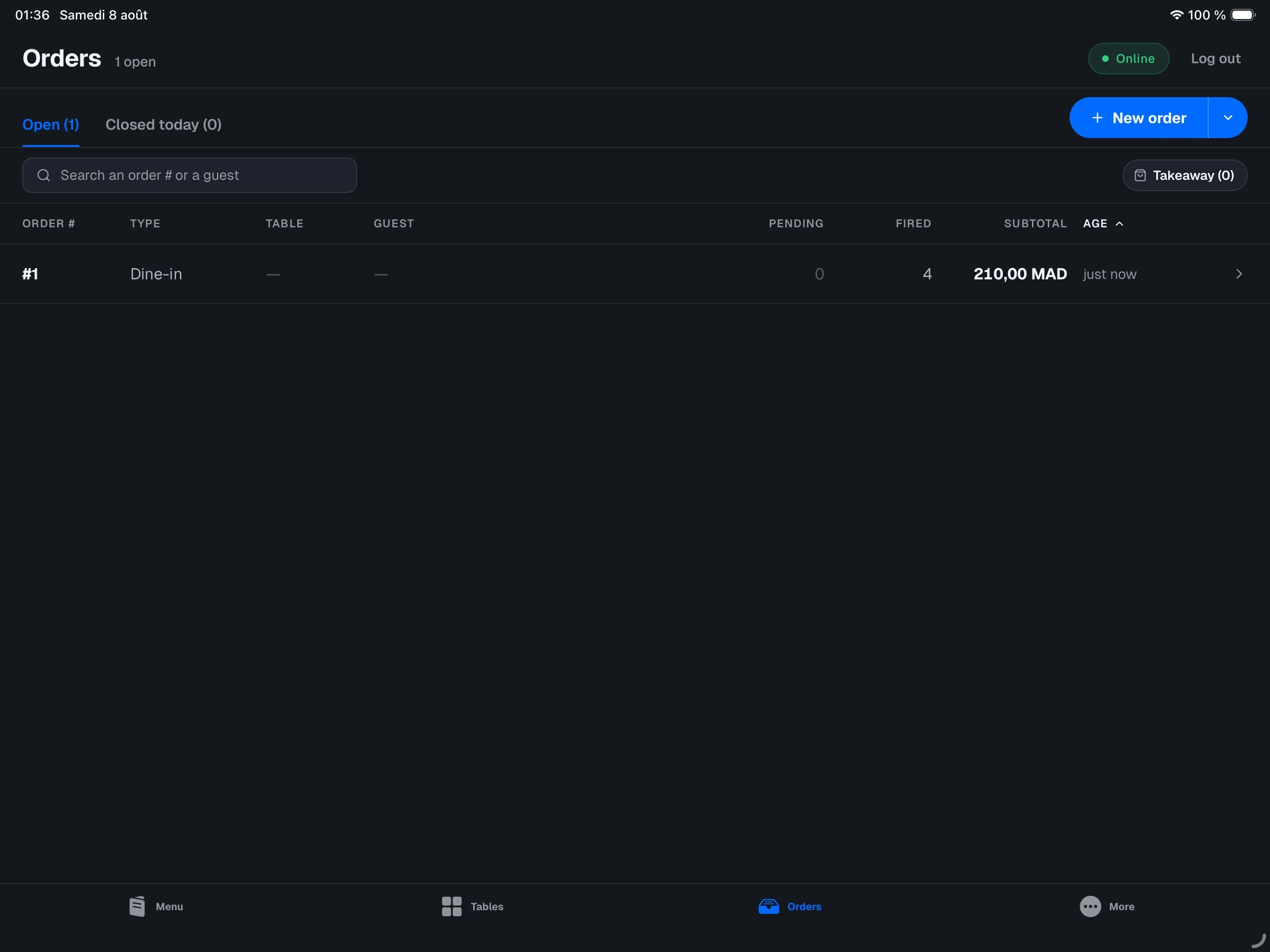
Tap the Open filter to see orders in progress. An open order can still be changed: add items, send to the kitchen, take payment. In restaurant mode, each row in the table shows:- Order # — the order number.
- Type — dine-in or Takeaway (pill). The filter bar above the table also lets you keep only takeaway orders — see taking an order.
- Pending — the number of order lines not yet sent to the kitchen. The number is highlighted as soon as at least one line is waiting.
- Fired — the number of order lines already sent to the kitchen.
- Subtotal — the subtotal of the order’s items.
- Age — the time since the last activity on the order (“just now”, “5 min ago”, “2h ago”).
In retail mode there is no kitchen: the Pending and Fired columns
are replaced by an Items column, the number of items on the order.
Resuming an order
1
Open the Orders tab
At the bottom of the screen, tap Orders, then the Open filter.
2
Tap the order
The order opens in the Menu screen (or Catalog in retail mode),
ready to be completed.
3
Carry on as usual
Add items, send to the kitchen, or take payment. See
Taking orders and
Payments.
Orders closed today
Tap the Closed today filter to see orders finished today. The Closed column shows the closing time, and the Total column the amount actually taken — discounts deducted. It is the amount on the receipt: it matches the total shown when you open the order.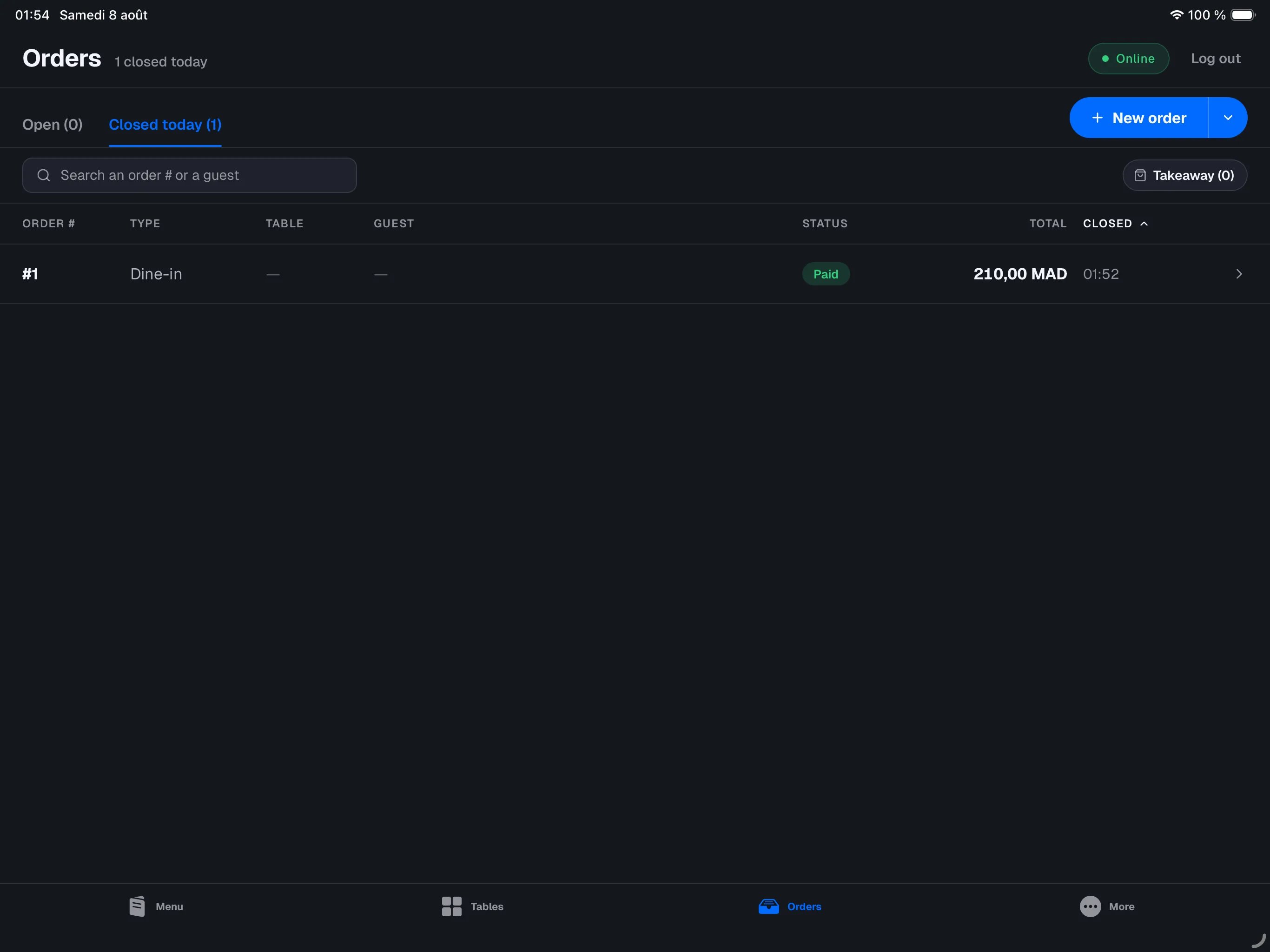
- Paid (green) — every check on the order has been settled. The sale is sealed: the order can no longer be changed.
- Cancelled (red) — the order was voided before any payment. Its amount is grayed out.
- A small arrow next to the Paid badge means at least one refund was issued against this order. The badge stays Paid: the original sale does not change. See Refunds.
“Today” means the business day, not midnight. If your service runs past
midnight, the orders taken at 00:30 stay on the same day as those taken at
23:30 — and so do their order numbers, which keep counting instead of
starting over at #1. The day changes over at the cutoff hour set in the
backoffice (04:00 by default), which is also when the numbering restarts.
See Close of day.
The Closed today filter only shows the current business day. To browse
history from previous days, head to the backoffice: see
Orders.