

- Everyone sees the Account section (your name and your role) and the Device section: This device, Printing, Preferences, Language, Help & support. The Sign out button, in red, sits at the top right of the screen; you are asked to confirm.
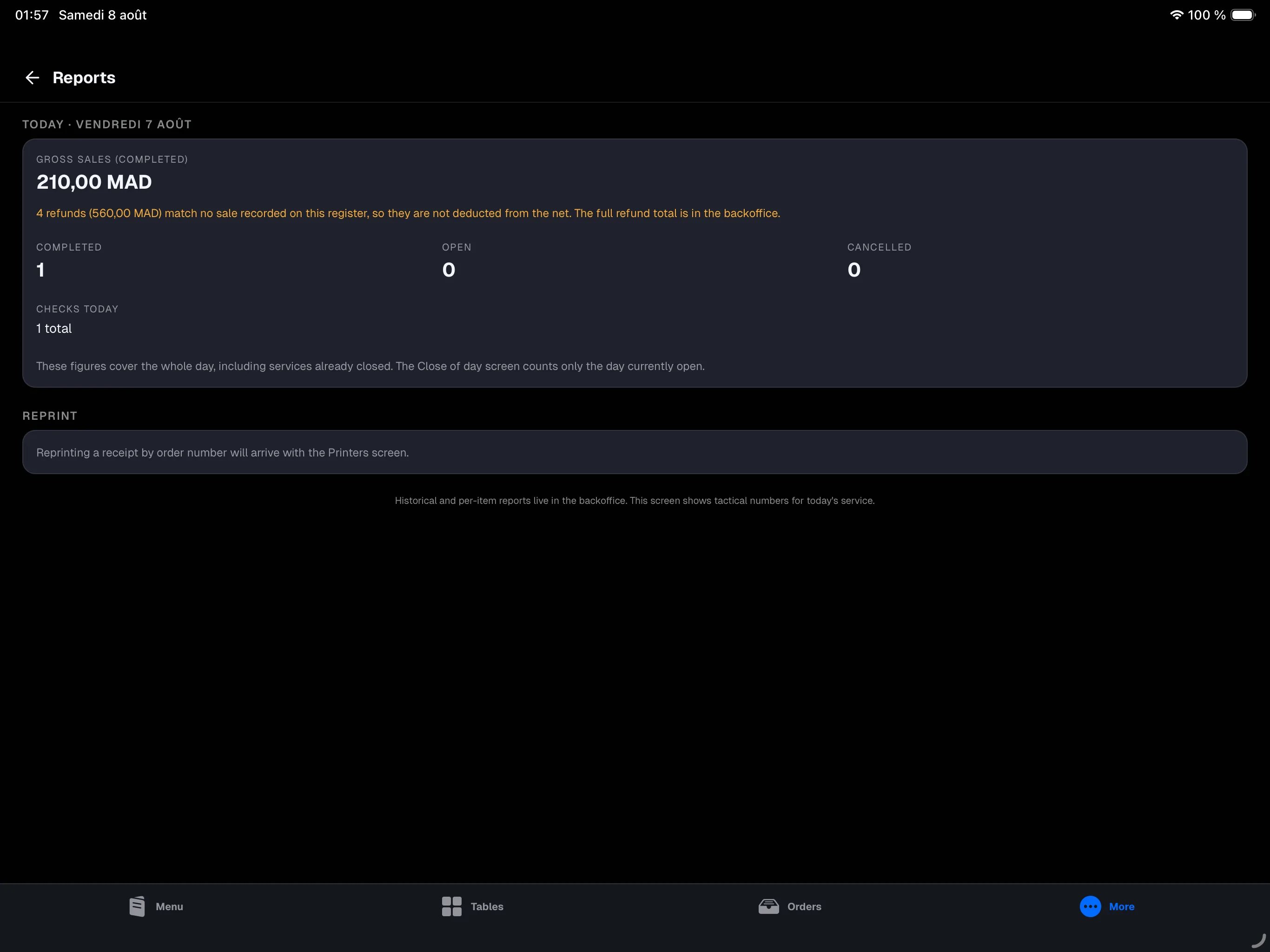
- Managers also see the Store section: Roster, Sales, Reports, and Close of day — see Reports and Close of day.
- On the main register only, managers see the Main register section: System status, Connected devices, and Add a device. All three are covered in The main register.
This device — this device’s status
More → This device is the first screen to open when a device is acting up.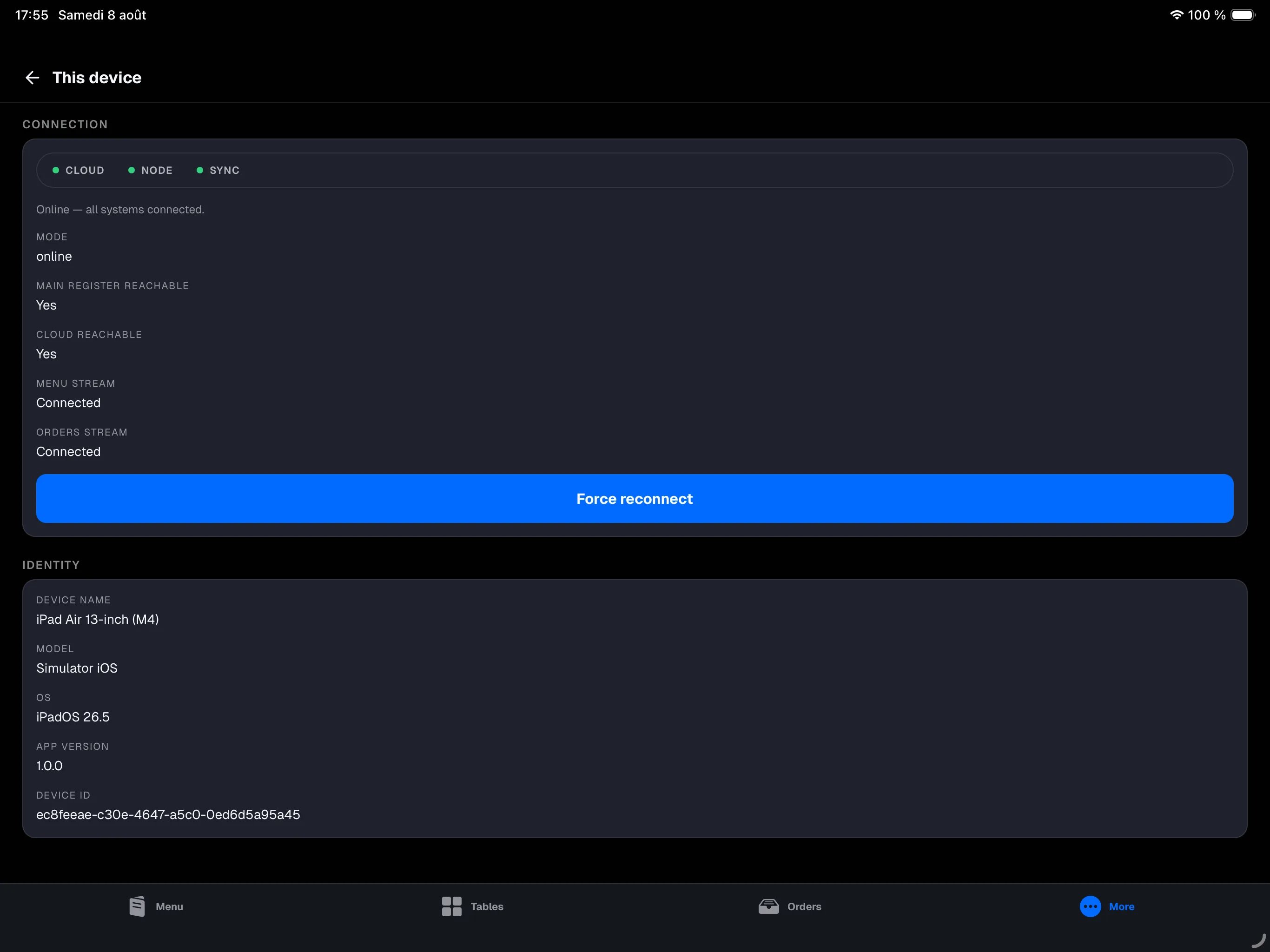
- the CLOUD / NODE / SYNC indicator and a status sentence;
- Primary reachable — Yes means the device reaches the main register;
- Backend reachable — Yes means the store reaches the cloud;
- Menu stream and Orders stream — the two live update streams. Connected is the normal state;
- the Force reconnect button, which restarts the connections immediately.
NowOS updates
NowOS automatically checks for app updates, including during service — so the banner can appear while the register is already open. When a new version is available:- a banner shows the download progress; you can keep using the register as normal;
- once the download finishes, tap Restart NowOS when the timing works for you;
- the register resumes on the new version after a few seconds.
Restart NowOS restarts the app only. It does not reboot the iPad.
The cloud, the local network, and devices
These screens only exist on the main register, signed in as a manager, and now live under More → System status: the cloud link and its queues, the installed menu and roster versions, the local service, and the connected devices. All of it is described in The main register.The Refresh button and “Updates available”
When new content is waiting in the cloud (a republished menu, a new team member), the register tells you:- the Roster screen shows how fresh the list is, with its Refresh button;
- the More tab shows an Updates available from cloud panel.
App updates
The app updates itself. It downloads the new version in the background, never interrupting a sale, then installs it while the register is idle: on the PIN screen, nobody signed in, no printing or payment in flight. All you see is a brief restart. If a restart is offered during service, you can take it right away or put it off — it will happen at the next quiet moment. An App update required message means this register is being handed a menu newer than the app installed on it: install the latest version of the app from the App Store and syncing will resume.Preferences
More → Preferences gathers the settings specific to this device.Training mode
Training mode turns the register into a complete practice environment: everything works, nothing is real. Perfect for training a new employee — or rehearsing a close of day — without touching your books. Set it from More → Preferences, on the main register.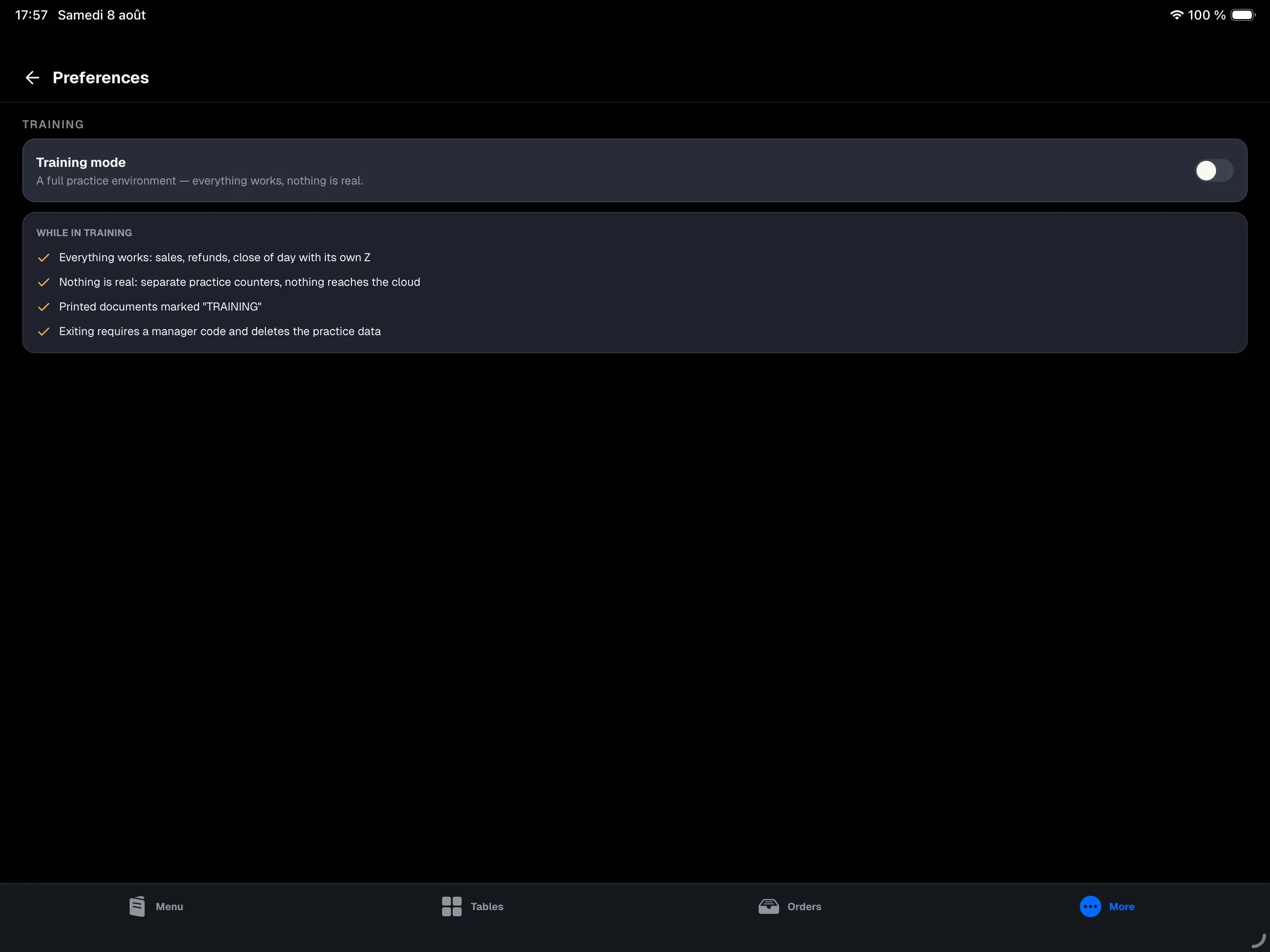
- take payments, issue refunds and invoices, record cash movements — every gesture really completes, with its own practice numbers, without ever touching the real registers or the real day’s total;
- open and close the day — drawer count and practice Z ticket included: the close of day can be rehearsed as many times as needed;
- tickets really print — kitchen tickets included — but every document carries the “FORMATION — DOCUMENT SANS VALEUR” watermark;
- an amber “TRAINING MODE” banner stays at the top of the sales screen — and even on the lock screen (PIN pad) — so it can never be mistaken for real service, and the payment screen turns amber (“Confirm (training)”).
Training mode is set on the main register. Secondary devices also show the
“TRAINING MODE” banner and join the same practice session; to leave training,
go back to the main register.
Help & support
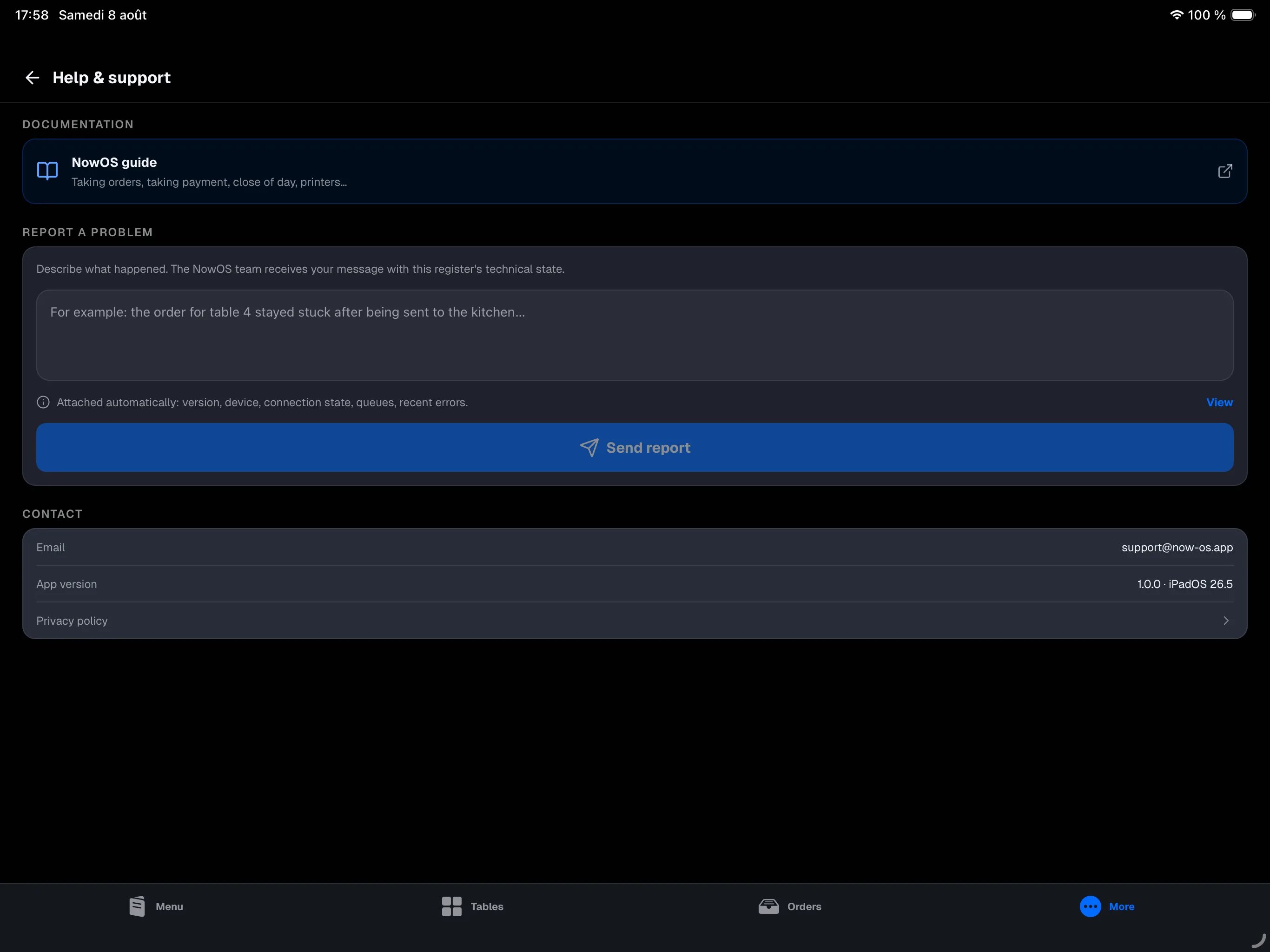
- NowOS guide — opens the NowOS documentation in the browser, in the interface language.
- Report a problem — describe what happened, then tap Send report. The NowOS team receives your message by email with the register’s technical state: version, device, connection state, queues, recent errors. Tap View to read exactly what will be sent.
NOW-7F2A): quote it if you
call support.
The report travels through the main register. If it cannot be reached, the
screen says so and nothing is sent: try again, or call support if it is
urgent.
- Never include customer names, contact details, or card data. No screenshot is sent, and the report carries no amounts.
- support@now-os.app and the app version are shown at the bottom of the screen.
- Tap Privacy policy to see which data NowOS processes and how to exercise your rights.