> ## Documentation Index
> Fetch the complete documentation index at: https://docs.now-os.app/llms.txt
> Use this file to discover all available pages before exploring further.
# The Receipts tab
> Find an issued receipt — today or on a past day — preview it exactly as printed, reprint it, issue an invoice or start a refund.
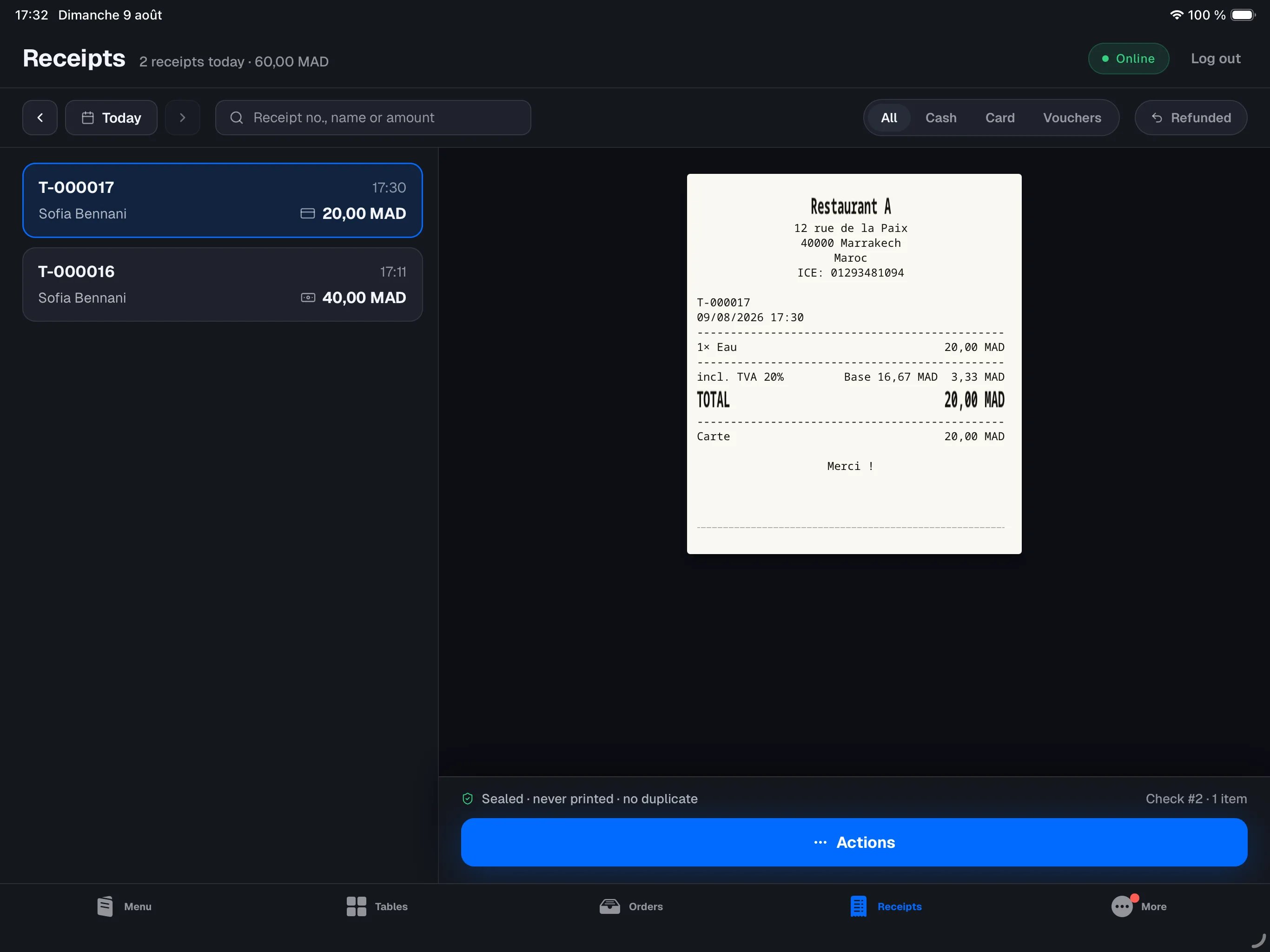
The **Receipts** tab, in the bottom bar of the main register, lists every issued receipt: one receipt per paid check. It is where you go when a customer comes back with a question — "can I get an invoice?", "could you reprint my receipt?", "I'd like a refund".
 The tab only exists on the **main register** — it is the device that holds
the sales history. It does not appear on other devices.
## The list
By default the list shows the **current business day**, newest first, and updates **live**: a payment taken on any device — including the iPhone on the floor — appears right away. Each card carries the receipt number (`T-000123`), the table or takeaway name, who took the payment, the time, the payment method and the amount. Two badges may appear: **Refunded** (with the amount returned) and **Invoice** when one has been issued.
At the top of the screen, the day summary breaks the takings down **by payment method** — "Cash 1,240.00 · Card 3,180.00" — so you can follow the payments as they land without waiting for the close of day.
The arrows next to the search bar step through past days; tap **Back to today** to jump back to the current day. History goes back to the first receipt ever issued on this register.
### Search and filters
Search takes whatever you have at hand:
* the **receipt number** — `605`, `#605` or `T-000605`;
* the **exact amount** — `510` or `510.00`;
* a **name** — the table, the takeaway name, or the operator.
On the right, filter by payment method (**Cash**, **Card**, **Vouchers**) or show only **Refunded** receipts.
## The preview
Tap a receipt: it renders on the right exactly as it came out of the printer — same lines, same totals, same mentions. Below the receipt, any linked **credit notes** (`AV-…`) appear with their amount and reason; each can be reprinted in one tap.
The bottom bar confirms the receipt is **sealed**, whether it was printed and how many duplicates exist.
## Actions
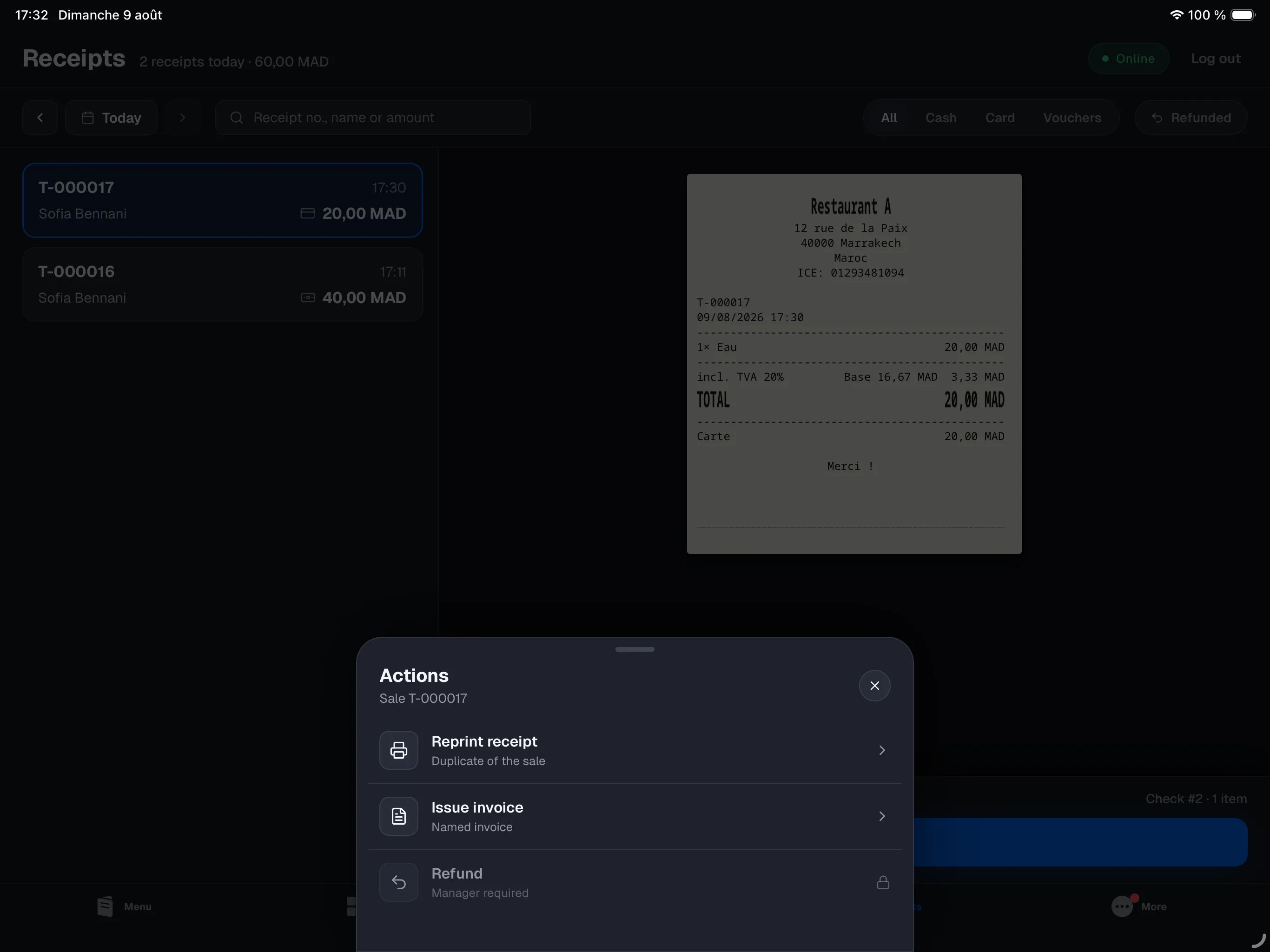
The **Actions** button opens what can be done with the selected receipt:
* **Reprint receipt** — the copy carries the **DUPLICATA** mention; the original stays unique (a legal requirement).
* **Issue invoice** — the `F-…` invoice reflects the sale as it was sealed; see [Payments](/en/pos/payments).
* **Refund** — in full or item by item, with a mandatory reason. Manager-only and requires an internet connection; see [Refunds](/en/pos/refunds).
The tab only exists on the **main register** — it is the device that holds
the sales history. It does not appear on other devices.
## The list
By default the list shows the **current business day**, newest first, and updates **live**: a payment taken on any device — including the iPhone on the floor — appears right away. Each card carries the receipt number (`T-000123`), the table or takeaway name, who took the payment, the time, the payment method and the amount. Two badges may appear: **Refunded** (with the amount returned) and **Invoice** when one has been issued.
At the top of the screen, the day summary breaks the takings down **by payment method** — "Cash 1,240.00 · Card 3,180.00" — so you can follow the payments as they land without waiting for the close of day.
The arrows next to the search bar step through past days; tap **Back to today** to jump back to the current day. History goes back to the first receipt ever issued on this register.
### Search and filters
Search takes whatever you have at hand:
* the **receipt number** — `605`, `#605` or `T-000605`;
* the **exact amount** — `510` or `510.00`;
* a **name** — the table, the takeaway name, or the operator.
On the right, filter by payment method (**Cash**, **Card**, **Vouchers**) or show only **Refunded** receipts.
## The preview
Tap a receipt: it renders on the right exactly as it came out of the printer — same lines, same totals, same mentions. Below the receipt, any linked **credit notes** (`AV-…`) appear with their amount and reason; each can be reprinted in one tap.
The bottom bar confirms the receipt is **sealed**, whether it was printed and how many duplicates exist.
## Actions
The **Actions** button opens what can be done with the selected receipt:
* **Reprint receipt** — the copy carries the **DUPLICATA** mention; the original stays unique (a legal requirement).
* **Issue invoice** — the `F-…` invoice reflects the sale as it was sealed; see [Payments](/en/pos/payments).
* **Refund** — in full or item by item, with a mandatory reason. Manager-only and requires an internet connection; see [Refunds](/en/pos/refunds).
 An issued receipt never changes: no "reopening", no changing the payment
method after the fact. To correct a sale, refund it and ring it up again —
every document stays traceable.
An issued receipt never changes: no "reopening", no changing the payment
method after the fact. To correct a sale, refund it and ring it up again —
every document stays traceable.